Deleting a Library
To delete a library from the Library Manager:
-
Select the library you want to delete.
-
Choose Edit – Delete.
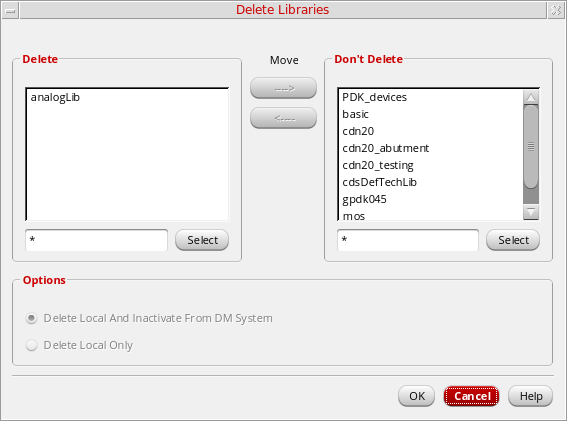
The Delete Libraries form appears. The selected library appears in the Delete list box.
-
To delete additional libraries:
-
Select a library from the Don’t Delete list box.
-
Click the left-facing Move arrow to move the selected libraries to the Delete list box.
-
Select one of the following Options:
-
Delete Local And Inactivate From DM System: Deletes a local copy of a library and the copy in the design management repository.
-
Delete Local Only: Deletes only your local copy of a library (not the checked in copy in the design management repository).
-
Click OK and then Yes in the confirmation dialog to perform the delete operation.
Related Topics
Delete Libraries Form
Deleting a Cell
Deleting a View
Return to top