
Hiding Cells and Showing Hidden Cells
You can hide a cell from the Cell list box of the Library Manager window. To do this, you need to perform the following steps:
-
Right-click the cell and select the Hide Cell option from the context-sensitive menu. Alternatively, you can select Edit – Hide Cell.
The Hide Cell command is disabled if the library is in read-only mode.
The Edit Category Hidden window is displayed. In the Cells section of this window, move the cell from Not in Category list box to In Category list box using the right arrow button.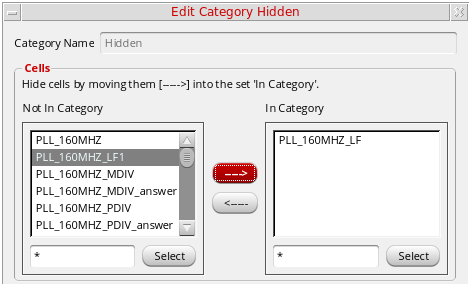
- Click OK.
The new Hidden category is created in the Category list box of the Library Manager window.
Alternatively, use the SKILL function ddRegHiddenCellsFunc to hide cells.
In case you hide the cells that are already placed in a design, you still can:
- Edit the existing instances
- Descend the existing instances
- View the existing instances in the netlist
- View the existing instances in LVS
Showing Hidden Cells
If you have the required permissions, you can show the hidden cells by performing the following steps:
- Right-click the Hidden category and select Modify from the context-sensitive menu. The Edit Category Hidden window is displayed.
- In the Cells section, move the cell from In Category list box to Not In Category list box using the left arrow button.
- Click OK.
Related Topics
Return to top