
Renaming a Library
- Open the Library Manager.
-
Select the library you want to rename.
Make sure no cell name or view name is selected. To deselect all cells and views, right-click in the Library list box.
To set preferences for Edit – Copy and Edit – Rename, see Setting Copy and Rename Preferences. -
Choose Edit – Rename.
The Rename Library form appears.
The name of the selected library appears in the From Library field. The Update Instances check box is selected by default.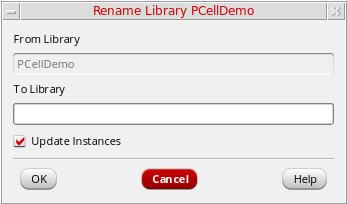
-
When Update Instances is selected, the Library Manager replaces all instances by the name in the From Library field with the name in the To Library field.
For example, with Update Instances selected, an instance of…/projectLib/iopin/symbolis renamed to…/myLib/iopin/symbol. (All instances ofprojectLibare changed tomyLib.) -
When Update Instances is unselected, the software leaves references to the From Library name unchanged.
If you renameprojectLibtomyLibwith Update Instances unselected, instances of…/projectLib/iopin/symbol(for example) remain the same such that they become unbound instances unless you replace theprojectLiblibrary.
-
When Update Instances is selected, the Library Manager replaces all instances by the name in the From Library field with the name in the To Library field.
-
In the To Library field, type a new name for the library.
- Click OK.
The system changes the name of the selected library (From Library) to the new name (To Library).
If the destination library already contains the
tech.db file, the source library's tech.db is not copied. Otherwise, while copying a source library to an existing library, the tech.db file associated with the source library also get copied to the destination library.Return to top