
Renaming a Cell
-
Select the cell you want to rename.
Make sure no view name is selected. (If you are in View – Lists mode, you can deselect all views by right-clicking in the Cell list box.) -
Choose Edit – Rename.
The Rename Cell form appears.
The name of the selected cell appears in the From Cell field.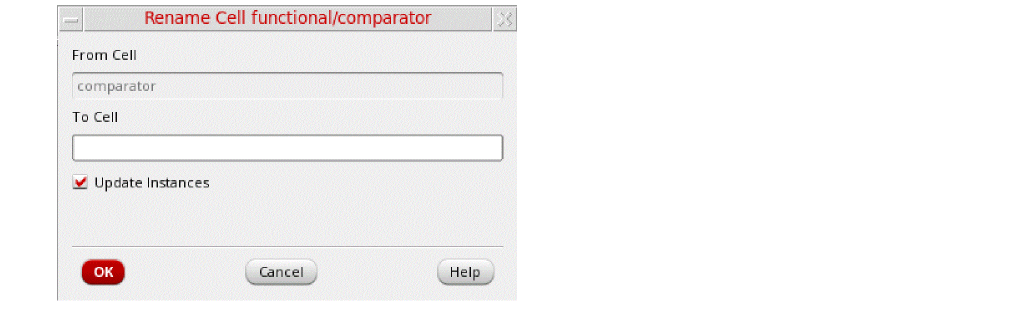 If the selected cell is a combined cell, the Edit – Rename command is not available. See Creating and Displaying a Combined Library for more information.
 -
In the To Cell field, type the new name for the cell.
The cell name cannot duplicate an existing cell name in the library.
You can set the maximum cell name length allowed by using theCDS_MAX_CELL_NAME_LENGTHenvironment variable. -
Deselect Update Instances.
- When Update Instances is selected (the default), the Library Manager replaces all instances having the From Cell name with the To Cell name.
- When Update Instances is unselected, the Library Manager keeps references to the From Cell name such that all placed instances of the From Cell continue to reference that name: Instances using the old (From Cell) name are unbound instances unless you replace them with the new (To Cell) cell.
- Click OK.
The Library Manager changes the name of the selected cell (From Cell) to the new name (To Cell).
Related Topics
Return to top