
This section describes how to complete the setup and installation for running license server on Amazon Elastic Compute Cloud (Amazon EC2), Google Compute Engine (GCE), and Microsoft Azure.
It includes the following topics:
Software Requirements (on Linux)
lsb-coreis required to run Flexera utilities, like lmutil and lmstat, as well as the server (lmgrd). On Red Hat instances, you can useredhat-lsb-core- Update
glibcto version 2.14 or above - Latest version of the License Server is SftShrTools 22.01-s002
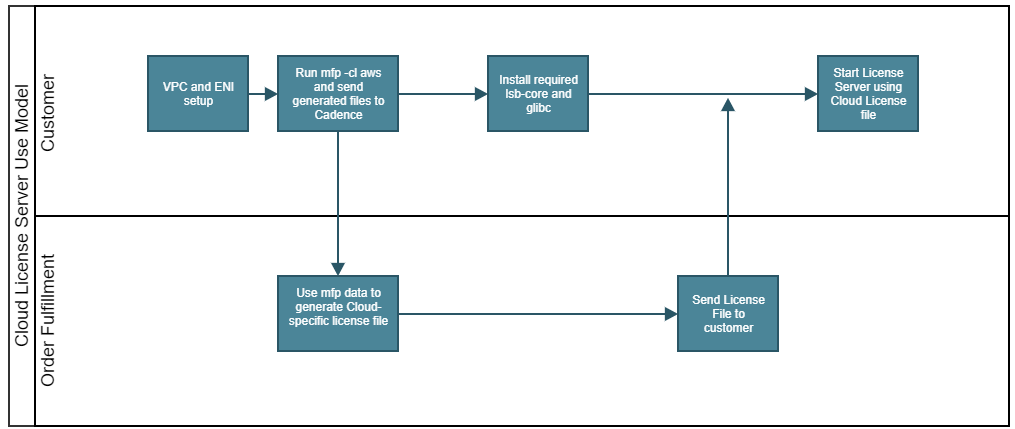
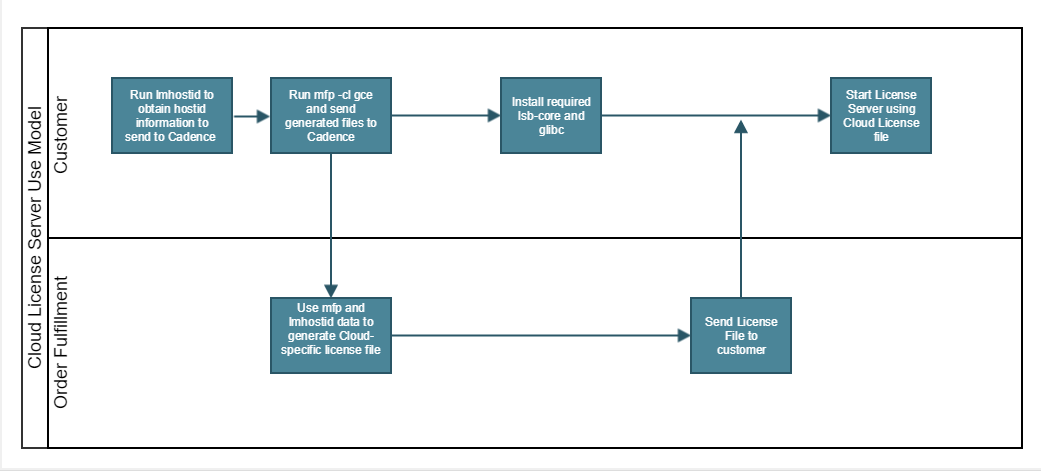
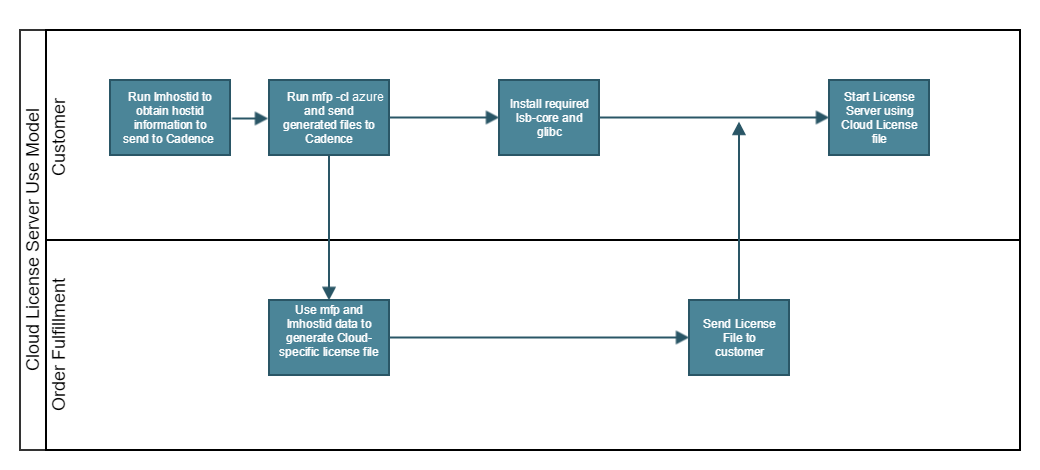
Cloud License Server Use Model
- The following image illustrates the cloud license server use model on Amazon EC2:
- The following image illustrates the cloud license server use model on Google Compute Engine:
- The following image illustrates the cloud license server use model on Microsoft Azure:
Setting Up VPC and ENI on Amazon EC2
Cadence requires a MAC address from an elastic network interface (ENI) to generate a License File.
Perform the following steps to set up the ENI:
- Set up the virtual private cloud (VPC) for the cloud environment within which the license server and clients will reside. Refer to Getting Started with Amazon VPC and Default VPC and Default Subnets on the Amazon documentation website for more information.
- Create an ENI and attach it to the Amazon web services (AWS) instance that will be used as the server within this VPC. Refer to Elastic Network Interfaces on the Amazon documentation website for more information.
Generating a License for Amazon EC2
Perform the following steps:
-
Once the ENI is created, run the
mfptool with the-cl awsoption to determine the MAC address to use as host ID, as shown below:[ec2-user@ip-172-17-33-91 ~]$ ./mfp -cl awsHost name: ip-172-17-33-91.us-west-2.compute.internalDomain name: us-west-2.compute.internalRunning mfp with Amazon EC2 cloud option2 hostids found for this machinePlease pick which of the following macs you would like to use. Enter a n umber from 1 to 21. 0a:3e:a3:f9:80:7e2. 0a:d5:e1:5b:10:161Generating text file: mfp_out.txt with this information
Generating XML file: mfp_out.xml with this informationPlease forward these files to Cadence Design Systems.Following is an example of the
mfpoutput generated on an Amazon EC2 instance:HostName=ip-172-17-33-91.us-west-2.compute.internalDomainName=us-west-2.compute.internalIPAddress=172.17.33.91CloudType=Amazon EC2UniqueID=eni-54f24455MAC=0a:3e:a3:f9:80:7e~~~~~~~~~~~~"mfp_out.txt" 6L, 178C -
Send the
mfp_out.txtandmfp_out.xmlfiles that are generated to a Cadence representative to generate the license.
Before starting the license server,
- Ensure that the ports for the license server and vendor daemon allow incoming connections.
- The port used for vendor daemon (
cdslmd) is randomly assigned. To assign a specific port, make the following change to your license file,
from: DAEMON cdslmd ./cdslmd
to: DAEMON cdslmd ./cdslmd PORT=6820 - Allow outgoing traffic to update1.cadence.com on port 443 or 80.
- Set the appropriate EC2 security group to control access to the license server and daemon ports. The related commands are listed on the Changing the Security Group page on the Amazon documentation website.
Although multiple ENIs can be attached to the same AWS instance, you should not run two instances of the license server on the same instance.
Migrating Amazon ENI Instances
Once license file is created with the ENI mac address, it works as a regular license file created with MAC addresses during the lifetime of the instance which uses the ENI. If the server needs to be hosted on a different Amazon instance, detach the ENI from the old instance and attach it to the new instance. Methods to detach and attach ENI are described on the following pages on the Amazon documentation website:
- Attaching a Network Interface When Launching an Instance
- Attaching a Network Interface to a Stopped or Running Instance
Generating a License for GCE
On Google Compute Engine, Cadence uses the instance ID for secondary verification. Hence, license server can be run only on the instance for which the license file is generated.
If the license server needs to be moved to another instance, a rehost, that is, a regeneration of license file with the mfp data from the new instance is required.
Perform the following steps on the GCE instance that will be used to run the server:
- Run the
lmhostidcommand to get the host ID or MAC address that will be used to generate license file. -
Run the
mfptool with the cloud option of GCE, as shown below:[hprachi@redhatgcplic01 ~]$ ./mfp -cl gceMultiple IP Addresses detected.**Use an IP adress that will not change over time.IP Addresse(s) are:1) 10.17.192.42) 10.17.200.4Pick an IP Address to use (Type in a number between 1 and 2):1Host name: redhatgcplic01Domain name: c.cdns-licensing.internalRunning mfp with Google Compute Engine optionFound instance idGenerating text file: mfp_out.txt with this informationGenerating XML file: mfp_out.xml with this informationPlease forward these files to Cadence Design Systems.Following is an example of the
mfpoutput generated for GCE:HostName=redhatgcplic01DomainName=c.cdns-licensing.internalIPAddress=10.17.192.4CloudType=Google GCEUniqueID=1379392967683858313~~~~~~~~~~~~~"mfp_out.txt" 5L, 133C
3. Provide the lmhostid information and mfp files generated to Cadence for license file generation.
Before starting the license server,
- Ensure that the ports for the license server and vendor daemon allow incoming connections.
- The port used for vendor daemon (cdslmd) is randomly assigned. To assign a specific port, make the following change to your license file,
from : DAEMON cdslmd ./cdslmd
to: DAEMON cdslmd ./cdslmd PORT=6820 - Allow outgoing traffic to update1.cadence.com on port 443 or 80
Generating a License for Microsoft Azure
Cadence uses the instance ID for secondary verification. Therefore, the license server can be run only on the instance for which the license file has been generated.
If the license server needs to be moved to another instance, a rehost, that is, a regeneration of license file with the mfp data from the new instance is required.
Perform the following steps on the Microsoft Azure instance that will be used to run the server:
- Run the
lmhostidcommand to get the host ID or MAC address that will be used to generate license file. -
Run the
mfptool with the azure cloud option of Microsoft Azure, as shown below:[user@LicenseLinTest02 64bit]$ ./mfp -cl azuremfp, 12.12-p001Copyright © 2012-2018 Cadence Design Systems, Inc. All rights reserved worldwide.Host name: LicenseLinTest02Domain name: lqjzxlatawcutbr4xiwkpfvhxf.dx.internal.cloudapp.netIPAddress: 10.17.31.135CloudType: Microsoft AzureUniqueID: f8202b22-3fa2-42ec-b816-4463a2761ed2Generating text file: mfp_out.txt with this informationGenerating XML file: mfp_out.xml with this informationPlease forward these files to Cadence Design Systems.Following is an example of the
mfpoutput generated for Microsoft Azure:[user@LicenseLinTest02 64bit]$ cat mfp_out.txtHostName=LicenseLinTest02DomainName=lqjzxlatawcutbr4xiwkpfvhxf.dx.internal.cloudapp.netIPAddress=10.17.31.135CloudType=Microsoft AzureUniqueID=f8202b22-3fa2-42ec-b816-4463a2761ed2
3. Provide the lmhostid information and mfp files generated to Cadence for license file generation.
Before starting the license server,
- Ensure that the ports for the license server and vendor daemon allow incoming connections.
- The port used for vendor daemon (cdslmd) is randomly assigned. To assign a specific port, make the following change to your license file:
from : DAEMON cdslmd ./cdslmd
to: DAEMON cdslmd ./cdslmd PORT=6820 - Allow outgoing traffic to update1.cadence.com on port 443 or 80