
The Move Command in the Array Assistant
You can move one or more instances by dragging and dropping them to their new locations either in the Pattern section of the Array Assistant or on the layout canvas.
The behavior of the move command depends on the mode set using the moveAsSwap environment variable.
-
When set to
t, Move as Swap mode is enabled, which is the default mode. When an instance is moved in this mode, the instances in the source and target cells are swapped, as shown below.
Instances that are selected for movement are highlighted in the layout canvas.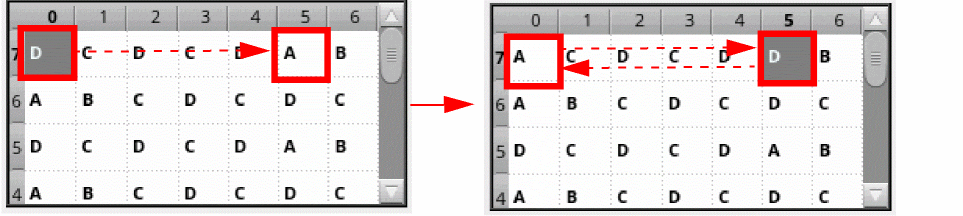
A similar behavior is observed while moving rows and columns in this mode. -
When set to
nil, Move as Insert mode is enabled. When an instance is moved in this mode, the instance first shifts horizontally, and then vertically, until the source location is back-filled.
Instances that are selected for movement in the Array Assistant are highlighted in the layout canvas.
In the following example, the source instance is moved horizontally to the target location. The other instances are shifted horizontally to fill the empty cell as shown below.
In the following example, the source instance is moved diagonally to the target location. The other instances are shifted horizontally and then vertically to fill the empty cell as shown below.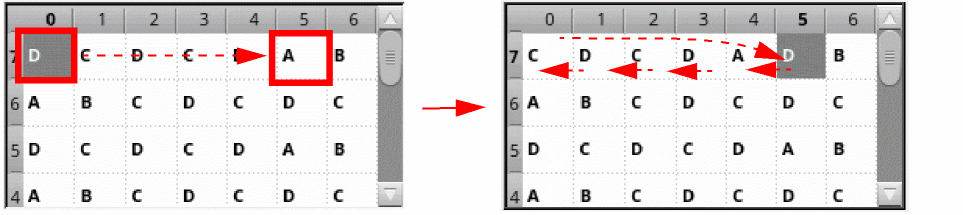
In the following example, instances in the source row are moved to the target location. The remaining rows are moved up one step at a time to fill the empty row as shown below.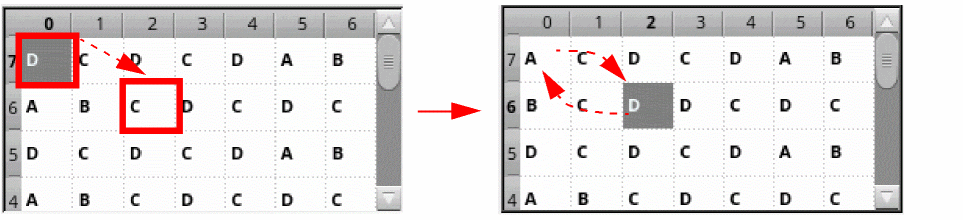
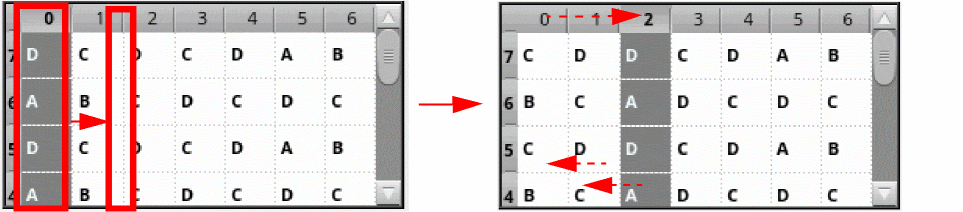
In the following example, the instances in the source column are moved to the target location. The remaining columns are moved horizontally one step at a time to fill the empty column as shown below.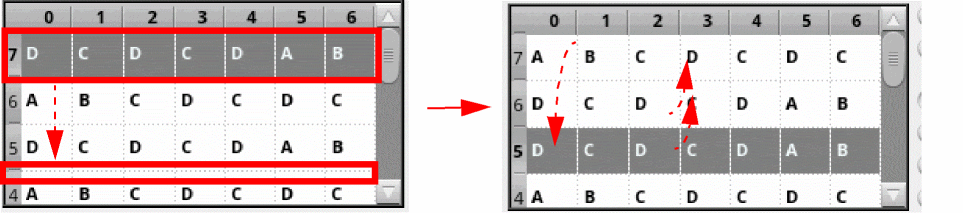
Related Topics
Swapping Cells, Rows, and Columns in the Array Assistant
Display Names in Array Assistant
Copying and Deleting Instances in the Array Assistant
Modgen Placement Settings in the Array Assistant
Return to top