
A
Graphical Pcells Form Descriptions
Define Parameterized Label Form
Define Parameterized Layer Form
Define Parameterized Path Form
Define Parameterized Polygon Form
Define Parameterized Rectangle Form
Define/Modify Inherited Parameters Form
Delete Conditional Inclusion Form
Delete Parameterized Layer Form
Delete Parameterized Path Form
Delete Parameterized Polygon Form
Delete Parameterized Property Form
Delete Parameterized Rectangle Form
Delete Reference Point by Path Form
Modify Conditional Inclusion Form
Modify Parameterized Label Form
Modify Parameterized Layer Form
Modify Repetition Along Shape Form
Reference Point by Path Endpoint Form
Reference Point by Parameter Form
Compile To Pcell Form
See Creating a Pcell from a Cellview for more information.
Function
is the name for the function property assigned to the Pcell.
Valid Values: transistor, contact, substrateContact, none
Default: transistor
Compile To Skill Form
See Creating a SKILL File from a Cellview for more information.
Library Name is the name of the library where the cellview is located.
Cell Name
is the name you assign to the cellview as it is defined in the SKILL file. Give it a name that is different from the layout cellview name. When you load the SKILL file, this new name is the one used for the new layout cell created.
Valid Values: any valid cellview name
View Name
is the view name of the current cellview.
Valid Values: layout, symbol, schematic, and any others defined in the technology file
File Name
is the path for the SKILL file. When you give the path for the SKILL file, do not put the file in the library where the cellview is located. This type of library is reserved for files created by the layout editor.
Valid Values: any directory other than a layout editor library
Conditional Inclusion Form
See Conditional Inclusion Commands for more information.
Name or Expression is the definition of the parameter or SKILL expression. When you place an instance of the Pcell, the Pcell program evaluates this expression to determine whether to include the specified objects.
- Be a single word starting with a letter
- Contain no special characters
- Be no more than 32 characters in length
Valid Values: any parameter definition or SKILL expression that evaluates to t or nil
Dependent Stretch
is the name of a previously defined stretch control line. You can set this stretch control line to be dependent on conditionally included objects.
Valid Values: name of any stretch control line
Adjustment to Stretch
is the amount the stretch control line stretches or compresses when the conditional objects are not included. Adjustment to stretch can be positive or negative.
Valid Values: integer or floating-point number
Default: 0.0
Define Parameterized Label Form
See Parameterized Label Commands for more information.
Label
is the definition of the text you want displayed.
Valid Values: any SKILL expression
Height
is the height of the text in user units (usually microns), or a SKILL expression.
Valid Values: any number greater than zero or a valid SKILL expression
Font
is the text font style you want to use.
Valid Values: europe, gothic, roman, script, stick

Transform
controls the orientation of the text. The default is 0 (no rotation), which is standard text orientation, left to right.
Valid Values:
Justification controls the origin of the text. For example, upperLeft sets the origin to the upper left corner of the text. When you enter a coordinate to place the text, the origin of the text appears at that coordinate.
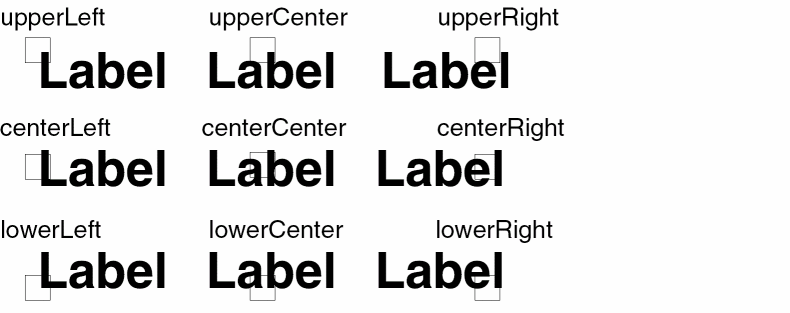
Drafting determines whether you can rotate text in all directions: when turned on, it prevents text from rotating more than 90 degrees, so it remains readable; when turned off, it lets you rotate text in all directions using the Transform button, including mirrored rotations that might be difficult to read.
Define Parameterized Layer Form
See Parameterized Layer Commands for more information.
Layer Parameter or Expression
is the definition for the parameter that controls the layer on which the selected objects are drawn.
Valid Values: any SKILL expression that evaluates to a string
Purpose Parameter or Expression
is the definition for the parameter that controls the purpose of the layer on which the selected objects are drawn. You must define a layer name parameter before you can define a purpose parameter.
Valid Values: any SKILL expression that evaluates to a string
Layer Mask Value or Expression specifies the mask color of the shapes in the parameterized layer. (ICADVM18.1 only)
Lock State Value or Expression specifies whether or not the shape’s mask color is locked. (ICADVM18.1 only)
Define Parameterized Path Form
See Parameterized Shapes Commands for more information.
Parameter Name
is the definition of the parameter controlling the vertexes of the path. The default name is coords and cannot be changed. Although you can have only one parameter name, you can associate multiple parameterized paths with a single parameter name by using this command more than once.
Valid Values: a SKILL symbol
Snap controls how line segments are drawn between points you enter.
orthogonal draws straight line segments connected at 90 degrees at each point.
diagonal draws straight line segments parallel to the X axis, Y axis, or at a 45-degree angle to the axes.
anyAngle draws straight lines at any angle.
Margin
is the amount to offset the centerline of the path from the digitized coordinates. Margin can be used only when Snap is set to orthogonal.
Valid Values: a positive or negative number or any SKILL expression that evaluates to a positive or negative number
Width
is the parameterized path width.
Valid Values: any SKILL expression
Define Parameterized Polygon Form
See Parameterized Shapes Commands for more information.
Parameter Name
is the definition of the parameter controlling the vertexes of the path. The default name is coords and cannot be changed. Although you can have only one parameter name, you can associate multiple parameterized paths with a single parameter name by using this command more than once.
Valid Values: a SKILL symbol
Snap controls how line segments are drawn between points you enter.
orthogonal draws straight line segments connected at 90 degrees at each point.
diagonal draws straight line segments parallel to the X axis, Y axis, or at a 45-degree angle to the axes.
anyAngle draws straight lines at any angle.
Margin
is the amount to offset the centerline of the path from the digitized coordinates. Margin can be used only when Snap is set to orthogonal.
Valid Values: a positive or negative number or any SKILL expression that evaluates to a positive or negative number
Width
is the parameterized path width.
Valid Values: any SKILL expression
Define Parameterized Rectangle Form
See Parameterized Shapes Commands for more information.
Parameter Name
is the definition of the parameter controlling the vertexes of the path. The default name is coords and cannot be changed. Although you can have only one parameter name, you can associate multiple parameterized paths with a single parameter name by using this command more than once.
Valid Values: a SKILL symbol
Snap controls how line segments are drawn between points you enter.
orthogonal draws straight line segments connected at 90 degrees at each point.
diagonal draws straight line segments parallel to the X axis, Y axis, or at a 45-degree angle to the axes.
anyAngle draws straight lines at any angle.
Margin
is the amount to offset the centerline of the path from the digitized coordinates. Margin can be used only when Snap is set to orthogonal.
Valid Values: a positive or negative number or any SKILL expression that evaluates to a positive or negative number
Width
is the parameterized path width.
Valid Values: any SKILL expression
Define/Modify Inherited Parameters Form
See Inherited Parameters Commands for more information.
The form lists each parameter and its current value. For each parameter, there is an inherit button. If you turn this button off, the parameter name and field are shaded and you cannot change the parameter value. If you turn this button on, the parameter name is bold and you can change the parameter value.
Valid Values: a name or any valid SKILL expression.
Delete Conditional Inclusion Form
See Including or Excluding Objects for more information.
Name or Expression is the definition of the parameter or SKILL expression. When you place an instance of the Pcell, the Pcell program evaluates this expression to determine whether to include the specified objects.
- Be a single word starting with a letter
- Contain no special characters
- Be no more than 32 characters in length
Valid Values: any parameter definition or SKILL expression that evaluates to t or nil
Dependent Stretch
is the name of a previously defined stretch control line. You can set this stretch control line to be dependent on conditionally included objects.
Valid Values: name of any stretch control line
Adjustment to Stretch
is the amount the stretch control line stretches or compresses when the conditional objects are not included. Adjustment to stretch can be positive or negative.
Valid Values: integer or floating-point number
Default: 0.0
Delete Parameterized Layer Form
See Parameterized Label Commands for more information.
Layer Parameter or Expression
is the definition for the parameter that controls the layer on which the selected objects are drawn.
Valid Values: any SKILL expression that evaluates to a string
Purpose Parameter or Expression
is the definition for the parameter that controls the purpose of the layer on which the selected objects are drawn. You must define a layer name parameter before you can define a purpose parameter.
Valid Values: any SKILL expression that evaluates to a string
Delete Parameterized Path Form
See Parameterized Shapes Commands for more information.
Parameter Name
is the definition of the parameter controlling the vertexes of the path. The default name is coords and cannot be changed. Although you can have only one parameter name, you can associate multiple parameterized paths with a single parameter name by using this command more than once.
Valid Values: a SKILL symbol
Snap controls how line segments are drawn between points you enter.
orthogonal draws straight line segments connected at 90 degrees at each point.
diagonal draws straight line segments parallel to the X axis, Y axis, or at a 45-degree angle to the axes.
anyAngle draws straight lines at any angle.
Margin
is the amount to offset the centerline of the path from the digitized coordinates. Margin can be used only when Snap is set to orthogonal.
Valid Values: a positive or negative number or any SKILL expression that evaluates to a positive or negative number
Width
is the parameterized path width.
Valid Values: any SKILL expression
Delete Parameterized Polygon Form
See
Parameter Name
is the definition of the parameter controlling the vertexes of the path. The default name is coords and cannot be changed. Although you can have only one parameter name, you can associate multiple parameterized paths with a single parameter name by using this command more than once.
Valid Values: a SKILL symbol
Snap controls how line segments are drawn between points you enter.
orthogonal draws straight line segments connected at 90 degrees at each point.
diagonal draws straight line segments parallel to the X axis, Y axis, or at a 45-degree angle to the axes.
anyAngle draws straight lines at any angle.
Margin
is the amount to offset the centerline of the path from the digitized coordinates. Margin can be used only when Snap is set to orthogonal.
Valid Values: a positive or negative number or any SKILL expression that evaluates to a positive or negative number
Width
is the parameterized path width.
Valid Values: any SKILL expression
Delete Parameterized Property Form
See Parameterized Property Commands for more information.
Property Name
is a property name you define.
Valid Values: any SKILL expression that evaluates to a string
Name or Expression for Property
is a name or expression for the value of the property being defined.
Valid Values: any SKILL expression that evaluates to a string
Delete Parameterized Rectangle Form
See
Parameter Name
is the definition of the parameter controlling the vertexes of the path. The default name is coords and cannot be changed. Although you can have only one parameter name, you can associate multiple parameterized paths with a single parameter name by using this command more than once.
Valid Values: a SKILL symbol
Snap controls how line segments are drawn between points you enter.
orthogonal draws straight line segments connected at 90 degrees at each point.
diagonal draws straight line segments parallel to the X axis, Y axis, or at a 45-degree angle to the axes.
anyAngle draws straight lines at any angle.
Margin
is the amount to offset the centerline of the path from the digitized coordinates. Margin can be used only when Snap is set to orthogonal.
Valid Values: a positive or negative number or any SKILL expression that evaluates to a positive or negative number
Width
is the parameterized path width.
Valid Values: any SKILL expression
Delete Reference Point Form
See Reference Point Commands for more information.
Parameter Name
is the parameter name assigned to the reference point.
Valid Values: any SKILL symbol
Delete Reference Point by Path Form
See Reference Point Commands for more information.
Path Parameter Name
is the name of the parameter controlling the vertexes of the path. The default name is coords and cannot be changed. Although you can have only one parameter name in a single cellview, you can associate multiple parameterized paths with a single parameter name by using this command more than once.
Endpoint of the Path is the end of the path you want to use as the reference point.
first indicates the beginning of the path (the first point entered).
last indicates the end of the path (the last point entered).
Edit Parameters Form
See Parameters Commands for more information.
Parameter Name is the name you assigned to each parameter in the current cellview. You cannot change this field.
Data Type
is the data type of each parameter.
Valid Values: Integer, Float, String, Boolean, ILList
Value
is the default value the system uses for the parameter when you place an instance.
Valid Values: any value consistent with the data type specified in the Data Type field
Reset to Defaults resets the Data Type and Value fields for a parameter back to the value defined for the parameter when the parameter was added to the master Pcell.
Modify Conditional Inclusion Form
See Conditional Inclusion Commands for more information.
Name or Expression is the definition of the parameter or SKILL expression. When you place an instance of the Pcell, the Pcell program evaluates this expression to determine whether to include the specified objects.
- Be a single word starting with a letter
- Contain no special characters
- Be no more than 32 characters in length
Valid Values: any parameter definition or SKILL expression that evaluates to t or nil
Dependent Stretch
is the name of a previously defined stretch control line. You can set this stretch control line to be dependent on conditionally included objects.
Valid Values: name of any stretch control line
Adjustment to Stretch
is the amount the stretch control line stretches or compresses when the conditional objects are not included. Adjustment to stretch can be positive or negative.
Valid Values: integer or floating-point number
Default: 0.0
Modify Parameterized Label Form
See Parameterized Label Commands for more information.
Label
is the definition of the text you want displayed.
Valid Values: any SKILL expression
Height
is the height of the text in user units (usually microns), or a SKILL expression.
Valid Values: any number greater than zero or a valid SKILL expression
Font
is the text font style you want to use.
Valid Values: europe, gothic, roman, script, stick

Transform
controls the orientation of the text. The default is 0 (no rotation), which is standard text orientation, left to right.
Valid Values:
Justification controls the origin of the text. For example, upperLeft sets the origin to the upper left corner of the text. When you enter a coordinate to place the text, the origin of the text appears at that coordinate.
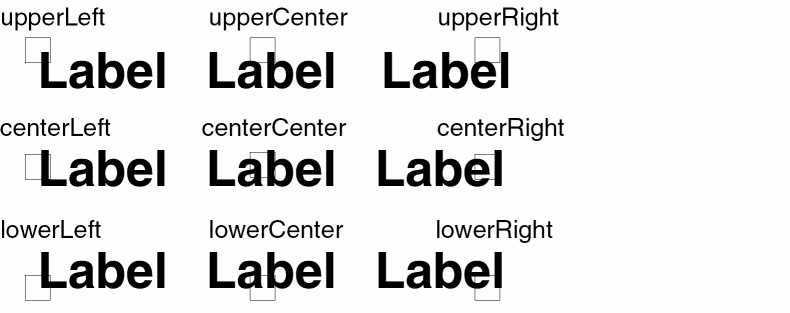
Drafting determines whether you can rotate text in all directions: when turned on, it prevents text from rotating more than 90 degrees, so it remains readable; when turned off, it lets you rotate text in all directions using the Transform button, including mirrored rotations that might be difficult to read.
Modify Parameterized Layer Form
See Parameterized Layer Commands for more information.
Layer Parameter or Expression
is the definition for the parameter that controls the layer on which the selected objects are drawn.
Valid Values: any SKILL expression that evaluates to a string
Purpose Parameter or Expression
is the definition for the parameter that controls the purpose of the layer on which the selected objects are drawn. You must define a layer name parameter before you can define a purpose parameter.
Valid Values: any SKILL expression that evaluates to a string
Layer Mask Value or Expression specifies the mask color of the shapes in the parameterized layer. (ICADVM18.1 only)
Lock State Value or Expression specifies whether or not the shape’s mask color is locked. (ICADVM18.1 only)
For more information, see Define Parameterized Layer Form.
Modify Repeat in X Form
See Repetition Along Shape Commands for more information.
Stepping Distance
is the centerline-to-centerline distance (pitch) you want between repeated objects. To step objects to the left, use a negative number, such as -(length + 4).
You can use a SKILL expression that is dependent on other parameters in the Pcell, such as length + 4 or an expression that uses technology-file parameters, such as
techGetSpacingRule( techGetTechFile(pcCellView)
                    "minWidth"
                    list("via" "drawing")
)
 +
techGetSpacingRule(
                    techGetTechFile(pcCellView)
                    "minSpacing"
                    list("via" "drawing")
)
Valid Values: any SKILL expression
Number of Repetitions
is the number of times you want the specified objects repeated. You can use a number or an expression that is dependent on other parameters of the Pcell, such as length.
Valid Values: any SKILL expression
Dependent Stretch
is the name of a previously defined stretch control line. If you specify a dependent stretch control line, stretching takes place after repetition.
Valid Values: any stretch control line name
Adjustment to Stretch
is the amount the program adjusts the reference dimension of the stretch parameter. The expression for Adjustment to Stretch usually uses the values in Stepping Distance and Number of Repetitions.
Valid Values: any SKILL expression
Default: (fix(pcRepeatX) -1) * pcStepX
Modify Repeat in X and Y Form
See Repetition Along Shape Commands for more information.
X Stepping Distance is the horizontal centerline-to-centerline distance (pitch) you want between repeated objects.
You can use a SKILL expression that is dependent on other parameters in the Pcell, such as
width+4
or an expression that uses technology-file parameters, such as
pcTechFile(
            techGetSpacingRule(
                                techGetTechFile(pcCellView)
            "min Width" list("via" "drawing")
            )
         +     techGetSpacingRule(
                                techGetTechFile(pcCellView)
            "min Spacing" list("via" "drawing")
            )
)
Valid Values: any SKILL expression
Y Stepping Distance is the vertical centerline-to-centerline distance (pitch) you want between repeated objects. You can use a number or an expression that is dependent on other parameters in the Pcell or an expression that uses technology file parameters. Valid Values: any SKILL expression
Number of X Repetitions
is the number of times you want the objects repeated horizontally. You can use a number or an expression that is dependent on other parameters; for example, the number of repetitions for contacts in a multigate transistor might be gates+1.
Valid Values: any SKILL expression
Number of Y Repetitions is the number of times you want the objects repeated vertically. You can use a number or an expression that is dependent on other parameters, such as the width of the gates. Valid Values: any SKILL expression
Dependent X Stretch is the name of a previously defined horizontal stretch control line. If you specify a dependent stretch control line, stretching takes place after repetition. Valid Values: any stretch control line name
Dependent Y Stretch is the name of a previously defined vertical stretch control line. If you specify a dependent stretch control line, stretching takes place after repetition. Valid Values: any stretch control line name
Adjustment to X Stretch
is the amount added to or subtracted from the reference dimension of the stretch parameter. This expression usually uses the values in Stepping Distance and Number of Repetitions.
Valid Values: any SKILL expression
Default: (fix(pcRepeatX) -1) * pcStepX)
Adjustment to Y Stretch
is the amount added or subtracted from the reference dimension of the stretch parameter. This expression usually uses the values in Stepping Distance and Number of Repetitions.
Valid Values: any SKILL expression
Default: (fix(pcRepeatY) -1) * pcStepY)
Modify Repeat in Y Form
See Repetition Along Shape Commands for more information.
Stepping Distance is the centerline-to-centerline distance (pitch) you want between repeated objects. To step objects downward, use a negative number.
You can use a SKILL expression that is dependent on other parameters in the Pcell, such as width/6 or an expression that uses technology-file parameters, such as
pcTechFile(
            techGetSpacingRule(
                                techGetTechFile(pcCellView)
            min Width" list("via" "drawing")
            )
         +     techGetSpacingRule(
                                techGetTechFile(pcCellView)
            "min Spacing" list("via" "drawing")
            )
)
Valid Values: any SKILL expression
Number of Repetitions
is the number of times you want the objects repeated. You can use a number or an expression that is dependent on other parameters of the Pcell, such as width.
Valid Values: any SKILL expression
Dependent Stretch
is the name of a previously defined stretch control line. If you specify a dependent stretch control line, stretching takes place after repetition.
Valid Values: any stretch control line name
Adjustment to Stretch
is the amount the program adds or subtracts from the reference dimension of the stretch parameter. This expression usually uses the values in Stepping Distance and Number of Repetitions.
Valid Values: any SKILL expression
Default: (fix(pcRepeatY) -1) * pcStepY
Modify Repetition Along Shape Form
See Repetition Along Shape Commands for more information.
Parameter Name
is the name of the parameter controlling the vertexes of the shape. The default name is coords and cannot be changed. Although you can have only one parameter name, you can associate multiple parameterized shapes with a single parameter name by using this command more than once.
Stepping Distance
is the centerline-to-centerline distance (pitch) you want between the repeated objects.
Valid Values: any SKILL expression
Start Offset
is the gap the Pcell program leaves from the first vertex of the shape to the first repeated object.
Valid Values: any SKILL expression
End Offset is the gap the Pcell program leaves from the last repeated object to the last entered vertex of the shape. Valid Values: any SKILL expression
Parameterized Property Form
See Parameterized Property Commands for more information.
Property Name
is a property name you define.
Valid Values: any SKILL expression that evaluates to a string
Name or Expression for Property
is a name or expression for the value of the property being defined.
Valid Values: any SKILL expression that evaluates to a string
Reference Point by Path Endpoint Form
See Reference Point Commands for more information.
Path Parameter Name
is the name of the parameter controlling the vertexes of the path. The default name is coords and cannot be changed. Although you can have only one parameter name in a single cellview, you can associate multiple parameterized paths with a single parameter name by using this command more than once.
Endpoint of the Path is the end of the path you want to use as the reference point.
first indicates the beginning of the path (the first point entered).
last indicates the end of the path (the last point entered).
Reference Point by Parameter Form
See Reference Point Commands for more information.
Parameter Name
is the parameter name assigned to the reference point.
Valid Values: any SKILL symbol
Repeat in X Form
See Repetition Commands for more information.
Stepping Distance
is the centerline-to-centerline distance (pitch) you want between repeated objects. To step objects to the left, use a negative number, such as -(length + 4).
You can use a SKILL expression that is dependent on other parameters in the Pcell, such as length + 4 or an expression that uses technology-file parameters, such as
techGetSpacingRule( techGetTechFile(pcCellView)
                    "minWidth"
                    list("via" "drawing")
)
 +
techGetSpacingRule(
                    techGetTechFile(pcCellView)
                    "minSpacing"
                    list("via" "drawing")
)
Valid Values: any SKILL expression
Number of Repetitions
is the number of times you want the specified objects repeated. You can use a number or an expression that is dependent on other parameters of the Pcell, such as length.
Valid Values: any SKILL expression
Dependent Stretch
is the name of a previously defined stretch control line. If you specify a dependent stretch control line, stretching takes place after repetition.
Valid Values: any stretch control line name
Adjustment to Stretch
is the amount the program adjusts the reference dimension of the stretch parameter. The expression for Adjustment to Stretch usually uses the values in Stepping Distance and Number of Repetitions.
Valid Values: any SKILL expression
Default: (fix(pcRepeatX) -1) * pcStepX
Repeat in X and Y Form
See Repetition Commands for more information.
X Stepping Distance is the horizontal centerline-to-centerline distance (pitch) you want between repeated objects.
You can use a SKILL expression that is dependent on other parameters in the Pcell, such as
width+4
or an expression that uses technology-file parameters, such as
pcTechFile(
            techGetSpacingRule(
                                techGetTechFile(pcCellView)
            "min Width" list("via" "drawing")
            )
         +     techGetSpacingRule(
                                techGetTechFile(pcCellView)
            "min Spacing" list("via" "drawing")
            )
)
Valid Values: any SKILL expression
Y Stepping Distance is the vertical centerline-to-centerline distance (pitch) you want between repeated objects. You can use a number or an expression that is dependent on other parameters in the Pcell or an expression that uses technology file parameters. Valid Values: any SKILL expression
Number of X Repetitions
is the number of times you want the objects repeated horizontally. You can use a number or an expression that is dependent on other parameters; for example, the number of repetitions for contacts in a multigate transistor might be gates+1.
Valid Values: any SKILL expression
Number of Y Repetitions is the number of times you want the objects repeated vertically. You can use a number or an expression that is dependent on other parameters, such as the width of the gates. Valid Values: any SKILL expression
Dependent X Stretch is the name of a previously defined horizontal stretch control line. If you specify a dependent stretch control line, stretching takes place after repetition. Valid Values: any stretch control line name
Dependent Y Stretch is the name of a previously defined vertical stretch control line. If you specify a dependent stretch control line, stretching takes place after repetition. Valid Values: any stretch control line name
Adjustment to X Stretch
is the amount added to or subtracted from the reference dimension of the stretch parameter. This expression usually uses the values in Stepping Distance and Number of Repetitions.
Valid Values: any SKILL expression
Default: (fix(pcRepeatX) -1) * pcStepX)
Adjustment to Y Stretch
is the amount added or subtracted from the reference dimension of the stretch parameter. This expression usually uses the values in Stepping Distance and Number of Repetitions.
Valid Values: any SKILL expression
Default: (fix(pcRepeatY) -1) * pcStepY)
Repeat in Y Form
See Repetition Commands for more information.
Stepping Distance is the centerline-to-centerline distance (pitch) you want between repeated objects. To step objects downward, use a negative number.
You can use a SKILL expression that is dependent on other parameters in the Pcell, such as width/6 or an expression that uses technology-file parameters, such as
pcTechFile(
            techGetSpacingRule(
                                techGetTechFile(pcCellView)
            min Width" list("via" "drawing")
            )
         +     techGetSpacingRule(
                                techGetTechFile(pcCellView)
            "min Spacing" list("via" "drawing")
            )
)
Valid Values: any SKILL expression
Number of Repetitions
is the number of times you want the objects repeated. You can use a number or an expression that is dependent on other parameters of the Pcell, such as width.
Valid Values: any SKILL expression
Dependent Stretch
is the name of a previously defined stretch control line. If you specify a dependent stretch control line, stretching takes place after repetition.
Valid Values: any stretch control line name
Adjustment to Stretch
is the amount the program adds or subtracts from the reference dimension of the stretch parameter. This expression usually uses the values in Stepping Distance and Number of Repetitions.
Valid Values: any SKILL expression
Default: (fix(pcRepeatY) -1) * pcStepY
Repetition Along Shape Form
See Repetition Along Shape Commands for more information.
Parameter Name
is the name of the parameter controlling the vertexes of the shape. The default name is coords and cannot be changed. Although you can have only one parameter name, you can associate multiple parameterized shapes with a single parameter name by using this command more than once.
Stepping Distance
is the centerline-to-centerline distance (pitch) you want between the repeated objects.
Valid Values: any SKILL expression
Start Offset
is the gap the Pcell program leaves from the first vertex of the shape to the first repeated object.
Valid Values: any SKILL expression
End Offset is the gap the Pcell program leaves from the last repeated object to the last entered vertex of the shape. Valid Values: any SKILL expression
Stretch in X Form
See Stretch Commands for more information.
Name or Expression for Stretch
is a parameter name or SKILL expression. A parameter name, such as length, must
- Be a single word starting with a letter
- Contain no special characters
- Be no more than 32 characters in length
When you specify an expression, the environment variable stretchPCellApplyToName controls how the system uses the Reference Dimension (default) field and the Minimum and Maximum fields. The stretchPCellApplyToName environment variable is set to t by default. For more information about this variable, see Applying Default, Minimum, and Maximum Values.
Valid Values: any name or SKILL expression
Reference Dimension (Default)
is the default value for the stretch control line. You typically use a measurement from an object in the cell, such as the length or width of a gate. When you place a Pcell, the system subtracts the
Valid Values: integer or floating-point number
Default: length of the shortest edge crossed by the stretch control line
Stretch Direction is the direction you want objects in the cellview to stretch.
right stretches objects to the right.
left stretches objects to the left.
right and left stretches objects in each direction half the total stretch value.
Stretch Horizontally Repeated Figures stretches objects marked for repetition in the X direction. By default, objects in repetition groups are not stretched.
Minimum Value
specifies the smallest value you can use to stretch this Pcell. If you specify a value smaller than the minimum, the Pcell program uses the previous value.
Valid Values: integer or floating-point number
Default: 0.0 (no range checking)
Maximum Value specifies the largest value you can use to stretch this Pcell. If you specify a value greater than the maximum, the Pcell program uses the previous value. Valid Values: integer or floating-point number Default: 0.0 (no range checking)
Stretch in Y Form
See Stretch Commands for more information.
Name or Expression for Stretch
is a parameter name or SKILL expression. A parameter name, such as length, must
- Be a single word starting with a letter
- Contain no special characters
- Be no more than 32 characters in length
When you specify an expression, the environment variable stretchPCellApplyToName controls how the system uses the Reference Dimension (default) field and the Minimum and Maximum fields. The stretchPCellApplyToName environment variable is set to t by default. For more information about this variable, see Applying Default, Minimum, and Maximum Values.
Valid Values: any name or SKILL expression
Reference Dimension (Default)
is the default value for the stretch control line. You typically use a measurement from an object in the cell, such as the length or width of a gate. When you place a Pcell, the system subtracts the
Valid Values: integer or floating-point number
Default: length of the shortest edge crossed by the stretch control line
Stretch Direction is the direction you want objects in the cellview to stretch.
down stretches objects downward.
up and down stretches objects in each direction half the total stretch value.
Stretch Vertically Repeated Figures stretches objects marked for repetition in the Y direction. By default, objects in repetition groups are not stretched.
Minimum Value
specifies the smallest value you can use to stretch this Pcell. If you specify a value smaller than the minimum, the Pcell program uses the previous value.
Valid Values: integer or floating-point number
Default: 0.0 (no range checking)
Maximum Value specifies the largest value you can use to stretch this Pcell. If you specify a value greater than the maximum, the Pcell program uses the previous value. Valid Values: integer or floating-point number Default: 0.0 (no range checking)
Ultra Pcell Form
See Make Ultra Pcell Command for more information.
Selector Parameter is the name of the parameter used to select the layout.
There are illegal parameter names such as type, objType, name, cell, and status. These are reserved as CDBA (Cadence database) query keywords. If you use one of these names, the ultra Pcell generator prompts you for another name.
Library, Cell, and View are the library, cell, and view names of the final compiled ultra Pcell.
# of Cells displays the total number of cells making up this ultra Pcell.
Add Cell displays more of the ultra Pcell form that lets you add another cell.
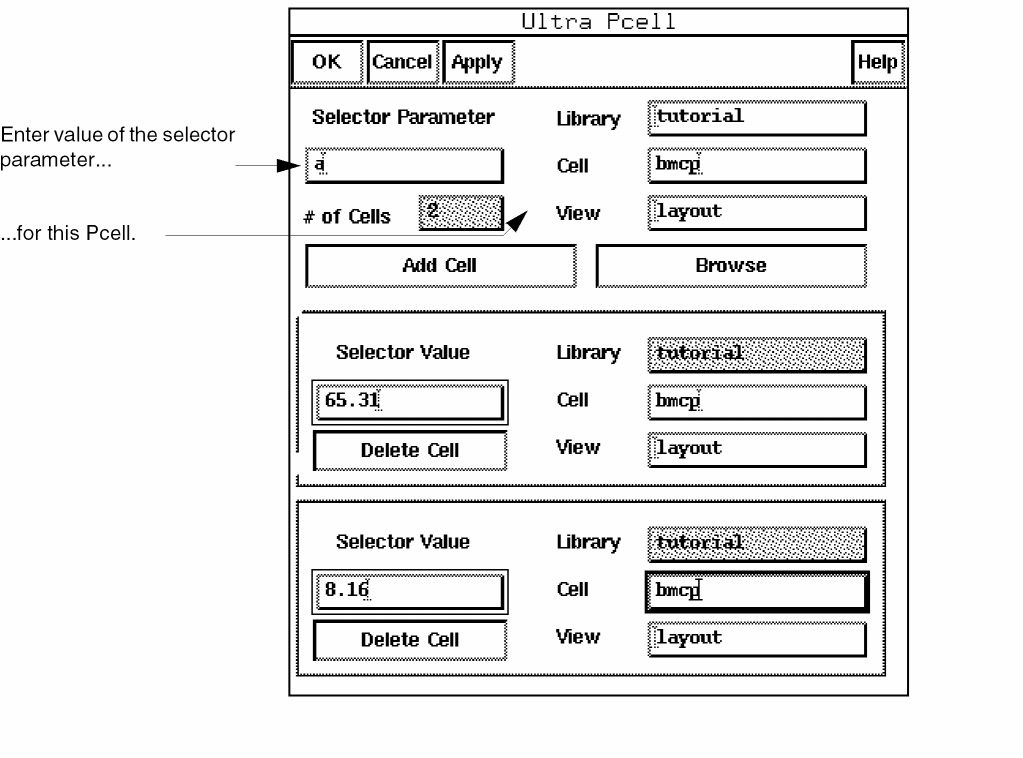
Browse opens the Browser, which lets you select the cell and view.
Selector Value is the value of the selector parameter to be used to generate the desired layout.
Library displays the library of this cell.
Cell and View are the cell and view name of the Pcell.
Delete Cell removes that cell.
Return to top