
4
Creating SKILL Parameterized Cells
You can create Pcells in an ASCII file using SKILL instead of by using the graphical user interface. Complex Pcells are easier to create and maintain with SKILL than with the graphical interface.
This chapter contains the following information:
- The pcDefinePCell Function
- Using the pcCellView Variable
- Using the SKILL Operator ~> with Pcells
- Defining Parameter Values
- Building Geometries
- Creating Instances within Pcells
- Building Nets, Terminals, and Pins
- Accessing Technology File Data
- Variable Scoping
- Schematic Symbol Pcells
- Advantages of ROD Functions in Pcell
The pcDefinePCell Function
The pcDefinePCell function lets you pass a SKILL definition for a Pcell to the Pcell compiler. This gives you another way to create Pcells. pcDefinePCell creates a Pcell master. This is the same result you get when you compile a graphical Pcell using Pcell – Compile – To Pcell in a layout window.
Each call to pcDefinePCell creates one Pcell master cellview. You can create one source code file for each Pcell or define several Pcells in one file. Either way, use the load(filename) command to load and run pcDefinePCell.
When you compile Pcell SKILL code, the compiler attaches the compiled code to the master cell. You do not need the source file containing the pcDefinePCell calls to be able to use your Pcell. But save the source file so you can revise it later.
The pcDefinePCell function passes three arguments to the Pcell compiler. Each argument is a list. For complete syntax and examples, see
Using the pcCellView Variable
pcCellView is an internal variable automatically created by pcDefinePCell. pcCellView contains the dbID (database identification) of the cell you are creating. Within the body of your Pcell code, use the pcCellView variable as the cellview identifier for which you create objects. For convenience, you might assign pcCellView to a variable with a shorter name; for example, cv=pcCellView.
Using the SKILL Operator ~> with Pcells
When you use the SKILL operator ~> to access information about the master cell of a Pcell instance, you must look two levels above the instance. If you look at only one level above, you access information about the Pcell submaster.
For example, for the instance I1 of the Pcell master mux2, you retrieve the database identity (dbID) of the mux2 Pcell master with the following statement:
I1~>master~>superMaster
However, if you use the following statement:
I1~>master
then, you can retrieve the dbID for the Pcell submaster.
Defining Parameter Values
You must specify all parameters that affect the Pcell in the pcDefinePCell statement. You must also assign a default value for every parameter.
The values of parameters on a Pcell instance can be assigned in any of the following ways:
-
On the instance itself
You can assign values to parameters when you place an instance. These values override any default values that might be defined. If you assign a value when you place an instance, the value is stored as a property on the instance and does not apply to other instances. -
Using CDF
You can create a Component Description Format (CDF) description to specify the value for a Pcell parameter. You can create CDFs for a cell or for a whole library. CDFs defined for a cell apply to all cellviews of that cell; for example, parameters shared by schematic and layout cellviews. CDFs defined for a library apply to all cells in the library.You must set theFor example,?storeDefaultargument of thecdfCreateParamfunction toyesto store the default value of a user CDF parameter as a parameter attribute on the Pcell.cdf = cdfCreateUserCellCDF( ddGetObj( samplelib pmos5v_mac ) )
cdfCreateParam(cdf
 ?name lpp
 ?defValue wire drawing
 ?type string
 ?display t
 ?prompt lpp
 ?storeDefault yes)
Here, the Pcell stores the default value of the CDF parameterlpp, that is,wire drawing. -
In the
pcDefinePCellcode
You must assign default values for parameters in the parameter declaration section of yourpcDefinePCellstatement. Values defined in thepcDefinePCellstatement are stored with the Pcell master cellview.
In the following example, the parameterswidth,length, andnumGatesare defined and assigned defaults:pcDefinePCell( list( ddGetObj( "pcellLib") "muxPcell" "layout") ; parameters and their optional default values: list( ( width “float” 1.0) ( length “float” 0.75) ( numGates “int” 1) ) ;end of parameter list
The system looks for the values of parameters in a specific order. When the system finds a value, it stops looking, so where you define or assign values determine which value has highest priority.
The system looks for the value of parameters in the following order:
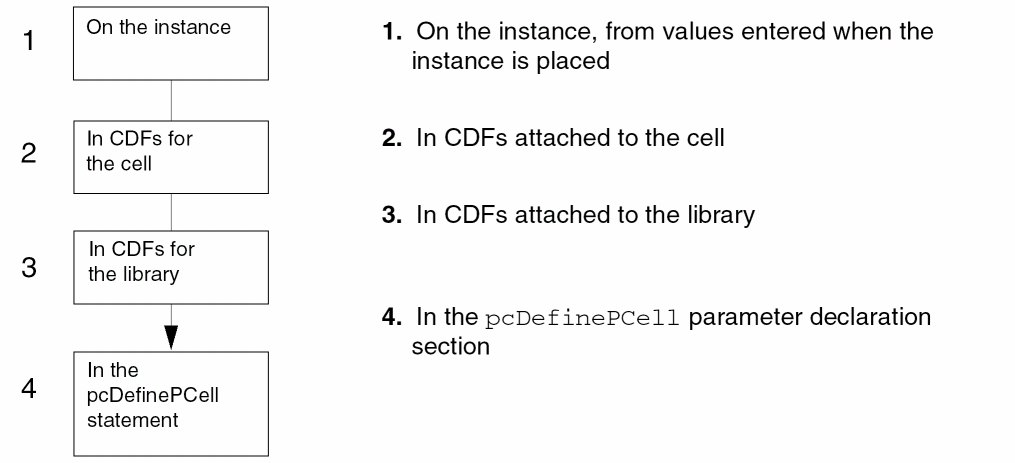
pcDefinePCell code (number 4 in the image) and also in the CDF of the Pcell (number 2 in the image), ensure that the settings match. Otherwise, the Create Instance and Edit Instance forms will not work properly. In such cases, you can use the Debug CDF tool to identify and fix the issue.
If you prefer to get parameter default values from a library or technology file, you can access properties within the parameter declaration section of the pcDefinePCell statement as shown in the following example.
Example of Setting Parameter Values
In this example, the first line accesses a library and the second line accesses a technology file.

Building Geometries
You can use the following procedures to build shapes in a Pcell. Refer to Virtuoso Design Environment SKILL Reference for details about these procedures.
dbCreateLine(d_cellView(tx_layer[t_purpose])l_points)
dbCreatePath(d_cellView(tx_layer[t_purpose])l_pointsx_widths[t_pathStyle])
dbCreatePolygon(d_cellView(tx_layer[t_purpose])l_points)
dbCreateRect(d_cellView(tx_layer[t_purpose])l_bBox)
dbCreateEllipse(d_cellView(tx_layer[t_purpose])l_bBox)
dbCreateDonut(d_cellView(tx_layer[t_purpose])l_pointx_outRx_holeR)
dbCreateLabel(d_cellView(tx_layer[t_purpose])l_pointt_labelt_justt_orientt_fontx_height)
Follow the guidelines below when using dbCreate functions to build objects:
-
tx_layer must specify either the mask layer number or a layer name. For example, to build a rectangle on the layer metal1, you might specify
dbCreateRect( pcCellView "metal1" list( x1:y1 x2:y2))
-
The points list for paths and polygons must be a list of coordinate pairs, where each pair is a list containing two elements. The notation
x:yis equivalent tolist(x y). - Rectangles and ellipses are defined with bounding boxes. A bounding box is specified as a list of coordinate pairs, where the first pair refers to the lower left corner and the second pair refers to the upper right corner.
-
You can use analog design-style labels, such as
cdsName(),cdsParam(1),cdsParam(2)to display information about the instance. Labels are controlled by the CDF label set attributes. Refer to Component Description Format User Guide for more information.
For the labels to be evaluated correctly, you must setlabelTypeto"ILLabel"as shown in the following example:label = dbCreateLabel( pcCellView ’("text" "drawing") x:y "cdsName()" "lowerLeft" "R0" "stick" 5.0 ) label~>labelType = "ILLabel"
-
The
pcFixfunction lets you correct machine-dependent round-off error. If the argument ofpcFixis no more than0.001away from an integer value,pcFixreturns the integer value. Here are some examples:
Creating Instances within Pcells
It is often useful to create instances of other cells within a Pcell. You can also create Pcell instances within a Pcell. For example, inside your Pcell code, you can create the following:
-
Get the cellview ID of the cell to add as an instance:
cellId = dbOpenCellViewByType(
gt_libt_cellNamelt_viewName) -
Create an instance of this cell:
inst = dbCreateInst(
d_cellViewd_masternill_pointt_orient1) -
If the instance is a Pcell, use
inst = dbCreateParamInst(
d_cellViewd_masternill_pointt_orient1 list( list(param1Name"float" 10.) list(param2Name"string" "some string" )) ; close list
) ; close dbCreateParamInst
Building Nets, Terminals, and Pins
If you plan to use another tool that deals with layout connectivity, such as a router, device level editor, microwave extractor, or online extractor, you need to define the pins on your component layout cellviews. The pins in the layout cellview must match the pins in the schematic symbol cellview. The following steps show how to define pins in a layout Pcell.
-
Create the shape that will serve as the pin.
The shape is usually a rectangle.fig = dbCreateRect(
d_cellViewtx_layerlist(x1:y1x2:y2)) -
Create the net to which the pin attaches.
In this example, the pin namen1matches the name of the corresponding pin in the schematic symbol for this cell:net = dbCreateNet(
d_cellView"n1") -
Create a terminal on the same net.
The terminal must have the same name as the net and match the terminal type. In this example, the terminal type isinputOutput, the same terminal type as the corresponding pin in the schematic symbol:trm = dbCreateTerm(
d_net"n1" "inputOutput") -
Create a pin:
pin = dbCreatePin(
The pin database object connects the pin figure with the net. The pin name can match the terminal name but does not have to. In the example, the pin named_netd_fig"n1")n1matches the terminal name.
Within the Pcell, you can have multiple shapes that all belong to the same electrical terminal. Each shape would have a pin to associate it to the same net. In such cases, each pin is created on the same net and must have a unique pin name. -
If your tool requires pins to have an access direction, define the access direction:
pin~>accessDir = ’( "top" "left")
The access direction is a list identifying the correct sides of the pin shape for connection.
Accessing Technology File Data
You can access nominal and minimum dimensions and other technology file information from within a Pcell, using tech procedures. Use tech procedures to keep process-specific information, such as layer-to-layer spacings, localized to the technology file. Make sure rules you want to read from the technology file are defined there before you load your Pcell code; otherwise, the Pcell compilation fails.
The following three examples show how to get data from the technology file.
Example 1
Access a single-layer spacing rule, such as the minimum width:
tf = techGetTechFile(d_cellView)
d = techGetSpacingRule(tf "minWidth" "layerName")
Example 2
Access a two-layer property, such as the minimum spacing between two layers:
d = techGetSpacingRule(tf "minSpacing" "layer1" "layer2")
Example 3
Access your own user-created property, such as the layer name for shapes:
techGetLayerProp(tf "layerName" "propName")
Variable Scoping
The code you include within the pcDefinePCell function can access only local variables and the input parameters to the Pcell. Procedures called from Pcells, however, can access global variables. To prevent unintended access of global variables, use a let or prog construct in your procedures to define local variables.
In some situations, you might want to access global variables. If so, see the example about accessing global variables in
There is an example illustrating how to include
Schematic Symbol Pcells
The Virtuoso Schematic Editor design entry tool is built using the same graphic editor environment as the other Virtuoso tools. You can build schematic symbols as Pcells using SKILL. This makes it possible to have schematic symbols that change shape, depending on the parameters of the specific symbol instance.
The following example shows how to create a schematic symbol Pcell with the two parameters, inputLeads and outputLeads.
pcDefinePCell(
    list( ddGetObj( "pcellLib") "MyPcell" "symbol" "schematicSymbol")
    ; formal parameters
list(
(inputLeads "string" "1")
(outputLeads "string" "2")
) ;end of parameter list
In the above example, a schematic Pcell called MyPcell is created with two output leads and one input lead. You can change the size of the symbol by changing the values of the parameters.
For more information about debugging a schematic Pcell, refer to Pcell IDE - Quick Start Guide.
Advantages of ROD Functions in Pcell
Major advantages of using ROD to create Pcells are:
-
A single ROD function call can complete a task that otherwise would require several lower-level SKILL function calls. For example, creating a pin required a series of low-level SKILL function calls, but with ROD, you can use a single function to create a shape and designate it as a pin. You can also create a derived object, that is, create an object from an existing object just by specifying the size of the new object.
In an object created using a ROD function, multiple handles for the same point are saved in memory in comparison to a similar object created using a database function. It saves a great deal of time and effort in calculating and tracking coordinates of new objects and aligning the objects. - You can base the Pcell parameters on rules from your technology file, making the Pcells tolerant of changes to your technology.
- You can assign point handles to Pcell parameters that let you update the parameters interactively by stretching the Pcell in Virtuoso Layout Editor.
Using a Variable Number of Terminals
With Pcell symbols, it is possible to specify a variable number of terminals. The next figure shows the instances of variable inputs for the two nand Pcells.
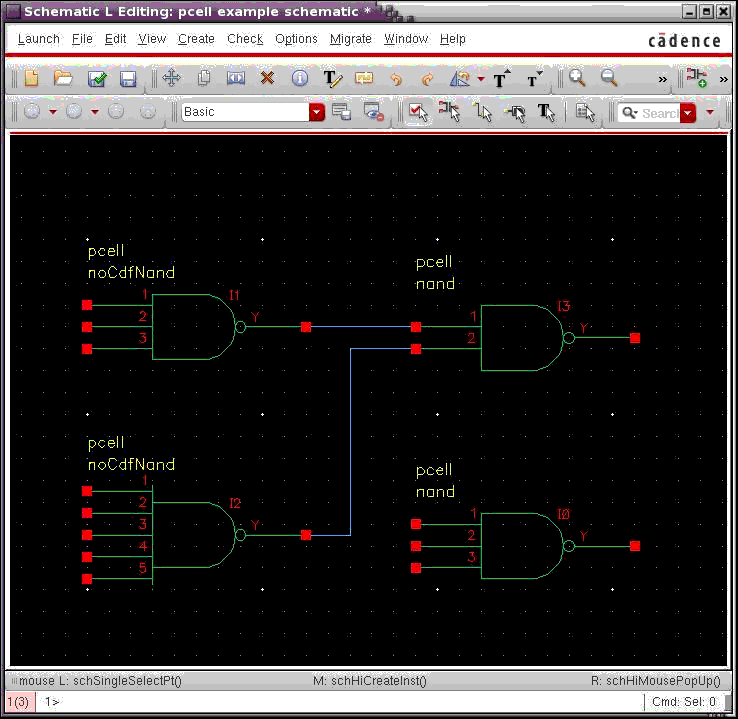
The only limitation is that the netlisting software you use for simulation must be able to handle a variable number of terminals on these cells. For example, the microwave environment can handle a variable number of terminals on these cells.
If the application you want to use can handle a variable number of terminals, you can implement digital gates using Pcells. For example, instead of creating four or more NOR gate cells, each with a different number of inputs, you could create a single NOR gate cell with a cyclic parameter field that specifies the number of inputs.
Return to top