
Running Pegasus Interactive SignOff Fill in Area
You can generate fills in a specific area and then add more fills incrementally in another area using Pegasus Interactive SignOff Fill.
Perform the following steps to generate fills incrementally:
- Open the Pegasus Interactive Run Options form and go to the SignOff Fill tab.
-
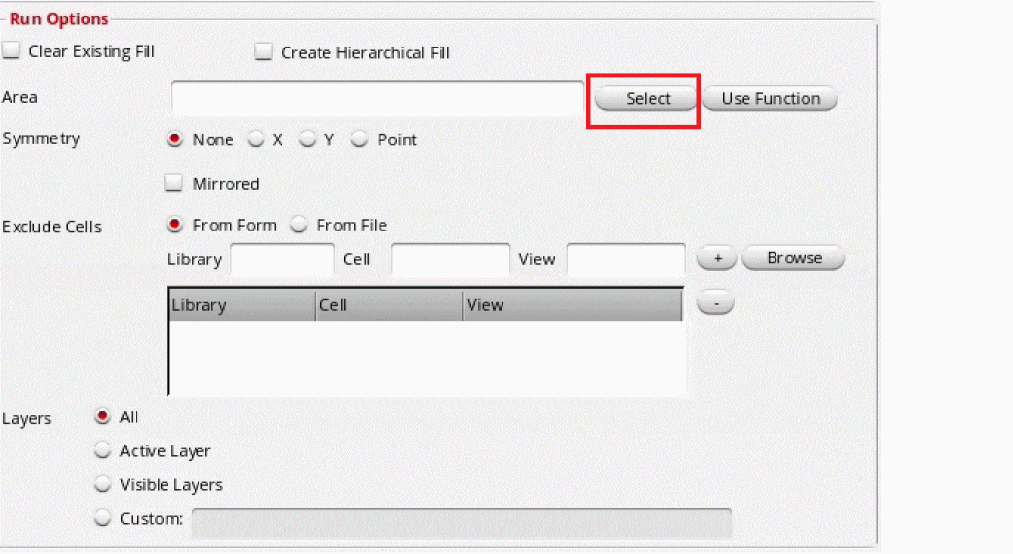
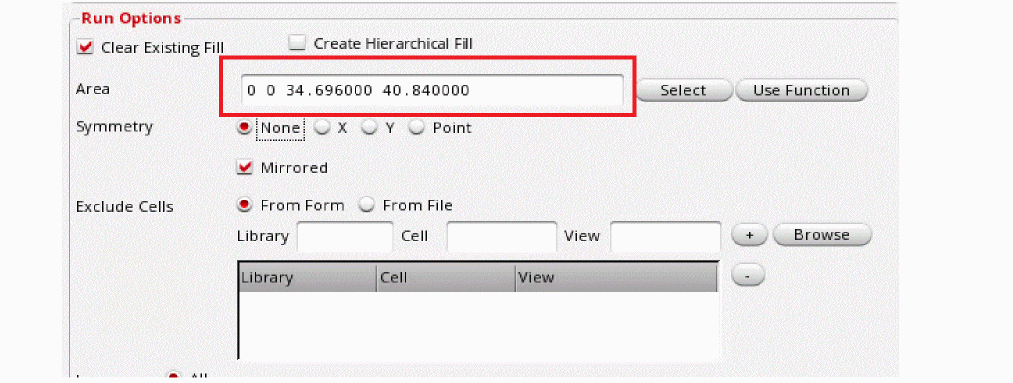
Make appropriate selection on layer visibility in the Run Options block. In the Area field, you can select the area by either clicking the Select button or the Use Function button.
-
To make selection using the Select button, the Select button of the Area field.
-
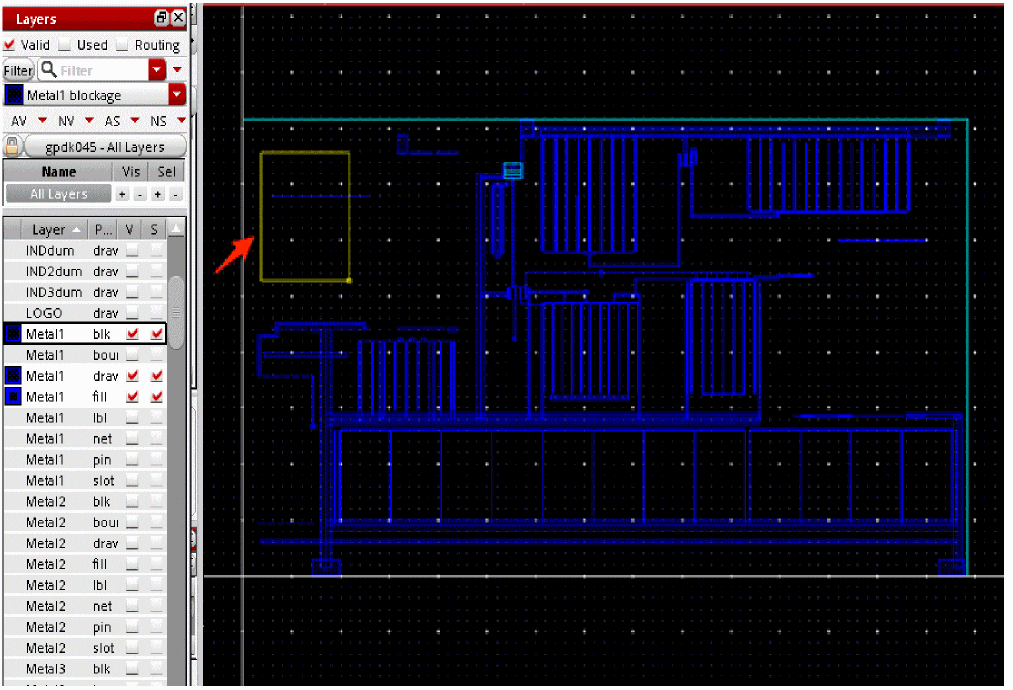
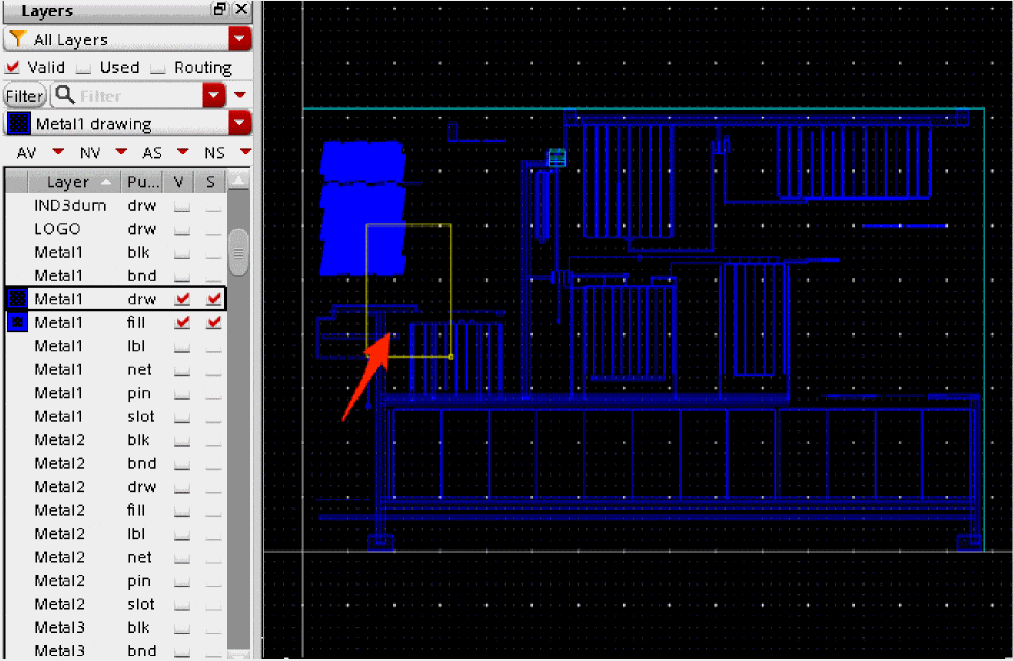
On the layout window, create a boundary box as shown below.
-
To make selection using the Select button, the Select button of the Area field.
-
Similarly, you can use, the Use Function button to fill the Area field. You can define
pgssUserSelectedFillArea()function to select area to fill. If you have defined this function then clicking on the Use Function button fills the area field with already defined coordinates. If you have not defined the function then an error message is displayed.To view example of definingpgssUserSelectedFillArea()function, see Example of pgssUserSelectedFillArea Procedure. - Click OK to close the form.
-
Run Pegasus Interactive SignOff Fill. The Run Pegasus Interactive SignOff Fill icon changes to show that you have selected Area mode.
Dummy fills are generated for the specified area. Dummy fills outside the specified area are not generated.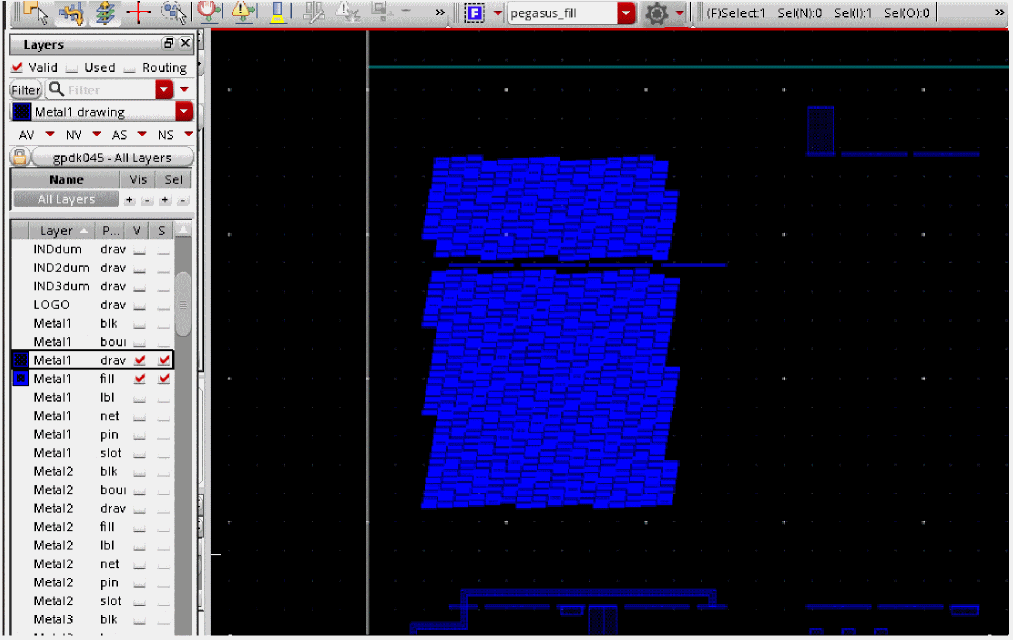
- Open the Pegasus Interactive Run Options form and go to the SignOff Fill tab.
-
On the layout window create a boundary box as shown below. Note that the new box should partially overlap the existing fills.
-
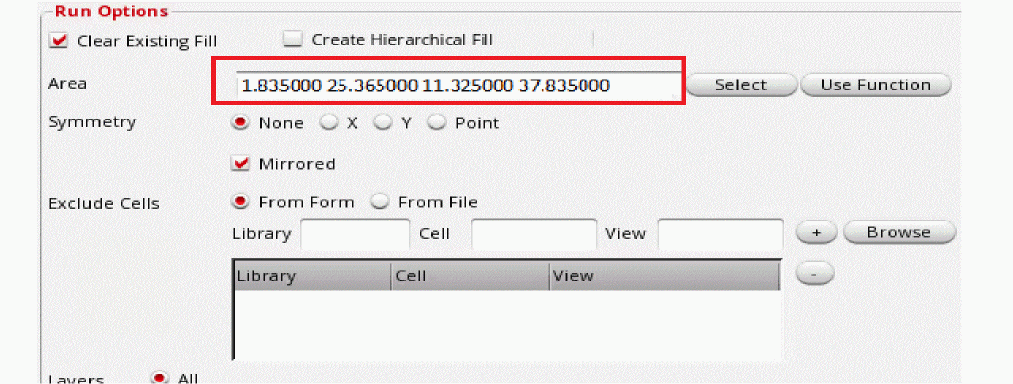
Once you do a second click to define the second point of the rectangle, the Area field will be automatically populated with coordinates of the boundary box:
-
Click OK to close the form and run Pegasus Interactive Signoff Fill.
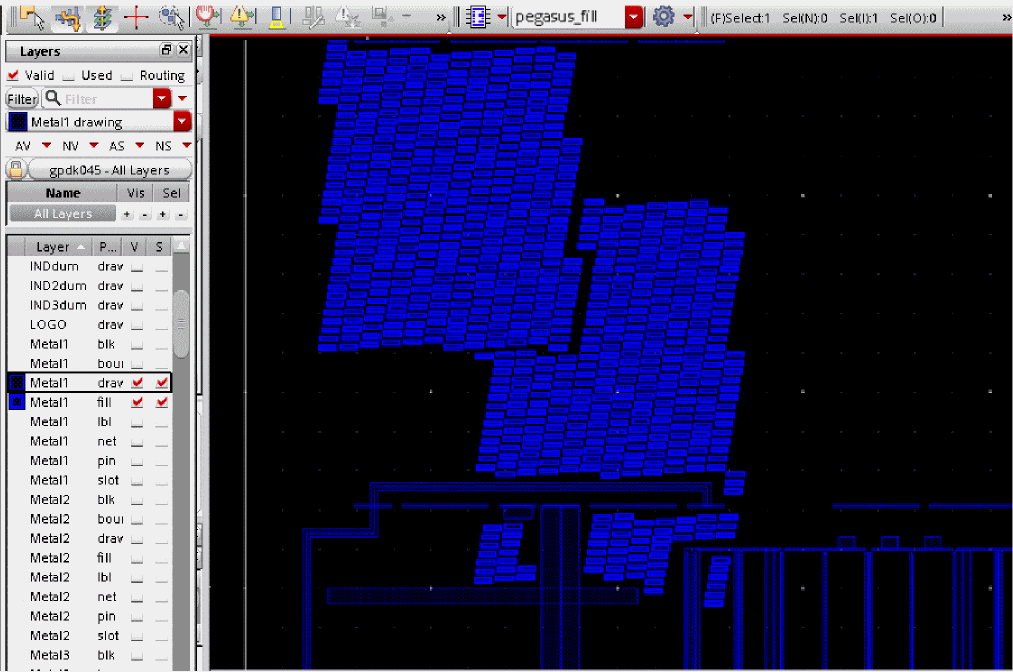
Dummy fills are generated for the specified area incrementally to the already generated fills.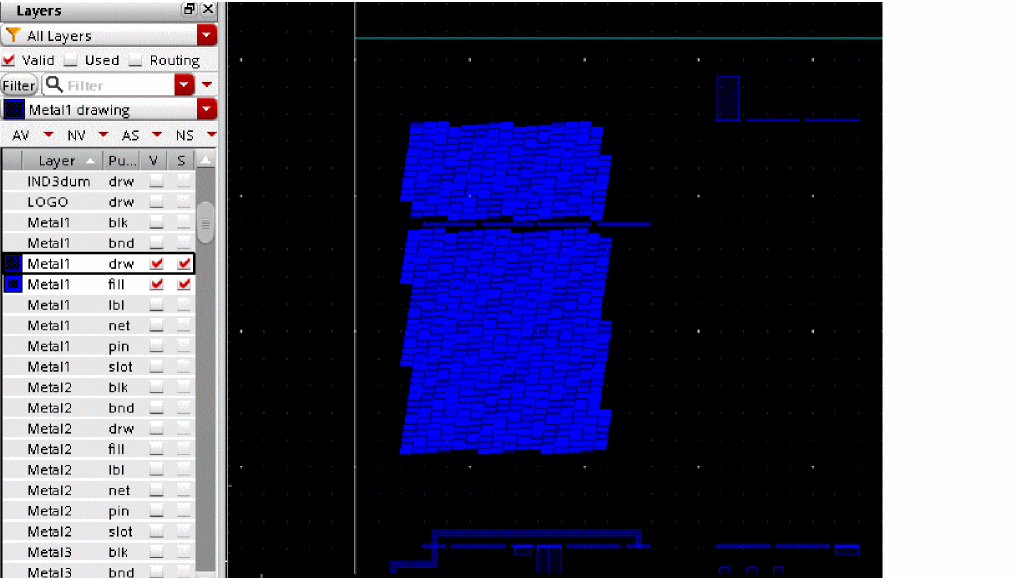
Related Topics
Return to top