
Customizing Snapshot Content
Right above the Output field, six tabs are available for customization. These options allow you to specify DRC criteria that will be stored in the snapshot.
- Input: Defines polygon handling information used between Virtuoso and Pegasus.
- Tech & Rules: Defines technology design rules deck.
- Configurator: Part of technology setup. It is used to override switch based default setting defined in the rule deck.
- Rule Selector: Interactive rule selection.
- Text and Connect: Defines text based connectivity criteria for Pegasus Interactive to follow.
- Golden Layout: Defines Golden layout pattern files for graphical DRC.
Input
The Input tab contains information used for Pegasus Interactive to do correct polygon translation and packaging.
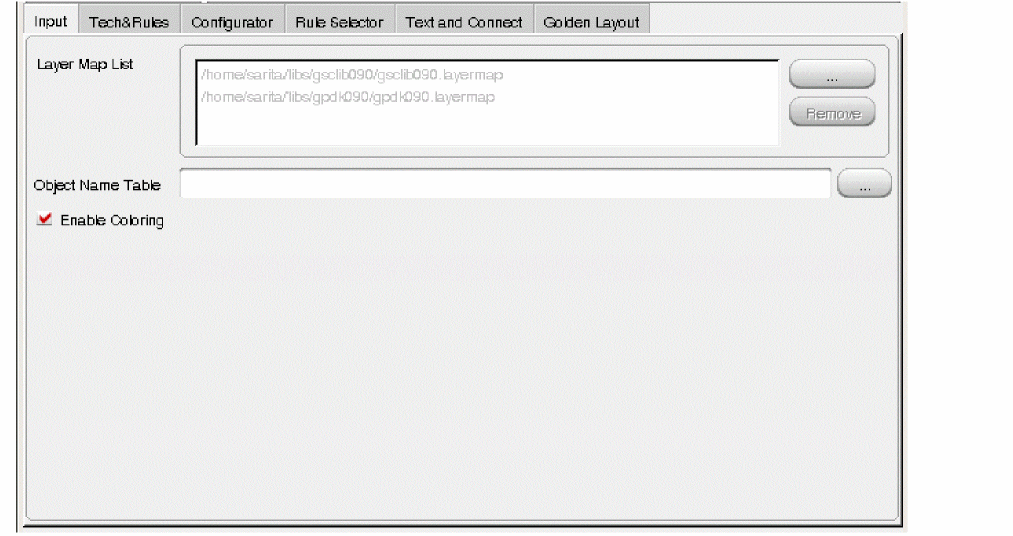
The layer handling between Virtuoso and Pegasus is different. Pegasus Interactive is built as an active bi-directional communication channel that transports polygons between two platforms. Thus, it handles direct layer mapping between Virtuoso and Pegasus. To ensure the accuracy of layer translation, mapping file is mandatory for Pegasus Interactive while is optional for signoff Pegasus DRC.
There are two types of mapping files: layer and object. The former contains mapping between Layer-Purpose pair and Layer-Datatype stream pair while latter maps Virtuoso specific object attributes to Layer-Datatype stream pair. Object mapping file is optional and layer mapping file is given by the same source distributes rule deck.
You can specify the layermap file by clicking the (...) button and browse to the location to select it. To remove a layer map file, select the file and click Remove.
Similarly, you can specify the object mapping file by either of the following ways:
- Entering file path in the Object Name Table text box
-
Clicking the (...) button and browse to the location to select it.
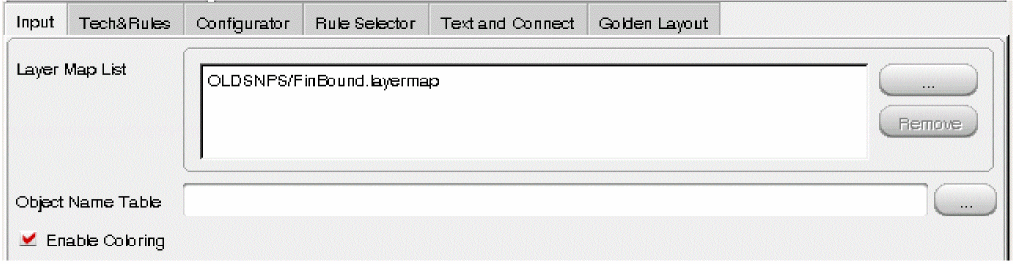
Since layermap file is one of required inputs, you can specify its initial value in the Layer Map List text box through the PegasusInt_DefaultSNPLayerMap shell variable before launching Virtuoso. If design library is attached or is referencing the technology library, then the Layer Map List field is automatically populated within layermap file being found in technology library.
Depending on the version of Virtuoso release, Enable Coloring and Map All Colored To Locked options are available to specify color mapping criteria.
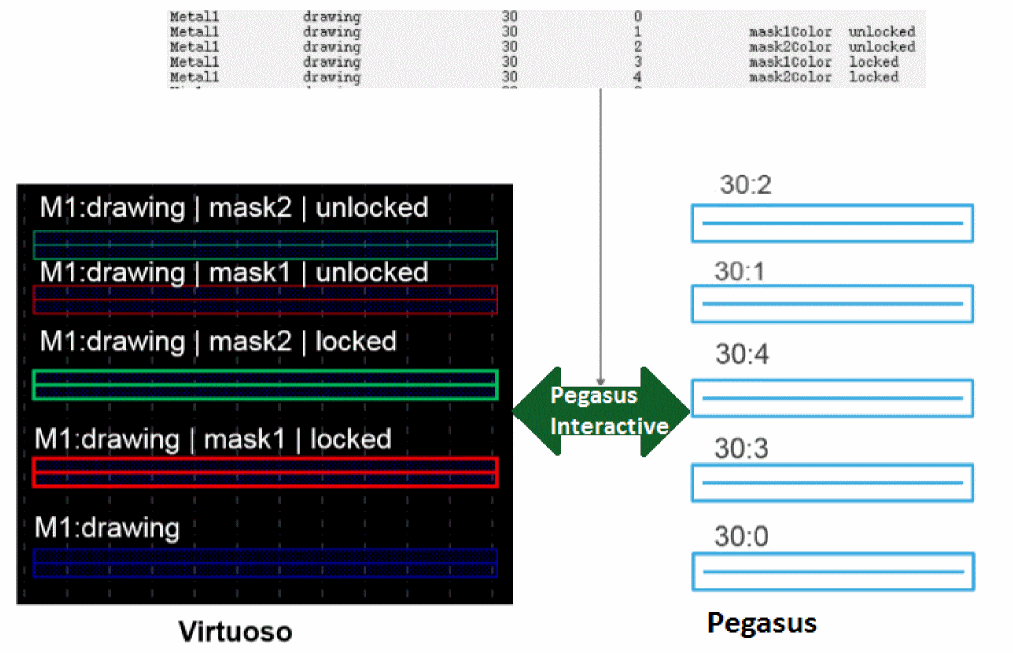
Starting from ICADV12.1, for a given Layer-Purpose pair, a set of polygons can have additional color attributes assigned on them: color and color state in the layout. By selecting Enable Coloring check box, Pegasus Interactive understands color implications set on these polygons. It first translates them to equivalent Layer-Datatype stream pair based on layer mapping definition and then transports them to Pegasus prior to DRC. Similarly data preparation is done after DRC during reporting violations transport from Pegasus to Virtuoso. Following example shows how Pegasus Interactive refers layer mapping definition to translate data between Virtuoso and Pegasus.
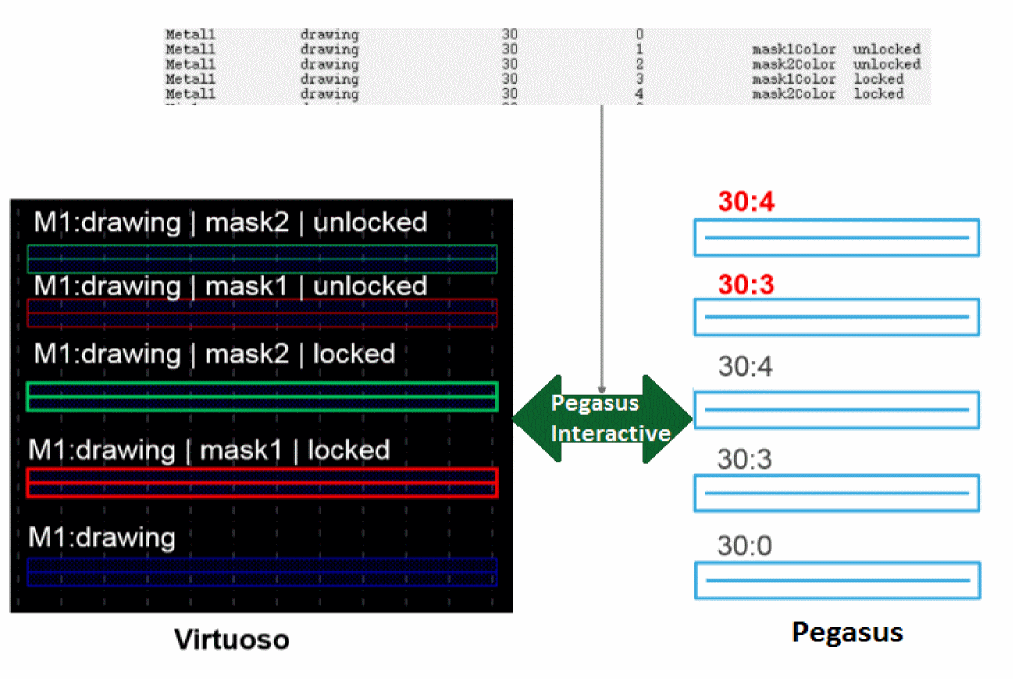
Map All Colored To Locked is a sub-option of Enable Coloring and its enabled once you select the Enable Coloring check box. It is only available in ICADV122 or later. When this option is selected, Pegasus Interactive treats all colored polygons in the layout as locked and maps them to equivalent Layer-Datatype stream pair accordingly. By default, Map All Colored To Locked field is hidden. Use environment variable: envSetVal("xstream" "xstHideMapAllColorToLocked" 'boolean nil) or shell environment variable PegasusInt_HideMapAllColorToLocked N to make it visible on the form.
The priority of controls is the following:
1. envGetVal("xstream" "xstHideMapAllColorToLocked") if defined.
2. If not defined, shell envvar "PegasusInt_HideMapAllColorToLocked".
3. If both are not defined - default:hide.
Following example shows Pegasus Interactive data preparation when Map All Colored To Locked is selected.
Tech&Rules
This tab defines the source that snapshot is generated from. You can either add the rule deck path under the Rules field or refer to the rule set available under the Technology field. In general, these settings under this tab should be controlled by CAD. Following examples show two ways of setting up the technology specific DRC deck information:
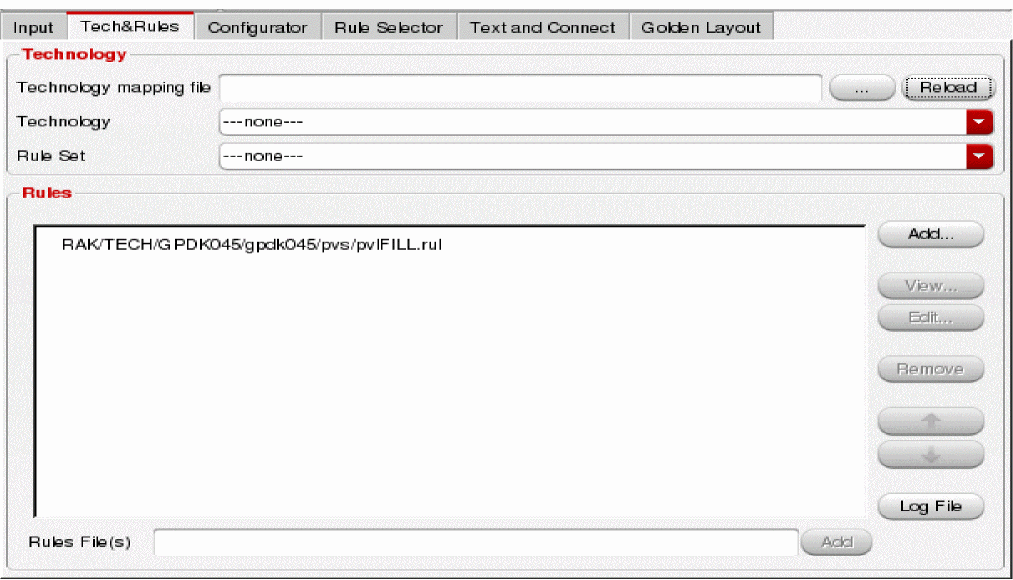

Technology
- Technology Mapping File - Enter the name of the technology mapping file containing the technology library names and locations. Alternatively, click the (...) button and browse to the location where the files are stored and select the file.
- Click the Reload button to reload the technology file and refresh technology and rule set details accordingly. This is required when the technology file specified earlier has changed.
- Technology - Select the technology you want to use in the run. The list shows the technologies that are defined in the Technology Mapping File.
-
Rule Set - Select the rule set from the list of rule sets defined for the technology specified in the technology field. The rules are defined in the file techRuleSets in a technology directory.
If the rule set contains one or more applicable preset files, then following label is displayed on the form:
Contains GuiPreset file[s]
If the rule set contains one or more applicable configurator files, then following label is displayed on the form:
Contains GuiConfig file[s]. Check the Configurator tab
If the rule set contains both preset and config files, then following label is displayed on the form:
Contains GuiPreset file[s] and GuiConfig file[s]. Check the Configurator tab
The selected rule is displayed in the Rules section with keyword Technology. You can view the contents of this rule set by clicking the View button. However, you cannot edit the contents of the file. If you use additional rule files, then technology rules are listed at the bottom of the rule files list. This order cannot be changed.
Similarly, you can add more rule-deck files to your run.- To remove a rule file, select the rule file and click the Remove button.
-
To view a rule file, click the View button.
You can use the Find option to find a required keyword or sentence in the rule file. Enter the keyword to be searched in the text box and the keyword is highlighted in the report.
Click Next and Previous to navigate in the form to see occurances of the keyword searched.
Select the Highlight check box to highlight the search result. To customize the search, you can select the Matchcase check box, Whole word check box or both.
Click Help to open the relevant help topic for this form in Cadence help and click Close to close the form. - To edit contents of a rule file, click the Edit button. It will open a runtime editor to modify the rule file.
- To view the contents of log file, click the Log File button. It opens the Log file showing details of the run after checking the rule files added to the Rules block. Use this button to review log file when you see a red border around the rule, which means that rule deck has errors.
Since DRC deck is one of required inputs, you can specify its initial value in Rule File(s) field through the PegasusInt_DefaultSNPRuleDeck shell variable prior to Virtuoso launch. For details of setting rule set using Technology, see Appendix C - Handling Technology Data in Pegasus in the Pegasus User Guide.
Configurator
For a given rule deck, it may contain a set of switches controlling the rule selection. In the configurator, you can change switch's value to trigger rules selection that is different from the default content in the rule deck. Due to the amount of switches defined in the rule deck, manual changing rule deck content can be difficult to manage and track the changes. Thus, configurator flow allows you to select or override setting without manually editing rule file content.
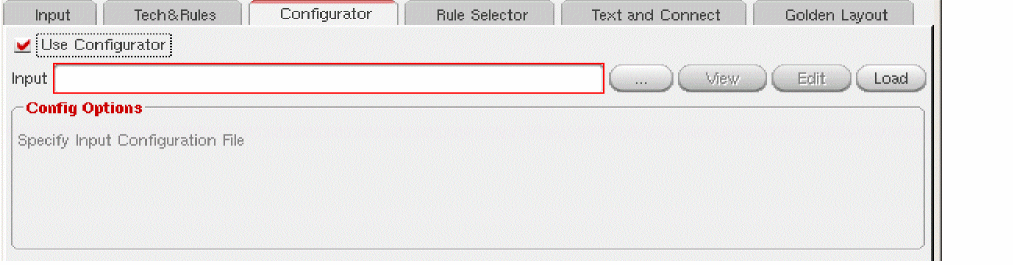
By default, configurator is disabled. Select Use Configurator check box to enable it. Once it is enabled, it asks for a configuration file to be loaded.
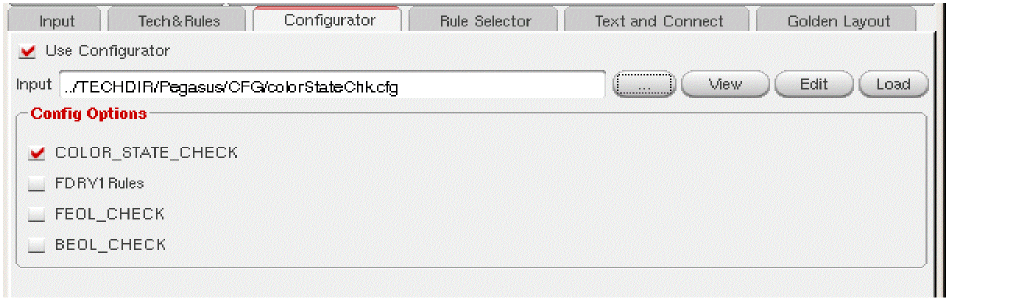
After loading the configuration file, the graphical representation of options are populated under the Config Options field. Following example shows any of four switches defined through #define in the DRC deck can be overridden interactively without physically modifying the DRC deck itself.
At the same time, both of View and Edit buttons are activated. These buttons allow you to view configurator file content and edit its content on the fly. Following figure shows how to view configuration file content interactively.
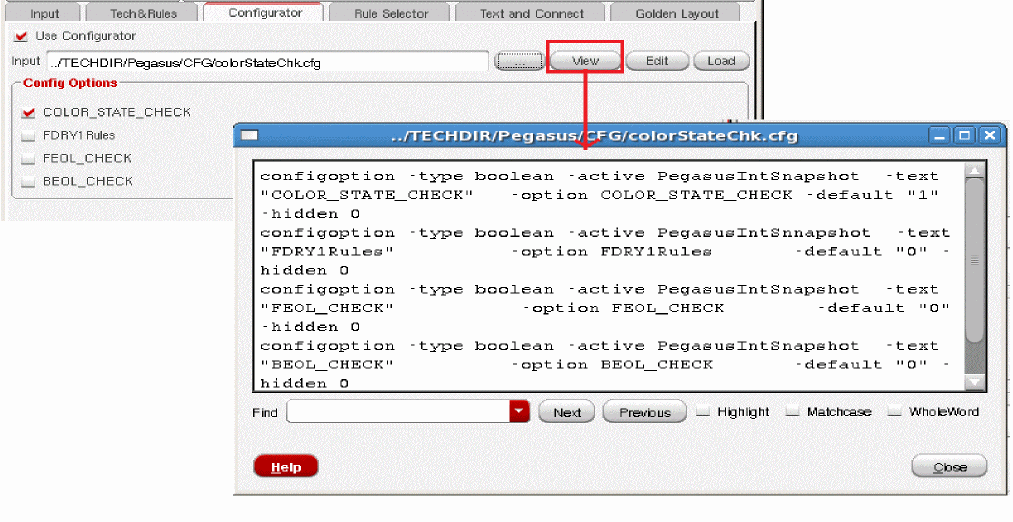
For detail of configuration file syntax, refer to the Pegasus Configurator chapter in the Pegasus User Guide.
Generally, Configuration file is maintained globally by CAD. CAD can declare its initial value in the Input field through the PegasusInt_DefaultSNPConfigFile shell variable before launching Virtuoso.
Rule Selector
The initial content of Rule Selector reflects current rule selection found in the loaded rule deck. Essentially, it is the result of rule deck compilation done through Pegasus. The Rule Selector section enables you to individually select or deselect rule sets or rule groups.
In Rule Selector tab, two view modes are available: Groups and Plain.
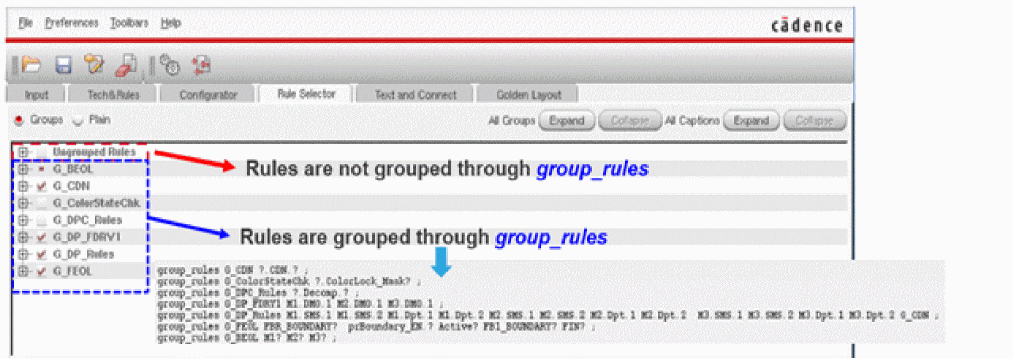
The default view mode is Groups. In this default view mode, rules are displayed either by the group they belong to or by Ungrouped Rules. Following example shows how groups' representation in Rule Selector is declared in the rule deck. All G_* rule groups are defined through the group_rules command in the rule deck.
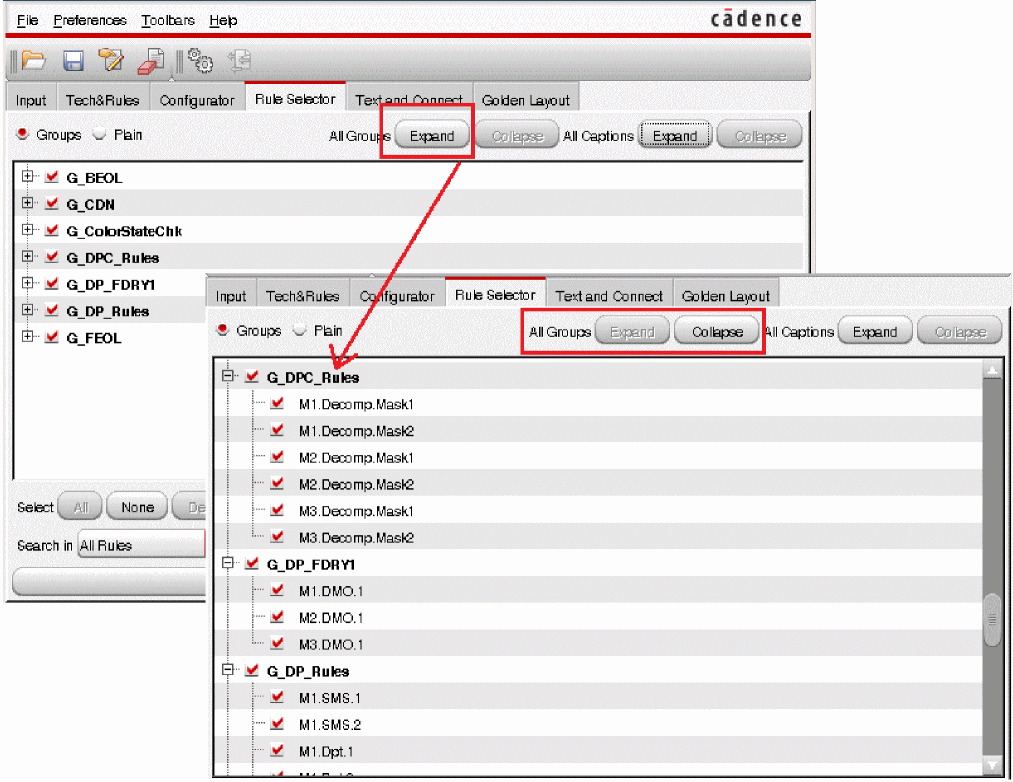
Within Groups, rule information is constructed based on its rule name and description. Rule name is defined through the rule command while rule description is defined through the caption command. You can expand or hide all of rule names and descriptions using:

Following example shows what happens when you click the All Groups: Expand button. All the rules that belong to a group are displayed.
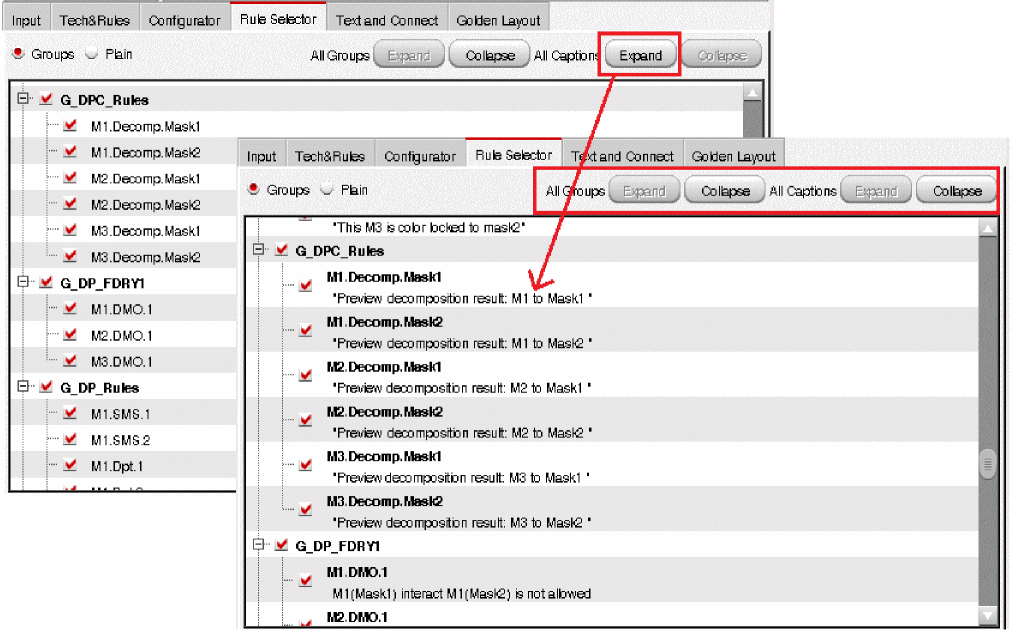
To see the description of each rule, clicking the All Captions: Expand button shows each rule's description as its child hierarchy. Following example shows the rule's content after clicking the All Captions: Expand button.
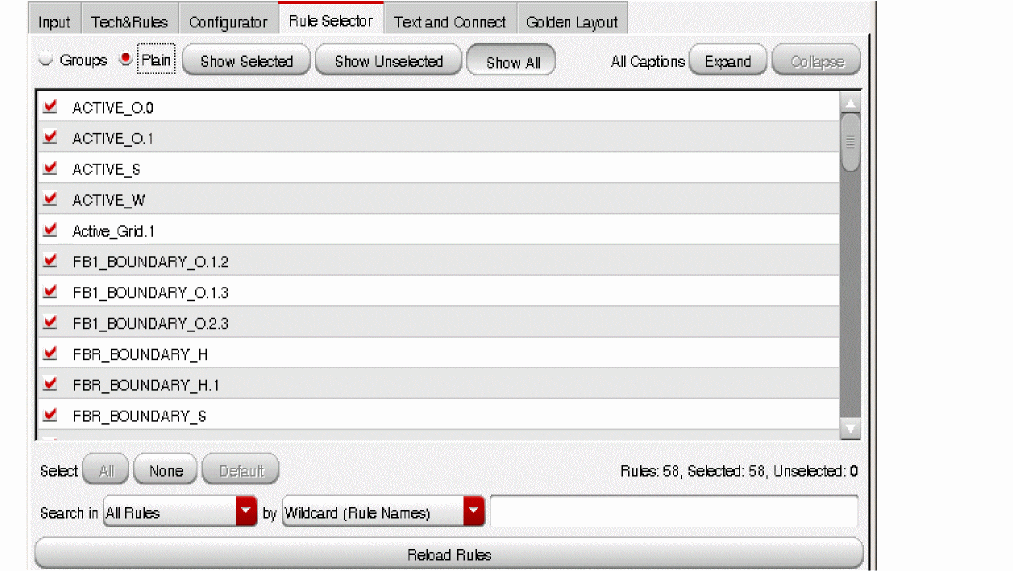
The Plain view mode allows you to see rules based on their current selection status. It is a flat display by rule name. Once the Plain mode is selected, additional three buttons are available for you to set rule display based on its current selection status.

By default all rules are displayed. You can further filter unselected rules by clicking Show Selected to customize the rule display. Rule by default are displayed by rule names. However, you can expand or hide its rule caption using All Captions: Expand/Collapse.
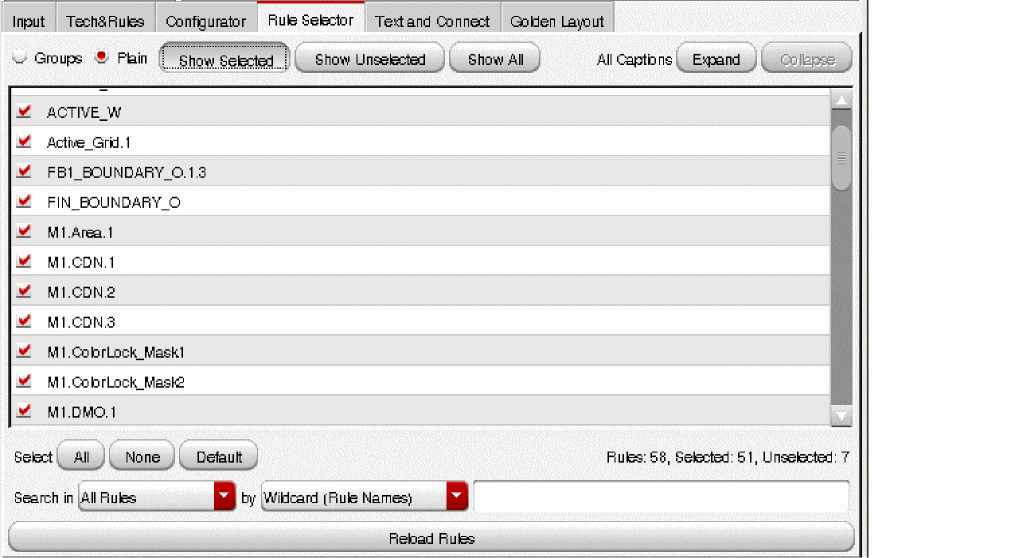
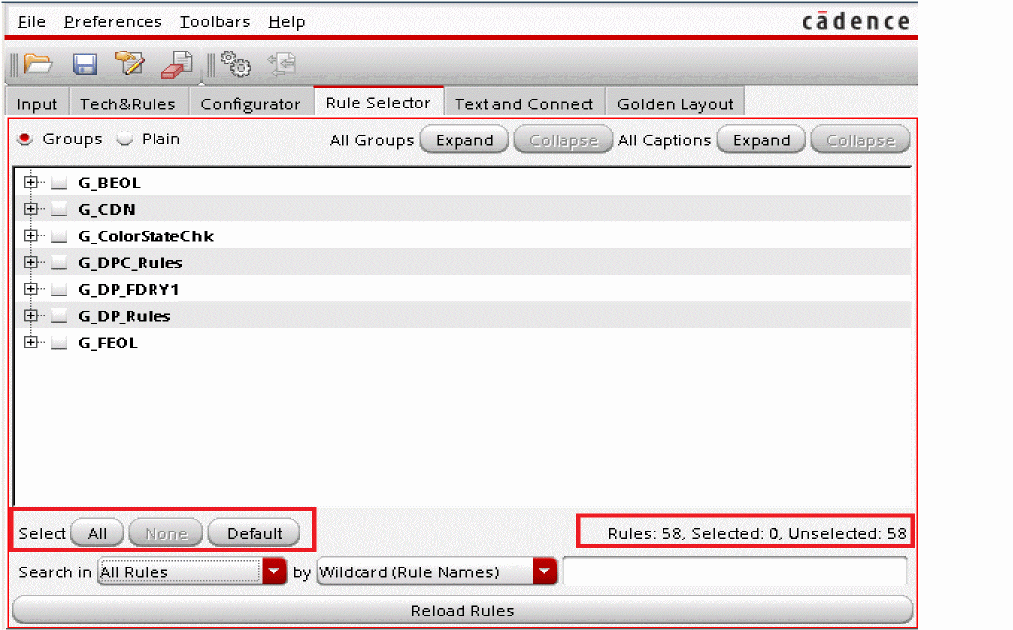
When the Rule Selector tab is activated to perform rule selections, all the selection options are enabled. For batch rule selection, you can select or deselect all the rules through All and None buttons. You can also reset the rule selection back to default through Default button.

Following example shows results after clicking the None button. Note that rule selection summary indicates 0 rule selection.
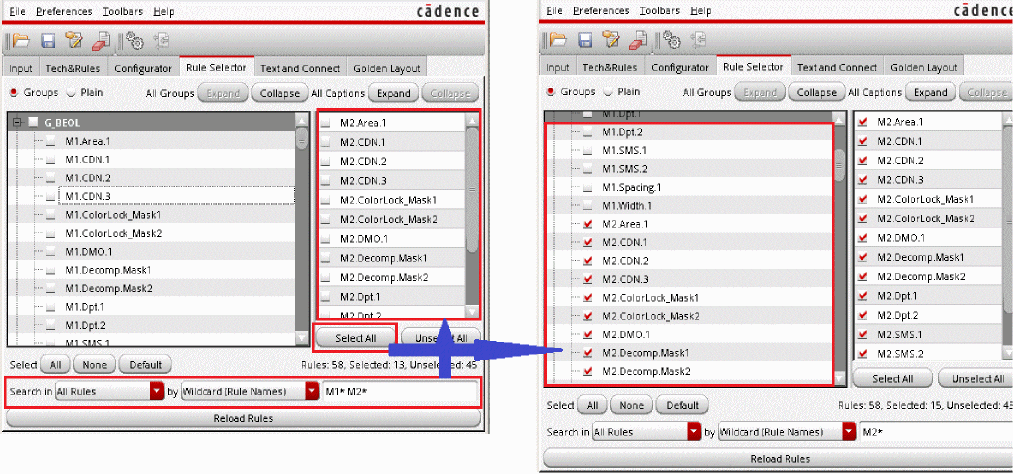
For search based rule selection, you can first set the search filter and then further define searching criteria by declaring searching condition in the entry field. Once matched rule names or captions are found, they can be pre-viewed. You can then perform rule selection by clicking the Select or Unselect buttons. The preview column is only displayed where there is searching condition declared in the entry field.
Pre-defined search filter allows you to specify where and how the search should be conducted. You can customize your search using any of the search criteria listed in the Search in drop-down list. The options are: All Rules, Connectivity Rules and Density Rules. The by field is related to the Search in field and the drop-down list provides second level of filtering. You can narrow down the search results using options listed in the drop-down list. The options are: Wildcard (Rule Names), Wildcard (Rule Captions), Reg. Exp. (Rule Names)and Reg. Exp. (Rule Captions).
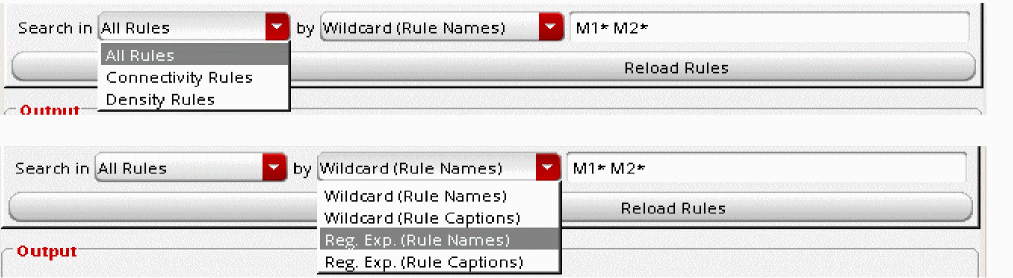
Reg. Exp. (Rule Name) and Reg. Exp. (Rule Captions) search filters support regular expression syntax.
You can specify multiple rule names separated by space as shown below:

Following example shows finding rule description containing exact match of 20% through Reg. Exp. (Rule Captions) search filter.

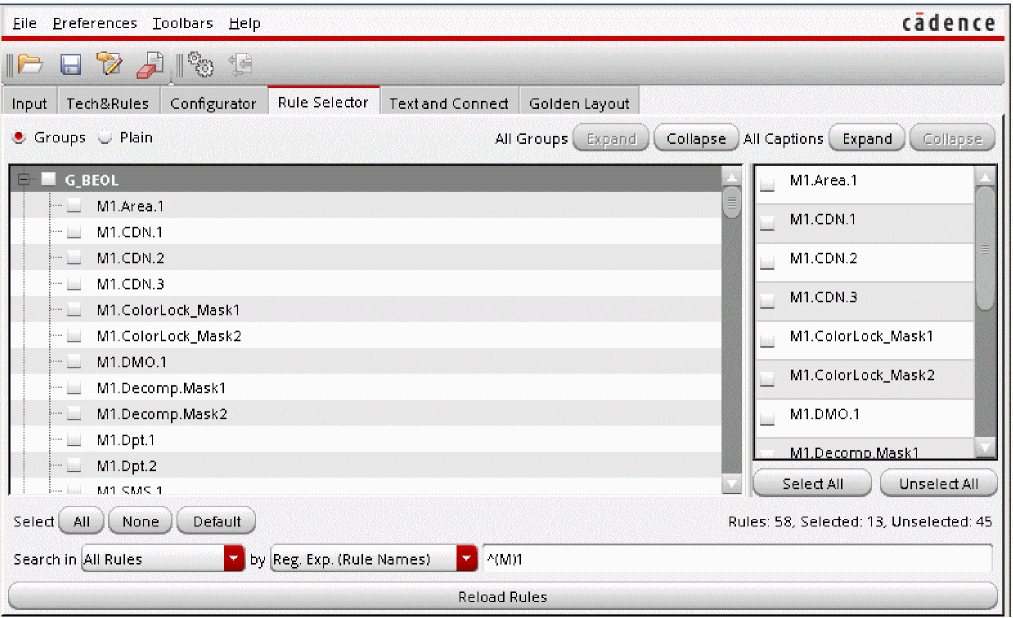
Search options Connectivity and Density show all rule names based on the connectivity and density respectively.
The Reload Rules button re-compiles rules contents from the rule deck. After the compilation, rules contents are refreshed based on compilation results. This is different from the Default button in Select. Reload Rules deletes all the rule compilation results initially obtained by the tool and re-generates rules based on the current active rule deck while Select: Default only resets rule selection status based on the original compilation results.

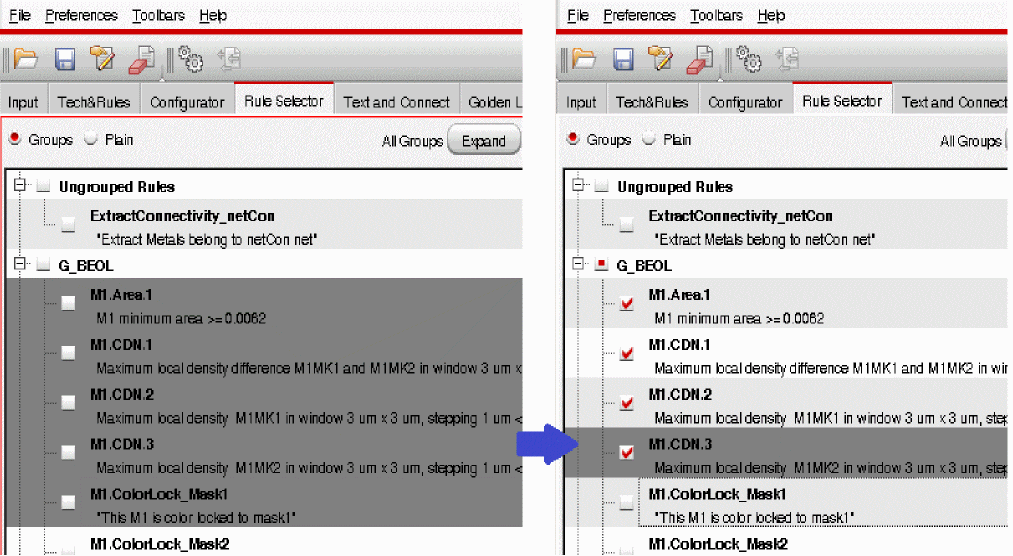
Finally, you can interactively select rules through the rule display field by clicking the check box located in the front of rule names or group names.
Return to top