
F
Displaying Pin Names in a Layout Window
To see terminal names for pins in a layout window, the display setting for pin names must be turned on. You can turn on the display of pin names for just the duration of your editing session, or you can change the default.
- To temporarily turn on Pin Names display, use the Display Options form in a layout window and then apply the changes, but do not save them.
-
To change the default for the display of pin names, either edit your local .
cdsenvfile or turn on Pin Names option in the Display Options form and save the changes.
Setting the Pin Names Environment Variable in .cdsenv
To display terminal names for pins by setting the displayPinNames environment variable in the .cdsenv file in your home directory, do the following:
-
Use a text editor to edit your ~/.
cdsenvfile. -
Search for
layout. -
Search for
displayPinNames.
By default, the setting looks like this:layout displayPinNames boolean nil
-
Change
niltotso that the setting looks like this:layout displayPinNames boolean t
- Save your file and start the Virtuoso® layout editor.
Turning On Pin Names in the Display Options Form
To display terminal names for pins by setting the Pin Names option in a layout window, do the following:
-
In your layout window, choose Options – Display.
The Display Options form appears. -
In the Display Options form, make sure the Pin Names option is on.
You can apply your settings to just the current editing session or save them to the current cellview or as a file.
-
Apply or save your Display Option settings by doing one of the following:
-
To apply your settings to the current editing session only, click OK in the Display Options form.
When you save display settings to a cellview, the settings are automatically applied when you reopen the cellview. -
To save your settings with the cellview, turn on Cellview and click Save To; then click OK.When you save to your
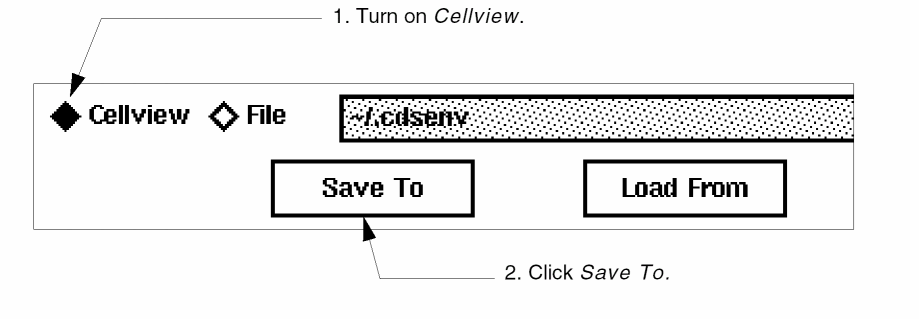
~/.cdsenvfile (the default file), the settings automatically load when the layout editor starts. -
To save your settings in your
~/.cdsenvfile, turn on File and click Save To, then click OK.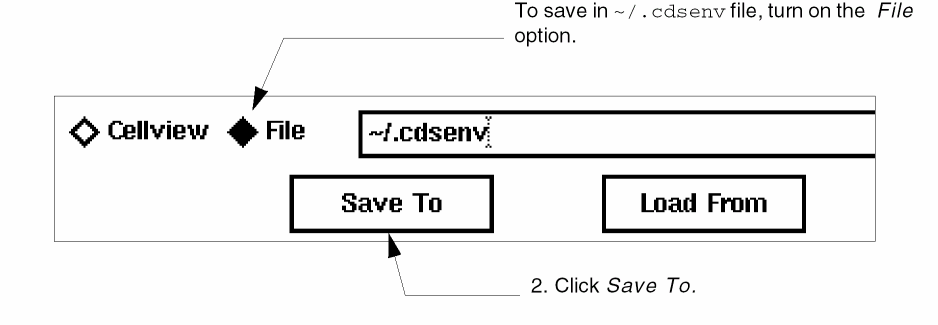
-
To apply your settings to the current editing session only, click OK in the Display Options form.
Return to top