
Using the Finder Assistant
Use the Finder assistant to view the abstract and syntax statements for all SKILL/SKILL++ elements like classes, functions, and methods.
The graphical user interface and functionality of the Finder assistant is similar to the Cadence SKILL API Finder, which can be accessed from the CIW by choosing Tools – SKILL API Finder. For detailed information, see SKILL API Finder.
To view the syntax and description of a particular SKILL/SKILL++ object, use one of the following options:
- Choose Window – Assistants – Finder.
- Right-click the function name in the source code pane and choose Finder from the context-menu.
- Right-click a class name in the Class Browser assistant and choose Go To Finder.
- Right-click a method name in the Method Browser assistant and choose Go To Finder.
- In the Search toolbar, choose View Finder Doc from the first drop-down list box. Then, specify the name of a SKILL/SKILL++ function in the second drop-down list box and press Enter.
The Finder assistant displays.
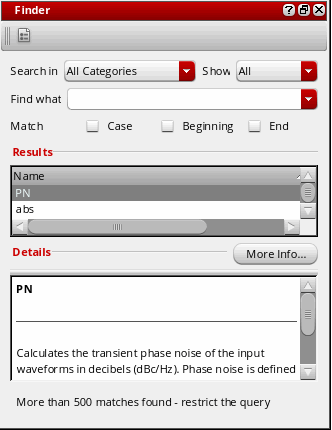
Use the Show drop-down list to select a SKILL/SKILL++ object for viewing. You can choose to view All, Classes, Functions, or Methods. The default is All.
Related Topics
Types of Searches in SKILL API Finder
Viewing and Saving Syntax and Description of Matches Found
Problem Troubleshooting in SKILL API Finder
Return to top