
3
Display Resource File Development
This chapter discusses the following:
- “Overview of Development and Usage”
- “How Cadence Design Software Handles Multiple Display Resource Files”
- “Methods of Initial Display Resource File Creation”
- “Display Resource File Organization”
- “How Display Packets Control Layer Display”
Overview of Development and Usage
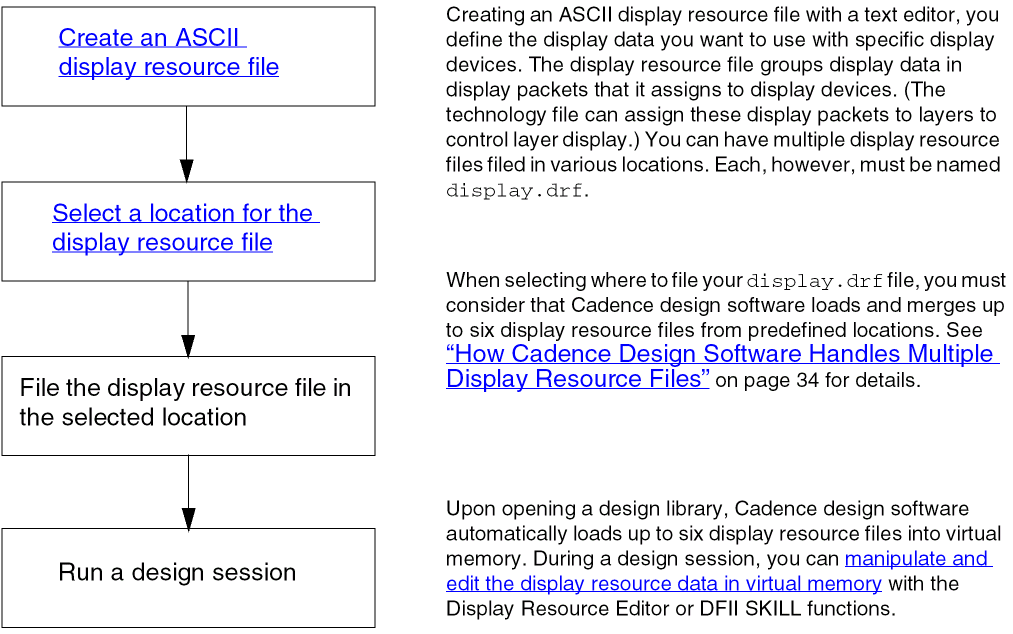
The following illustrates the major steps for display resource file development and usage:
How Cadence Design Software Handles Multiple Display Resource Files
At startup, Cadence design software creates a display resource file in virtual memory for use during a design session. The virtual memory display resource data is based on five display.drf files present at standard locations and the files loaded by explicit usage of the drLoadDrf API.
Because the files are merged in sequence during reinitialization, files loaded later in the sequence can redefine display packets, colors, line styles, stipples, and display devices defined by files loaded earlier.
For information about reinitialization, see “Reloading Source Display Resource Files”.
The File – Reinitialize command loads only the files located in the standard paths mentioned in the following list:
-
The Cadence-supplied default display resource file
This file is used with the Virtuoso Schematic Composer.your_install_dir/share/cdssetup/dfII/default.drf -
A local display resource file you specify using the
drfPathvariable in your.cdsenvfile. The syntax isgraphic drfPath string "
This is an optional file you can use to provide required display resource definitions.path/display.drf" -
Optional site and project display resource files
These are optional files your system administrator can place in the site and project directories, if those directories are set up at your site. These files must be calleddisplay.drf.
For more information about these directories, refer to the Cadence Application Infrastructure User Guide. -
Personal display resource file
~/display.drf
This is an optional file that you can customize and place in your home directory. This file must also be calleddisplay.drf. -
The current directory
./display.drf
This is an optional file that you can customize and place in the directory from which you start the software. This file must be calleddisplay.drf.
If multiple technology libraries are used in your Cadence design environment, you can create a display.drf file with display requirements specific to each technology. Additional display resource files can be loaded during a session through explicit drLoadDrf calls from .cdsinit. However, such definitions are lost after the session and are not loaded during reinitialization. If you want such a file to be loaded during reinitialization, merge the technology-specific display.drf file with an existing display.drf at a standard location.
Planning Display Resource File Updates for Proper Merging
Because the system merges several files to create the display resource data you use to create your designs, you will need to plan updates to the data. There will be times when you will use the Display Resource Editor and save your changes to a new display.drf file. There will be other times when you will need to edit a source display resource file in a text editor. For further information, refer to Chapter 6, “Editing, Reusing, and Merging Display Resources.”
Methods of Initial Display Resource File Creation
You can create a new display resource file by any of the following methods:
- In a text editor, create a display resource file from scratch
- Copy a sample display resource file from the Cadence® installation and edit it in a text editor to produce your own display resource file
- Copy an existing display resource file from your company’s files and edit it in a text editor to produce your own display resource file
- Dump the display resource data from virtual memory to a new display resource file
- Edit display resource data in virtual memory with the Display Resource Editor and save the edited data to a display resource file
Whatever method you use, the structure of and requirements for specifying display resources in a display resource file remain the same. This chapter defines how to specify display resources.
Display Resource File Organization
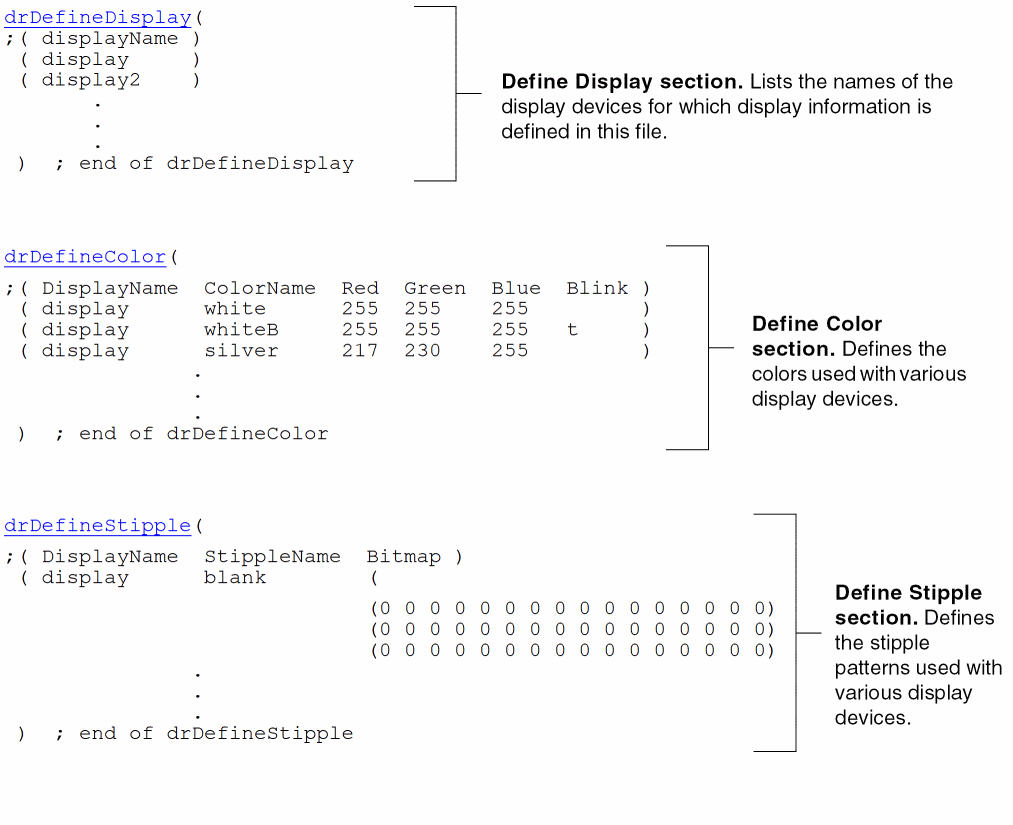
A display resource file is organized into sections that define display resources as described in the following paragraphs.
The display devices section (drDefineDisplay) lists the names of the display devices for which display information is defined in the display resource file.
The color definitions section (drDefineColor) defines the colors used with various display devices. This section applies specific color definitions to color names and associates them with specific display devices.
The stipple definitions section (drDefineStipple) defines the stipple patterns used with various display devices. This section applies specific stipple pattern bitmaps to stipple names and associates them with specific display devices.
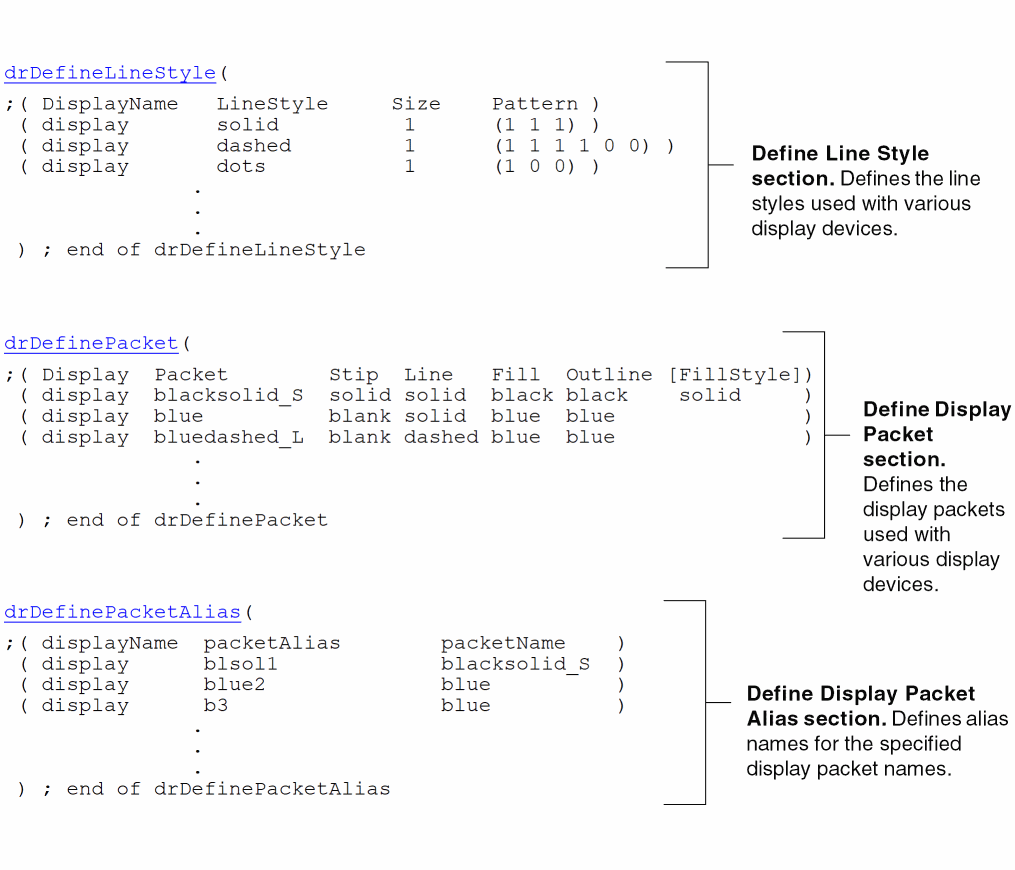
The line style definitions section (drDefineLineStyle) defines the line styles used with various display devices. This section applies specific line style sizes and patterns to line style names and associates them with specific display devices.
The display packet definitions section (drDefinePacket) defines the display packets used with various display devices. This section applies specific stipple patterns, line styles, fill colors, outline colors, and fill styles to display packet names and associates them with specific display devices.
You can define two different packets for the fins and the tracks of a snapPattern shapes. For example, if the packet name of the snapPattern layer-purpose is M1_spPurpose, then you can add the following packets in the drDefinePacket section of display.drf:
M1_spPurpose_snapPatternFull to define the color of the snapPattern fins
M1_spPurpose_snapPatternTracks to define the color of the snapPattern tracks
If the color of snapPattern fins and tracks is not defined, then the color of these will be same as that of M1_spPurpose.
The display packet alias definitions section (drDefinePacketAlias) applies alias names to display packet names and associates them with specific display devices.
For details about specifying display resource file data, see the Virtuoso Technology Data ASCII Files Reference.
The following illustrates the sections of this file, along with the display resources they define.
How Display Packets Control Layer Display
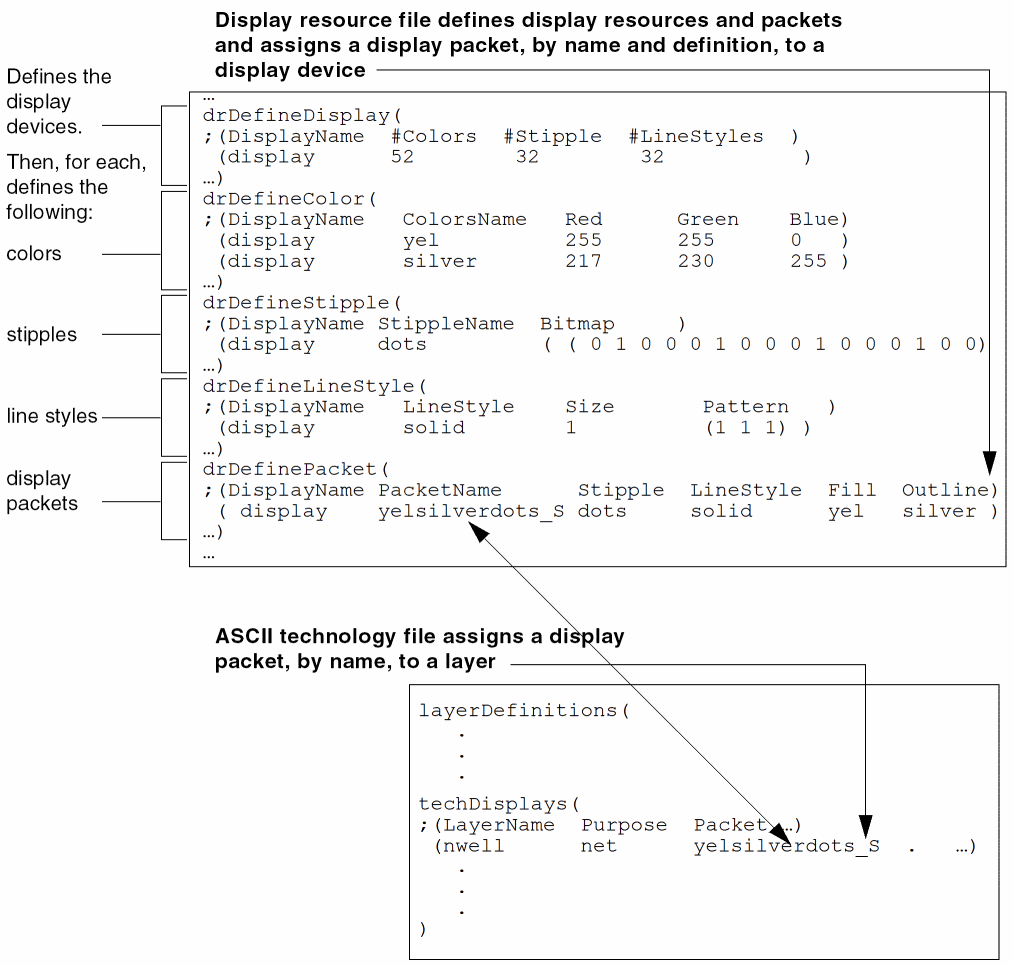
A technology database can contain assignments of display packets to layers to control how layers are displayed. This information can be specified in the techDisplays subsection in the layerDefinitions section of the ASCII technology file. You can also apply, change, and redefine display packets assigned to layers with the design software graphical user interface.
The following sample illustrates the display resource file display packet definition and assignment to a display device and the technology file assignment to a layer:
Return to top