
C
Congestion Analysis Assistant
Use the Congestion Analysis assistant to run global routing and congestion analysis and illustrate the various methods of viewing congestion in your design. The following table describes the main components of the Congestion Analysis user interface.
Congestion Analysis Toolbar
The Congestion Analysis assistant toolbar lets you access the main functions with a single mouse click. The following table describes the Congestion Analysis toolbar buttons.
| Icon | Command | Description |
|---|---|---|
|
Runs different methods of congestion analysis on the design. |
||
|
Runs global routing to build the gcell grid, run four passes of global routing on all nets, and then runs congestion analysis to build the histogram, create the heat map, and populate the global cell track utilization table. This is the default mode |
||
|
Runs global routing in ECO mode, which means that global routing is run on the nets for which the global bias constraint has been created. It then runs congestion analysis to update histogram, heat map and the global cell track utilization table. |
||
|
A special what-if analysis mode for early floor planning. It runs global routing, where each net takes the shortest possible path regardless of other nets. This lets you evaluate if the floorplan is underutilized and if it can be compacted early in the design cycle or highlight the most common regions of over-congestion to indicate that more space might be required. After global routing, it runs congestion analysis to update the histogram, the heat map, and the global cell track utilization table. |
||
|
Runs only congestion analysis on the design to build the histogram, create the heat map, and populate the global cell track utilization table based on the previously routed data. This mode is useful when you already have a fully detail routed design and you want to save the run time. |
||
|
Opens the Congestion Analysis subform in the Virtuoso Space-based Router Options form. |
||
|
Clears the congestion analysis results and removes global routing. |
||
|
Lets you draw a box in the main window to filter an area of the design to display congestion analysis. The heat map, histogram, and global cell track utilization table are updated to only show the congestion data within the defined area. |
||
|
Highlights the selected nets in the heat map. Also, the histogram and the global cell track utilization table are updated to show the congestion data of only the selected nets. |
||
|
Calculates the average congestion for all horizontal and vertical layers in a design. |
||
|
Calculates the average congestion for only the horizontal or vertical layers that have been routed in a design. |
||
|
Calculates the maximum congestion for all horizontal and vertical layers in a design. This is the default congestion analysis mode. |
||
|
Enables the display of the global cells that are blocked and are essentially not available for any global paths or interactive routing.
Environment variable: |
||
|
Displays all gcells that have zero congestion in the heat map and histogram. |
||
|
Lets you choose specific layers when calculating and displaying congestion in the heat map, histogram, and global cell track utilization table. |
||
|
Lets you filter the histogram to display specific buckets of congestion.
Environment variable: |
||
|
Lets you create, modify, and delete global bias constraints that can be used to plan the routing of a net group. |
||
|
Starts Virtuoso Space-based Router to complete detailed routing of the selected set of nets or the entire design. |
||
|
Routes only the selected nets using the standard VSR routing flow. |


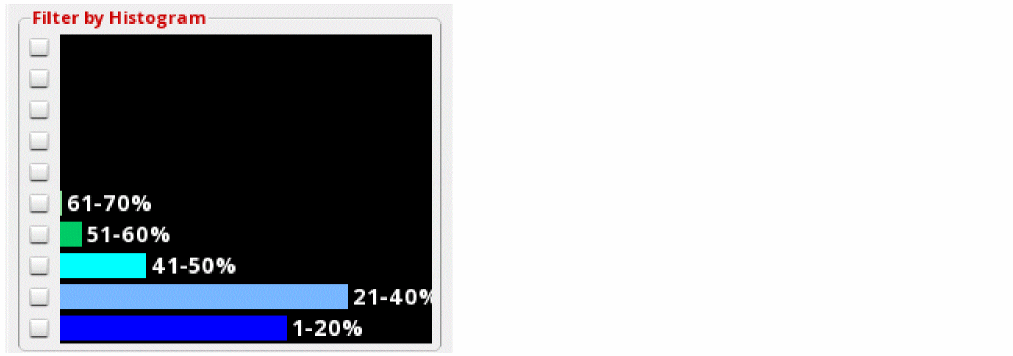
Customizable Histogram
Running congestion analysis displays the congestion data in the histogram. The histogram illustrates the congestion results in the design based on the selected filter option.
Global Cell Track Utilization Table
Running congestion analysis populates the Global Cell Track Utilization table with the capacity and availability information of every gcell in the design.
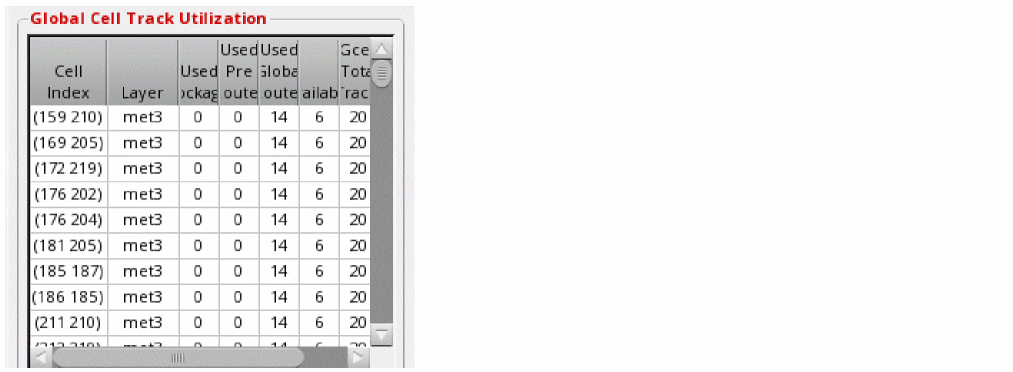
The following table describes the columns available in the Global Cell Track Utilization table of the Congestion Analysis assistant.
Net Selection Table
After running congestion analysis, when you select a gcell in the Global Cell Track Utilization table, the nets passing through the selected gcell are displayed in a table below the Global Cell Track Utilization table. This table is the Net selection table.
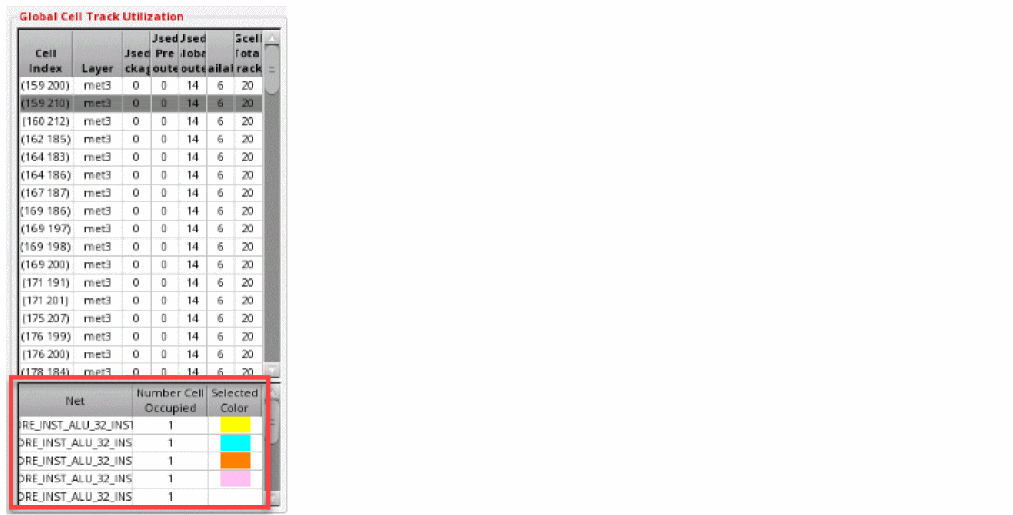
The following table describes the columns available in the Net Selection table.
| Column | Description |
|---|---|
Related Topics
Congestion Histogram Customize Form
Return to top