
C
Mapping File Syntax for Schematic Migration
Header Row

Figure C-1 Mapping File Header
- The keyword can be “device”, “match parameter”, “display parameter” or “Map Library”. It must have 10 fields, and therefore 9 commas. The header row should not contain special characters. Only alphanumeric characters and spaces can be used.
-
The Source Library or Source Parameter Name is the name of the Pcell CDF parameter with the prefix
"cc_". -
Source Cell or Source Parameter Description field: this field is optional, for descriptive purposes only. The field accepts wildcard characters (
*), which stand for zero or more characters. For example,*mos*and*_ch_*can stand for eithernmos4andn_ch_4, orpmos4andp_ch_4, respectively. -
Source Parameter Value:
- If it is a value (a number or string), then the parameter will be used as a requirement for the binding from the source to the target.
- If it is a conditional (determine by the presence of the delimiter character "|"), then the conditional expressions will be evaluated as a requirement for the binding (a logical and function)
- The Display field, if set to "parameter&value", prints text regarding the source parameter name and value to the canvas as a note when keyword is "display parameter".
-
The Target Library or Target Parameter Name is the name of the Pcell CDF parameter with the prefix
"cc_". -
The Target Cell or Target Parameter Description field: this field is optional, for descriptive purposes only. The field accepts wildcard characters (
*), which are filled in with the characters matched by the corresponding source. - The Target Parameter Value field will set the value of mapped cell parameters.
Creating a Mapping Spreadsheet - Examples
The following examples explain how to create a mapping spreadsheet:
Map a device without any CDF parameter mapping

This example maps the PDK library, "gpdk045" cell "pmos1v" to PDK Library "cds_ff_mpt" cell "p1svt". The empty match parameter line is not necessary.
Map a device only when a set of source parameters and values match

Figure C-3 Set of Source Parameters and Values Match
If a parameter exists on the source side, it is a required match parameter. The mapping will only happen if all the parameters listed here match the values on the source device. In this example, if PDK Library "gpdk045", cell "pmos1v" has a CDF Parameter named "fw" and it is equal to 180n, then this device will migrate to a PDK Library "cds_ff_mpt" cell "p1lvt" device; otherwise, pmos1v_hvt will not map to p1lvt.
Ensure that any required match parameter does not leave other devices of the same type unmatched. For example, to compliment the fw = 180n match above, create a fw != 180n below. When a source parameter is used in the Source Parameter Value field, the source parameter prefix "cc_" is required.

Figure C-4 Set of Source Parameters and Values Match
The Source Parameter Value field will allow for literals (numbers, strings), special string handling with single quotes, equations with other source parameters, and conditional “and” equations with source parameters. These options are for controlling the map of a source device to a target device.
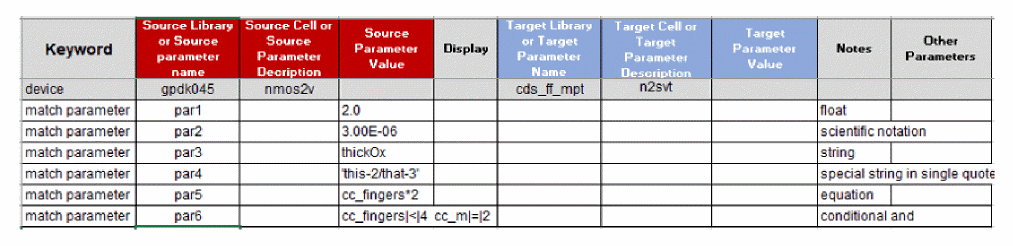
Figure C-5 Further map match filtering options
In checking source CDF parameter values, the Pcell may store a float such as 2.0 as a string. It may require iteration to see what is required for a particular Pcell and a particular PDK. In some cases, special equations or functions may need to be used to make the match effective. For example, it may be necessary to wrap a floating point value such as 2.0 in a function such as pcExprToString(2.0) to achieve the desired result.
If you include any math operators, the mapping system will assume you want your text to be evaluated as an expression. To prevent this, enclose your text in single quotes. For example, a-b is interpreted as the expression a minus b, while 'a-b' is interpreted as literally the text inside the single quotes. Quoting is useful if you need to refer to a CDF parameter whose name contains embedded math operators.
You can also use double quotes around text to prevent evaluation. This can be clearer to read if the text inside the quotes contains single quotes. Below are some examples that show how to preserve the literal text of an expression, rather than evaluating it during mapping:
'pPar("pl")'
'pPar("nl")*2'
"f('w)"
"n-ch"
'p-ch'
In the above examples, "f('w)" calls the function f() with a symbol argument, while "n-ch" means literally n-dash-ch, and not n minus ch.
Multiple conditional statements are separated by a space for source parameters. Each conditional has the following structure:
leftSide|operator|rightSide
where leftSide and rightSide may both be a literal number or string, or an equation, and the operator can be =, !=, <, >, >=, or <=.
Setting Target Device Parameters

Figure C-6 Target Device Parameters
Like source parameters, target parameters may be literal numbers or strings, source parameters references, SKILL equations or conditional equations. If a string literal contains mathematical characters such as -, +, / or *, single quotes must be used around the string, but do not wrap equations in single quotes.
In this example, PDK Library "gpdk045" cell "nmos1v_hvt" always maps to PDK Library "cds_ff_mpt" cell "n1hvt", without source match conditions as in examples 1 and 2. However, for each map, the target instance has three CDF Parameters set in different ways.
The first match parameter line sets the CDF Parameter "m" to a literal integer value 4. Depending on how the CDF Parameter is coded, special attention to value type might be necessary. For example, if the value 1.0 is used, and the CDF Parameter expects an integer, it might issue an error and not map this parameter. Check the CIW output to see if there are any errors or warnings coming directly from the Pcell itself; if so, adjust the Target Parameter Value column.
The second match parameter line sets the CDF Parameter "nf" to a reference source parameter, "fingers". The prefix "cc_" tells Schematic Migration that this is a referenced parameter.
The third match parameter line sets the CDF Parameter "nfin" to a SKILL expression, including constants and referenced source parameters. In this case, "fw" is 120n, which, when divided by 64n yields 1.875, which is rounded to 2, so "nfin" is set to 2. A divisor, in this case the 64n, must be a floating point number or SKILL division will assume integer only division. Special processing might be needed in the target parameter value field to handle certain expressions. For example, cdfParseFloatString("30n") convert "30n" to 3e-8.
Finally, the order of parameters is important in some Pcells. The parameters are set in a bottom-up order. However, if the option setTargetParameterTopDown = t, then the parameters are set in a top-down order.
Conditional Equation Syntax
In general, the conditional expression syntax is:
calc [eq|Result] [condition1] [condition2] .... [conditionN]
The keywords above are fixed placeholders and should not be modified. Result may be a literal number or string, or an equation. Result may also be a single quoted string. Each condition has the format:
[leftSide|operator|rightSide]
where leftSide and rightSide may both be a literal number or string, or an equation, and operator can be =, !=, <, >, >=, or <=.
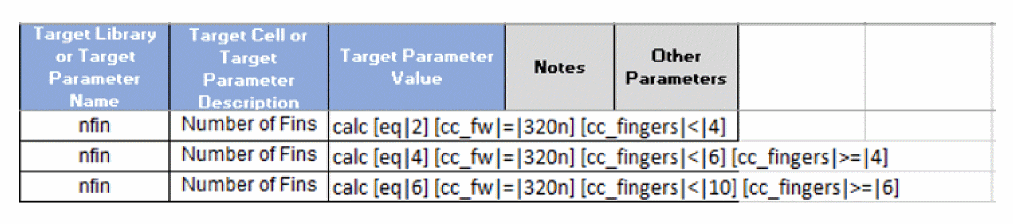
Figure C-7 Condition Equation Syntax
The analysis of the condition expression begins at the top match parameter line (for one parameter like “nfin”, even if other parameters are evaluated bottom-up). If one of the conditions fails, then, the analysis moves to the next match parameter line. If all of the conditions match on any one line in this order, then "nfin" is set to the result.
In the conditional expression example above, the top match parameter line has:
calc [eq|2] [cc_fw|=|320n] [cc_fingers|<|4]
If source parameter "fw" is 320n, and source parameter "fingers" is less than 4, then target parameter "nfin" is set to 2.
Otherwise, if source parameter "fw" is 320n, and source parameter "fingers" is less than 6 but greater than or equal to 4, then target parameter "nfin" is set to 4.
Otherwise, if source parameter "fw" is 320n, and source parameter "fingers" is less than 10 but greater than or equal to 6, then target parameter "nfin" is set to 6.
Otherwise, the target parameter "nfin" is set to the default Pcell value.
[eq|result] portion of the conditional expression, the result may be a SKILL equation and reference other source parameters. For example: [eq|cc_fingers*4]Other Parameters
The Other Parameters enables special, map specific options. For example, symbol offsets may be specified from the source symbol to the target symbol. Multiple “Other Parameters” may be specified for the same device map. The options must be separated by a space. Each separate option begins with a # character. Each option applies to that cell map (all instances of the target cell).
- Instance Symbol Offsets
- Pin rename from source to target
- Symbol Rename
- Symbol Size Transform
- Align Symbol by Target Pin Name
- Align Target Symbol center point to Source Symbol center point
- Shorts Avoidance Effort
-
Add wire stub and net name label
Adds a wire stub and net name label to unmapped pins on the target symbol. For example, if the target symbol has an extraVPPpin which should be connected to netVDD,#useStub=VPP|VDDcan be used to add a wire joining instance pinsVPPandVDD. The specified net can be an existing or non-existing net.
The created wire stub orients itself according to the position of the pin on the symbol and also according to the orientation of the instance. For example, horizontal wire stubs are created if the pins are on left and right sides of a symbol, and vertical stubs are created if the pins are on the top and bottom of the symbol.
Example:#useStub=<pin name>[|<net/label name>][;<pin name 2>[|<net/label name 2>]]
- Move the Symbol Outside and Add Wire Stubs and Net Name Labels
-
Connect Pin to Pin
Connects additional and unmapped pins on the target symbol. It can use horizontal, vertical or diagonal wires to connect the pins depending on their position.
Example:#connectPins=<target pin 1>|<existing pin 1>[;<target pin 2>|<existing pin 2>] - Connect a Target Pin to the Same Net of the Specified Source Pin
#stubFromPinNet=<target pin 1>|<source pin 1>[;<target pin 2>|<source pin 2>]
#pinRename=INP|IN2 #stubFromPinNet=SNS|SIDDQ
Target pin is SNS, source pin is SIDDQ
Notice that SIDDQ and SNS do not appear in #pinRename
Per cell map in the spreadsheet:
#copyProp=<t|nil>
If set to t, all properties on the source instance of this cell will be copied.
Requires copyProperties = list(“copyProp”), see section, Schematic Mapping Options.
Per cell map in the spreadsheet:
#copyProp=<source property name 1>|<target property name 1>|<display>[;<source property name 2>|<target property name 2>|<display>]
#copyProp=Grid|nil|t;w
#copyProp=Grid|rpGrid|t;l|length
Requires copyProperties = list(“copyProp”)
The source property name is required
The target property name is optional, if nil or unspecified, migration will use the source property name for the target property name
The display option is optional, if nil or unspecified, the migration will not display the property on the finished schematic. If set to t, this property will be display on-canvas
Per Cell Post Migration Trigger Function
#postMapTrigger=MYcustomFunction(<current instance object>)
The user may define a custom procedure that takes one argument. The argument is the current target instance object: for example: procedure(MYcustomFunction(instObj)...
The custom procedure must be placed in the $CDS_MVS_IMF_CM/SKILL directory on Virtuoso start-up.
Default Symbol Orientation Difference
Valid orientations are R90 R180 R270 MX MY MXR90 MYR90
[], indicate an optional addition. Corner brackets, < >, indicate a parameter value.Other Parameter Examples
The below example shows CSV saved from the Excel spreadsheet:
device, Framework_Examples_45_RebindLib1,SchMig_Cell1,,, source library, source cell, source view
Framework_Examples_ff_RebindLib1,SchMig_FF_Cell3,,, target library, target cell, target view
#symbolOffsetY=2.5 offset to target instance placement
#pinRename=VDD|VDDQ;GATES|NMG terminal renaming
#symbolName=sym2 symbol renaming
#keepPinLoc=NMG, move target instance to pin
device, VALE_Framework_Examples_45_RebindLib1,SchMig_Cell1,,,
VALE_Framework_Examples_ff_RebindLib1,SchMig_FF_Cell1_AddPin,,,
#moveAndStub=t move target instance outside and stub and label it
#useStub=sense|SEN, add short wire and label to added pin
Return to top