
Label Creation
You can identify objects or portions of your design by labeling the objects.
Use the Create – Label command to label objects. You can use the Create Label form to specify the settings for generating labels.
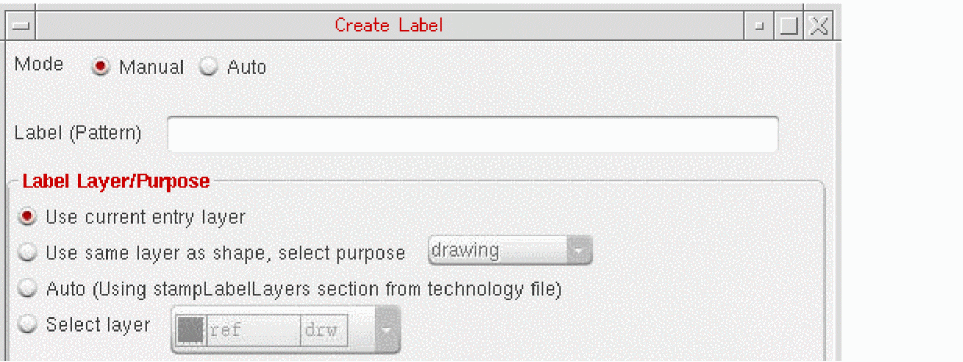
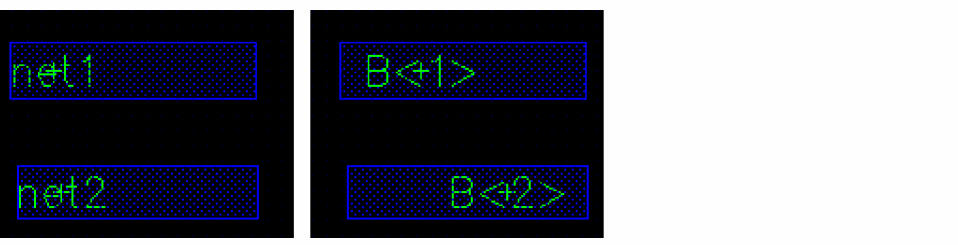
You can create labels in manual and auto modes. In manual mode, you can define the pattern that you want to use for generating labels. In auto mode, you can enable label creation from connectivity information and instances. You can also specify whether the object is created as a label or text display.
To place labels, you can use any of the following methods:
- Clicking the objects one by one to label them. This method is available in manual and auto modes.
- Drawing a scan line to label multiple objects in one go. This method is available in manual and auto modes.
- Using auto step to create labels automatically with the fixed, specified distance between consecutive labels. This method is available only in manual mode.
- Selecting shapes fully or partially, before or after invoking the Create – Label command. Labels are generated for fully or partially selected shapes that have connectivity information or are instances. This method is available only in auto mode.
Related Topics
Label Creation Patterns in Manual Mode
Configuring Label Creation Options
Generating Labels Using the Scan Line
Generating Labels Using Auto Step in Manual Mode
Label Creation in Manual and Auto Modes
Label Generation for Overlapping Shapes
Return to top