
Label Creation on LPPs Derived from stampLabelLayers
In the Create Label form, you can specify the layer purpose pair (LPP) on which you want to place labels. You can use the Auto (Using stampLabelLayers section from technology file) option to derive the layer and purpose on which to create the label from the stampLabelLayers section of the technology file. If the stampLabelLayers section does not exist in the technology file, a warning is displayed in the CIW. You cannot use this option to add labels to empty spaces in a cellview. With this option selected, you cannot label instances, vias, groups, and mosaics.
Consider the following example where the figure shows a sample stampLabelLayers section from a technology file.
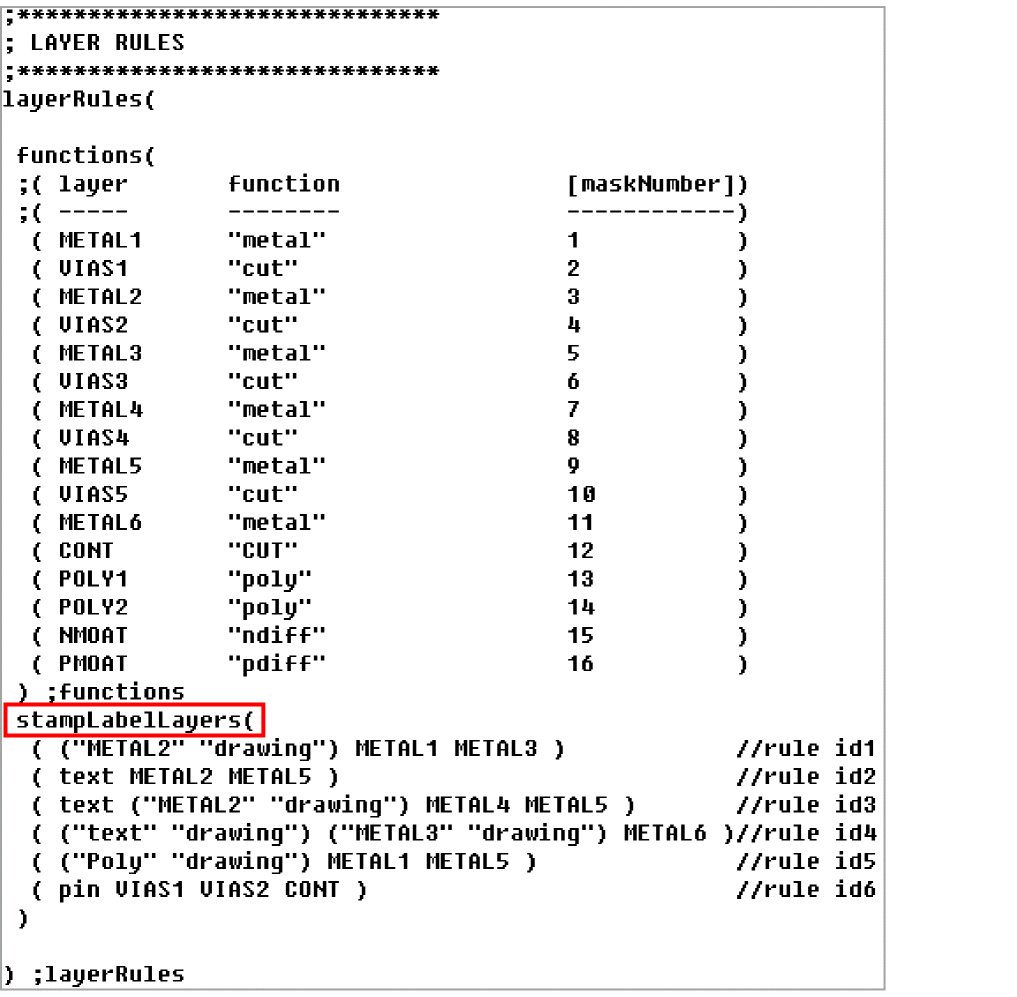
Each statement in the stampLabelLayers section defines a rule for creating a label on a particular layer-purpose pair. The first layer-purpose pair entry of a rule indicates the layer-purpose on which the label is created for a shape that exists on layer-purposes defined by the remaining entries of a rule. If a purpose is not specified in the first entry, the valid list of purposes for the specified layer is considered for creating the label. For example, in rule Id1, the first entry “METAL2” “drawing” represents the layer-purpose on which the label will be created. The remaining entries METAL1 METAL3 represent the layers on which the shape to be labeled should exist.
If a layer or layer-purpose pair of the shape occurs in multiple rules, the first encountered rule for that layer or layer-purpose is used for deciding the layer-purpose for the label. For example, if a shape exists on layer METAL5, rule Id2 will be used even though rule Id2, rule Id3, and rule Id5 are all METAL5 rules. Similarly, for a shape on METAL3, rule Id1 will be used. If you attempt to label a shape whose layer or layer-purpose pair are not part of any rule, an error message is issued in the CIW. In the sample stampLabelLayers section shown in the figure, there are rules for the layers METAL1, METAL2, METAL3, METAL4, METAL5, METAL6, VIAS1, VIAS2, and CONT. You cannot create a label for a shape that exists on layer POLY because no rule for the POLY layer has been defined in the stampLabelLayers section.
In the sample stampLabelLayers section, rule Id1 specifies that if the shape to be labeled is on METAL1-any purpose or METAL3-any purpose, the label is created on METAL2 purpose drawing. Similarly, rule Id2 specifies that if a shape is on METAL2-any purpose or METAL5-any purpose, the label is created on text layer and on a valid purpose defined for the text layer in technology file. The rule Id4 rule states that the label is created on text layer purpose drawing only if the shape exists on METAL3 purpose drawing or METAL6-any purpose. If the shape does exist on METAL3, rule Id1 is used for determining layer-purpose for the label.
The following table summarizes all the rules of the sample stampLabelLayers section. In the table, Valid purpose refers to any valid purpose defined in the technology file for that layer.
| If shape is on... | Label is created on... | |||
| Rule | Layer | Purpose | Layer | Purpose |
Related Topics
Configuring Label Creation Options
Generating Labels Using the Scan Line
Generating Labels Using Auto Step in Manual Mode
Return to top