
Creating a Rectangle
Using the Create Rectangle command, you can create rectangular shapes and rectangles with slots.
- In the layout window, from the Layers panel, select the layer on which you want to draw a rectangle.
- Choose Create – Shape – Rectangle.
-
Press
F3to open the Create Rectangle form.
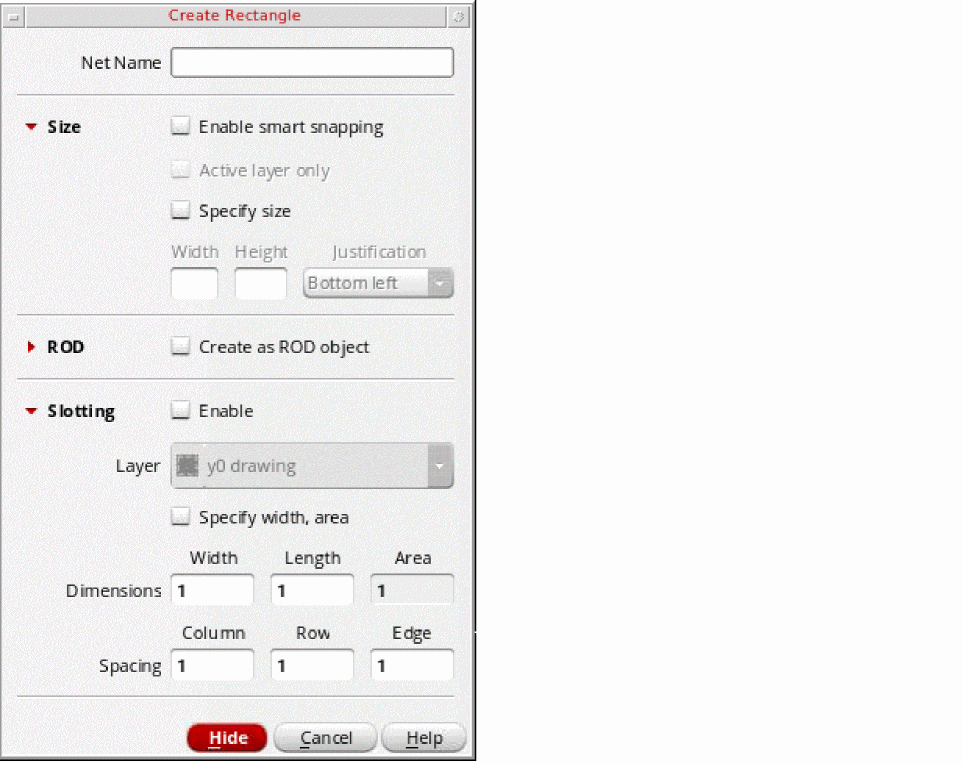
- In Net Name, type the name of the net with which you want to associate the rectangle.
-
In the ROD section, select the Create as ROD object check box if you want to create a ROD object rectangle; otherwise, the rectangle is created as a polygon.
In the Name field that now becomes editable, change the default rectangle name, if required. - In the Slotting section, select the Enable check box if you want to create the rectangle with slots.
-
Select a layer-purpose pair from the Layer list.
This list is available only if the Create as ROD object check box is selected in the ROD section. -
Specify the slot dimensions in the Width and Length or Width and Area fields.
If you deselect Specify width, area, the Width and Length text fields are editable. If you select Specify width, area, the Width and Area fields are editable. - Specify the spacing in the Column, Row, and Edge fields.
-
Click on the canvas to specify the first corner of the rectangle.
Alternatively, you can specify the points of the rectangle using the Enter Points form.
Click again on the canvas to specify the corner of the rectangle that is diagonally opposite to the first corner that you specified.
You cannot create a rectangle with zero area. If you click twice at the same point to specify the two corners of the rectangle that you are creating, a warning message is displayed in the CIW.
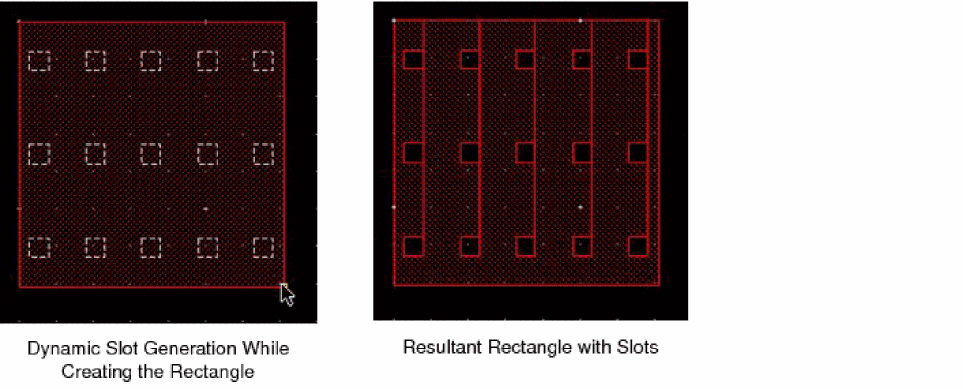
If you are creating a rectangle with slots, ensure that you create a rectangle large enough to contain the slots with the specified dimensions; otherwise, slots are not created. Slots are added dynamically as you create the rectangle.
You can create a rectangle of a single track height when the snapping mode for a layer is set to singleTrackCenter. In this mode, a shape is snapped only if it can be centered on a single track while meeting the enclosure rule on both sides.
Related Topics
Rectangles Created on a Layer with singleTrackCenter Snapping Mode
Return to top