
Rectangles Created on a Layer with singleTrackCenter Snapping Mode
In the Create Rectangle command, both the points are snapped to the grid by applying negative enclosure for the lower edge and positive enclosure for the upper edge of the rectangle. While drawing rectangles on layer-purpose pairs (LPPs) with the singleTrackCenter snapping mode, the points are snapped with respect to the same track, restricting the dimension to twice the enclosure value. You can disable snapping while drawing rectangles using a special mode enabled by using the Shift key.
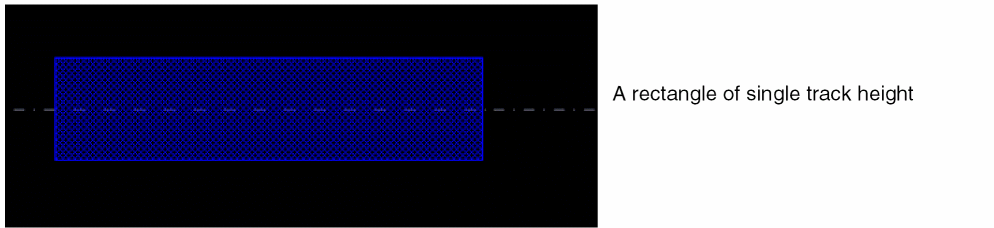
To create a rectangle of single track height, start the Create Rectangle command without pressing the Shift key. The first point of the rectangle is snapped according to the enclosure value. For vertical grids, the height of the rectangle is fixed after the first point is entered and the mouse can only be moved in the X-direction. Similarly, for horizontal grids, the width of the rectangle is fixed after the first point is entered, and the mouse can only be moved in the Y-direction.
To create a rectangle of arbitrary height with the first point snapped, start the Create Rectangle command. The first point is snapped according to the enclosure value. Press the Shift key during mouse drag to disable snapping for the second point. A rectangle of arbitrary height is created, as shown below.
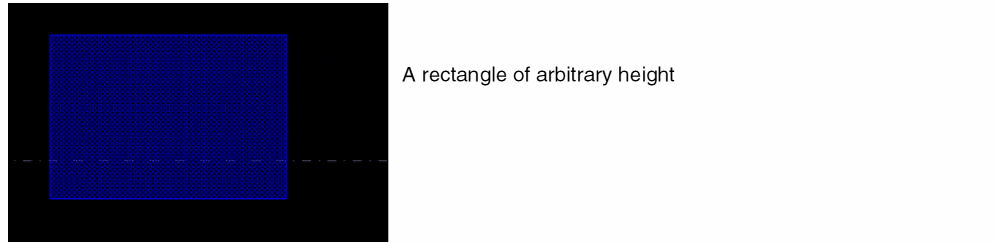
To create a rectangle of arbitrary height without snapping, start the Create Rectangle command. Press the Shift key during mouse drag to disable snapping for the first point. The second point of the rectangle will also not be snapped.
If the allowedWidthRanges constraint is specified for the LPP, the height of the rectangle is a multiple of the discrete width specified. If this constraint is not specified, a rectangle of arbitrary height is created.
Related Topics
Object Snapping in singleTrackCenter Snapping Mode
Return to top