
Aligning a Layer with Another Layer
To align a layer with another layer:
-
In the layout window, choose Edit – Advanced – Align.
The Align form opens. -
In the Reference section:
- Choose Align Direction as horizontal or vertical.
- Choose Layer as the reference to align items to a layer.
- Select the layer you want to use to align the layer to.
- Choose the layer edge you want the objects to align with, from the Use list.
You are prompted to select a reference object for the alignment. -
On the canvas, click the object you want to align other objects or layers to.
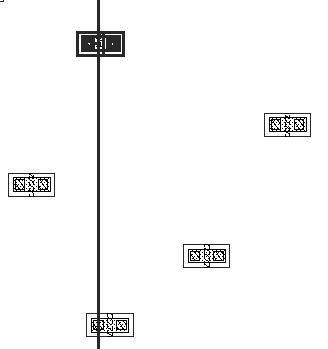
The alignment pointer appears.
- In the Align Using section:
- To evenly space the objects in the Align Direction, select the Apply Spacing check box and enter the value in user units by which you want to separate the objects. If you do not use the Apply Spacing, the objects retain their original spacing. They are aligned, but not evenly spaced.
- Select the Orthogonal Spacing check box to space the objects perpendicular to the Align Direction as well. This option is available only if Apply Spacing is selected.
-
Select how you want the objects sorted, from the Sort Objects By list.
You are prompted to select the objects to be aligned. You can select the objects by clicking on each object one at a time while holding down theShiftkey, or you can select the objects by drawing a selection box around them. -
Click Apply.
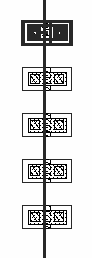
The following figure shows an example where the reference is Layer of materialpoly1 dg, the Align Direction is Vertical, and the Use field is set to Left Edge. The Align Using is Layer, the Use cyclic is set to Left Edge. The Apply Spacing is selected, with 5.0 user units Between Objects. Objects are sorted by Instance Name.
Related Topics
Object Alignment by Using the Align Command
Return to top