
Object Alignment by Using the Align Command
The Align command lets you align objects or shapes in a cellview. You can align objects to either a point, another object, or a layer. You can also align a layer to another layer or other objects. When aligning objects in a chain, the entire chain gets aligned with the selected object. You can add objects to an already aligned group.
If nothing is selected in the cellview, the Align command prompts you to select one or more objects. You can area select or use the Shift + left mouse button to select additional objects. Use the Enter key or double-click the mouse button to complete the command. To specify a different reference, use the Set New Reference button in the Align form. The layout editor prompts you to select a new reference to which you want to align objects.
You can quickly align an object by placing the pointer over the object and then pressing the Enter key or by double clicking. Conversely, to prevent an object from aligning when you press the Enter key or double-click, ensure that the pointer points at empty space on the design canvas. You can also use the Enter key or double-click for aligning multiple selected objects.
While aligning objects, you can specify spacing settings. In the Align form, you can set spacing as between objects or as pitches.
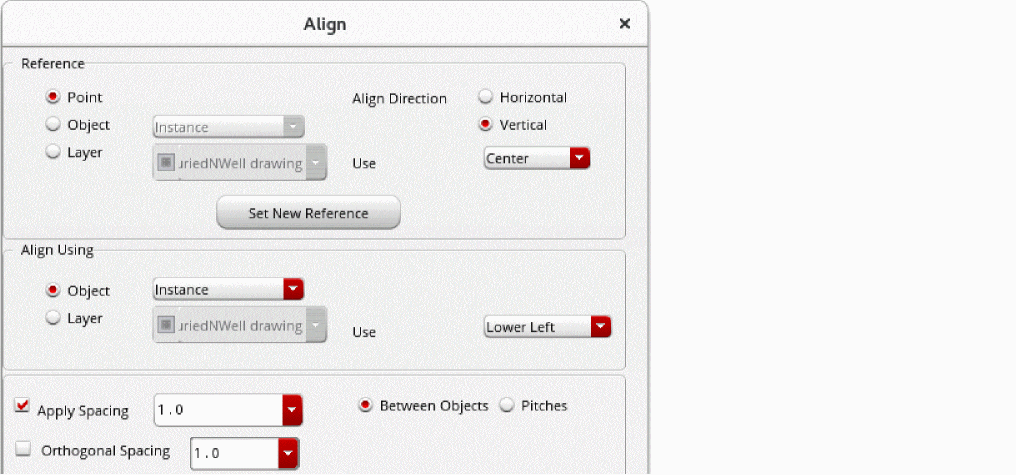
The Between Objects option specifies the distance, in user units, to be maintained between adjacent edges of objects to be aligned. The first object overlaps the selected reference point. The next object aligns at a distance specified in the Apply Spacing field from the adjacent edge of the previous object. If you specify a negative number, the aligned objects overlap.
In the following example, point R is the selected reference point.
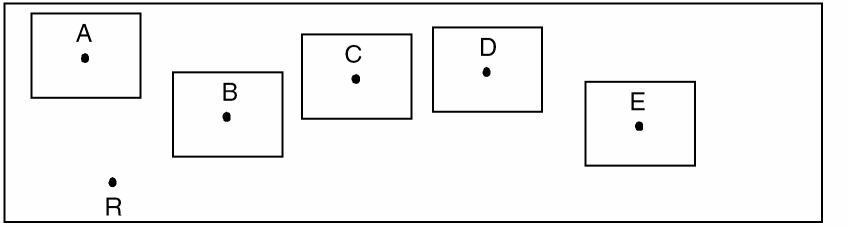
When the Align Direction is set to Horizontal, the Use field in the Align Using section is set to Lower Left, and the Apply Spacing value is specified as 2.0, then when you apply the Align command, the lower-left point of the first rectangle, A, overlaps the reference point R. For aligning the next rectangle, B, the Between Object spacing distance of 2.0 is calculated from the outer edge of rectangle A to the lower-left point of rectangle B, in the horizontal direction, as shown in the following image.
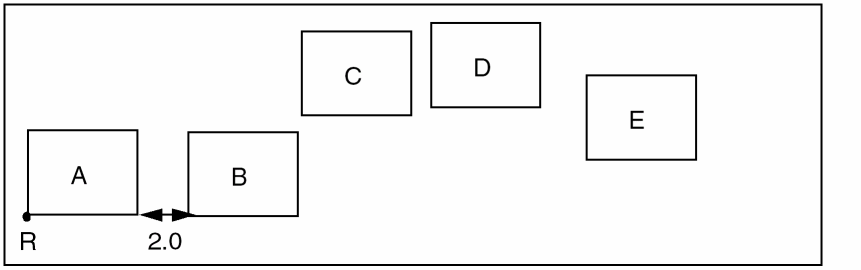
The remaining rectangles are similarly aligned in the horizontal direction with the Between Objects spacing of 2.0, as shown in the following image.

If the Reference section is set to Object or Layer and the Apply Spacing check box is selected, both Between Objects and Pitches options are disabled. However, the spacing of the aligned objects by default follows the Between Objects spacing behavior.
The Pitches option in the Align form specifies the distance, in user units, to be maintained across objects between the specified points (Use in the Align Using section). The first object overlaps the selected reference point. The next object aligns at a distance specified in the Apply Spacing field from the aligned point of the previous object. The Pitches option is available only if you select Point in the Reference section. The spacing distance is specified in the Apply Spacing field.
In the following example, point R is the selected reference point.
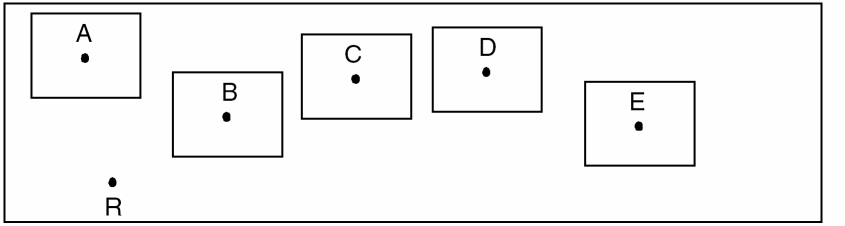
When the selected Align Direction is Horizontal, the Use cyclic field in the Align Using section is set to Center Center, and the Pitches Apply Spacing value is specified as 3.0, then when you apply the Align command, the center point of the first rectangle, A, overlaps the reference point R, as shown in the following image.
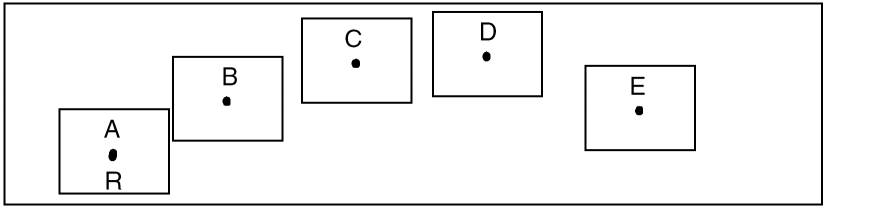
The center point of the next rectangle, B, then aligns to the center point of rectangle A at a distance of 3.0, in the horizontal direction, as shown in the following image.
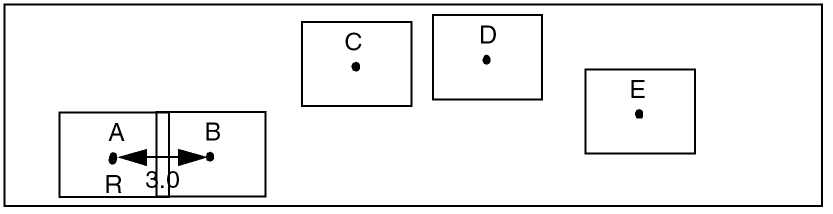
Similarly, center points of subsequent objects align with the center point of the previous object at a distance of 3.0.

Related Topics
Aligning Objects with a Reference Object
Aligning a Layer with Another Layer
Adding Objects with a Pre-Selected Aligned Group
Aligning Objects by Using the Align Toolbar
Return to top