
Attaching and Detaching Objects
You use the Attach/Detach command to attach or detach objects.
Attaching Objects
-
In the layout window, choose Edit – Advanced – Attach/Detach.
The following message appears in the CIW:
Select child object to be attached or detached. - Click the object that you want to be the child object. A dotted line extends from the child to the pointer.
-
Move the pointer to the object that you want to be the parent object and click the parent object.
The child is attached to the parent.
You can attach all objects to a parent object by pressingShiftand clicking the middle mouse button.
Detaching Objects
To detach objects that have been joined using the Attach/Detach command:
- On the layout canvas, select the child objects that you want to detach.
-
Choose Edit – Advanced – Attach/Detach.
The following message appears in the CIW:
To attach child object, click the parent object;
to detach child object, click in empty area.
A dotted line extends from the child to the pointer. -
Move the pointer to an empty area on the canvas and click the empty area.
The child object is detached from the parent.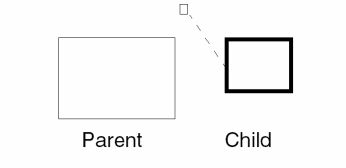
-
If you selected more than one child object, click again in an empty area.
You can detach all objects from the parent object by clicking the middle mouse button in an empty area.
Related Topics
Parent-Child Relationship Between Objects
Return to top