
Splitting an Object
To split and stretch an object:
- On the layout canvas, select the object you want to split.
- Choose Edit – Advanced – Split.
-
Click the points of the split line on the canvas.
You can use the middle mouse button to toggle between the split segments. In the above example, the split will alternately highlight the path section interior to the split lines, and the two segments of the path exterior to the split lines.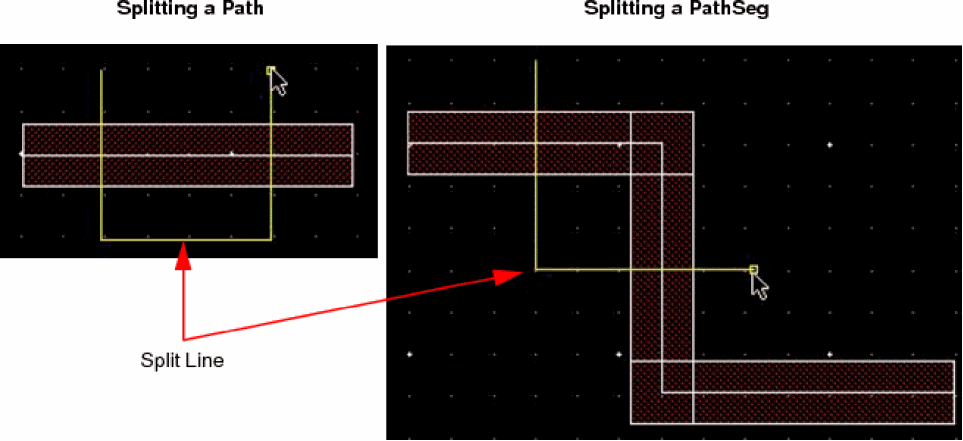
When the split shape is drawn clockwise, the Split command selects the parts of the object outside the split lines first. When the split shape is drawn counterclockwise, the command selects the parts of the object interior to the split lines first. In the case of a single split line, toggling with the middle mouse button will alternate between the sides of the object divided by the split line. -
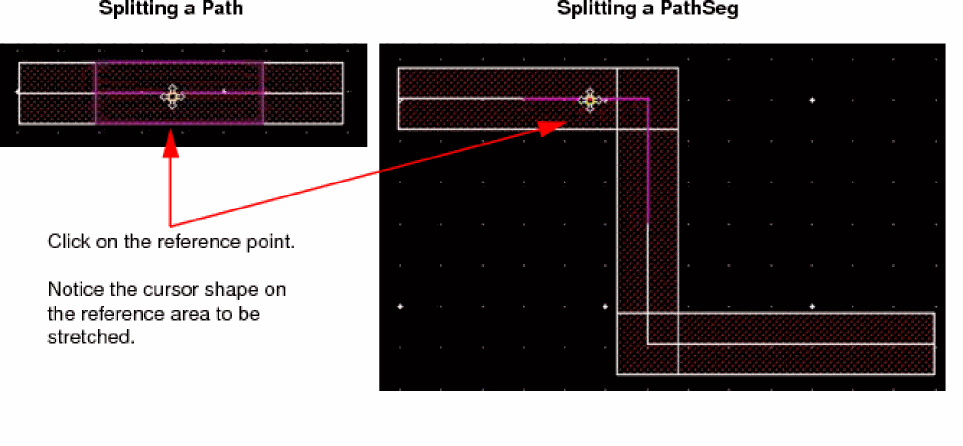
Click the reference point for the stretch.
-
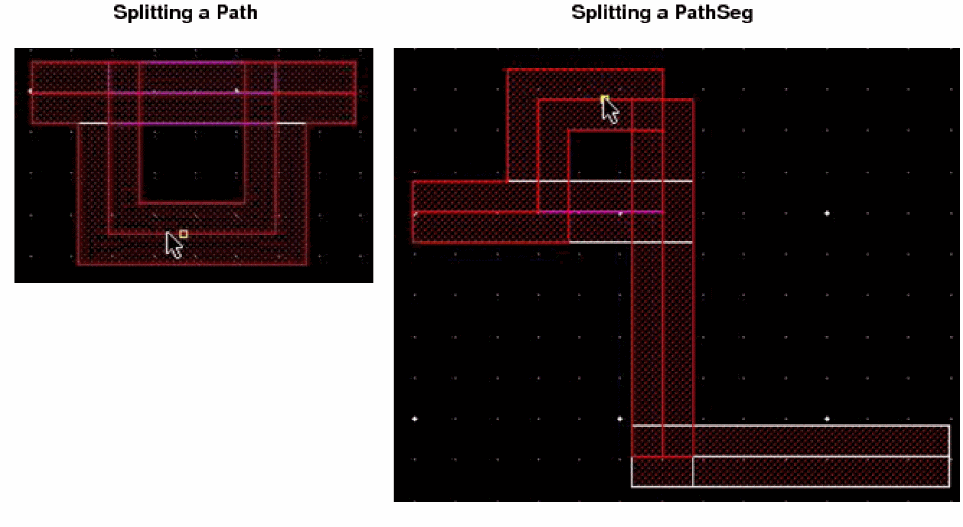
Click the new location for the stretch.
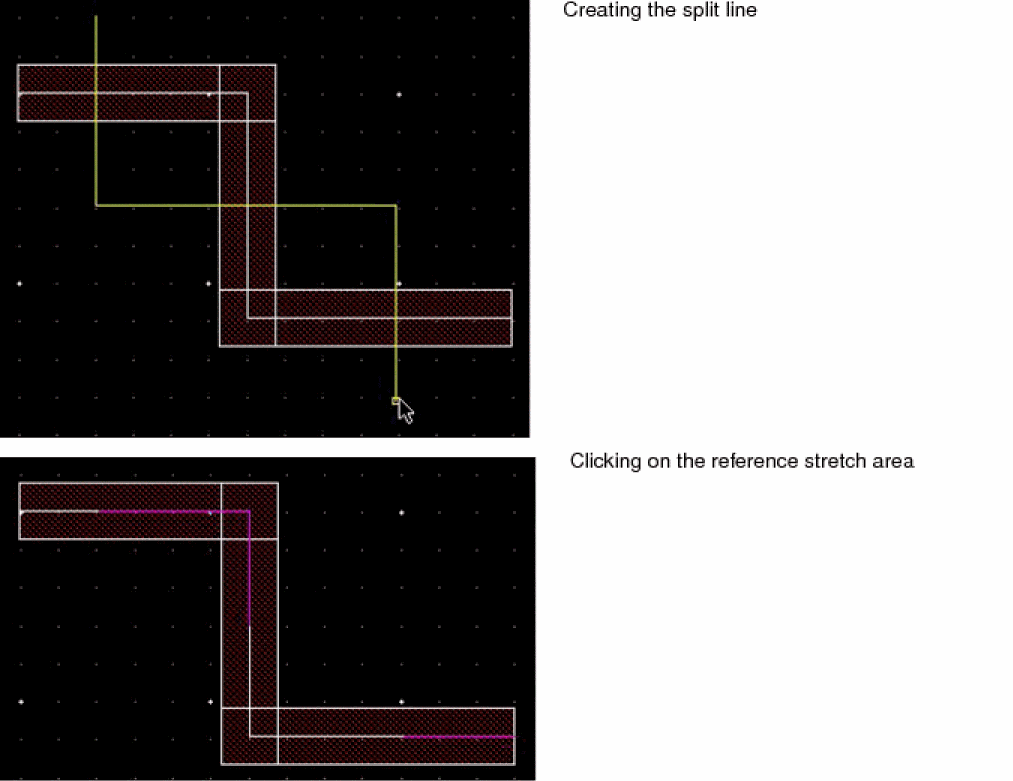
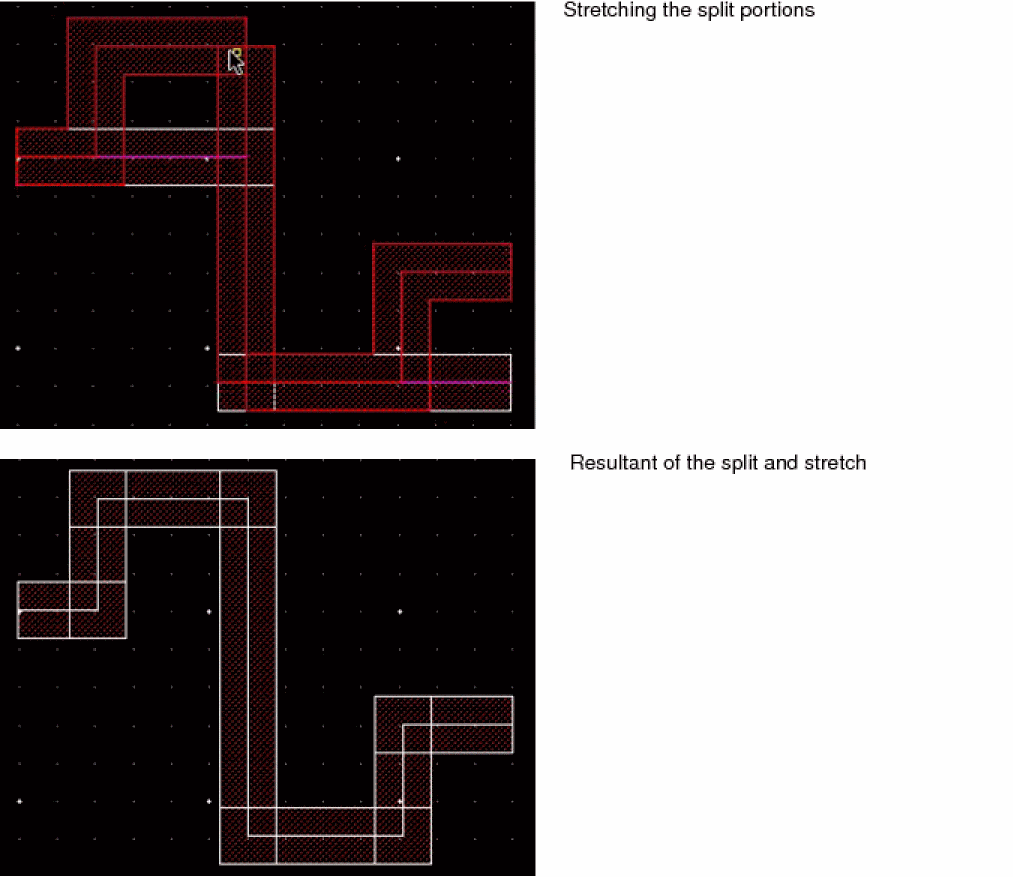
The following figures illustrate splitting and stretching of multiple segments of a pathSeg at the same time.
Related Topics
Return to top