
Stretching a Circle
Circles are special cases of ellipses, so if you stretch a circle it will not remain a circle, unless you use one of the correct methods. There are two ways to stretch a circle so that it will remain a circle.
- Edit option is set to diagonal in the Snap Mode section of the Display Options form.
- Selection mode is set to Partial.
- Set Edit to diagonal in the Snap Mode section of the Display Options form.
-
Set the selection mode to Partial by using the
F4key. -
On the canvas, select one corner (the vertex) of the circle, as shown below:
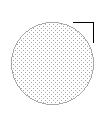
-
Move the mouse pointer to the vertex edge until you see the stretch pointer, as shown below:
You can enlarge or shrink the circle by moving the stretch pointer, and the circle remains a circle if you stretch at a 45-degree angle, however, the origin point of the circle will not remain the same.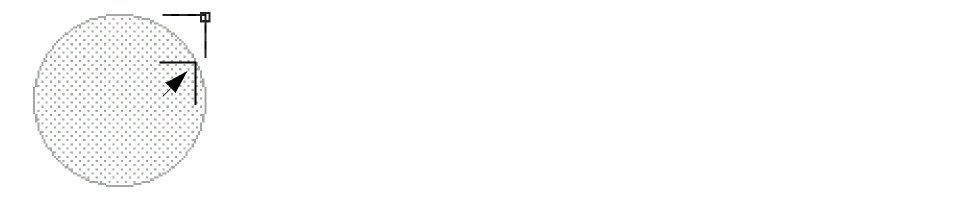
Related Topics
Return to top