Auto Via Assistant Options Form
In Virtuoso Layout Suite EXL and higher tiers use the Auto Via Assistant Options form to specify the options for analyzing or creating auto vias.
|
Field
|
Description
|
|
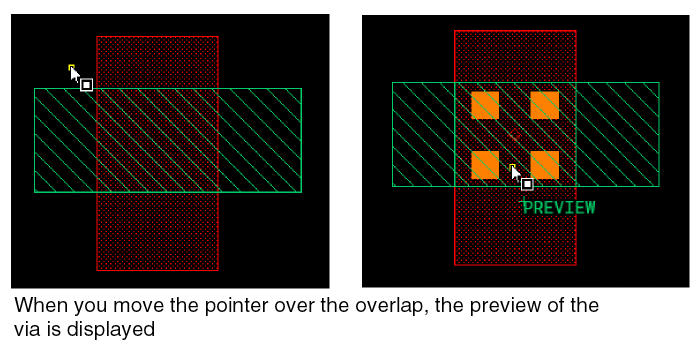
Show preview
|
Shows a preview of the via that will be created. This check box is selected by default.
|
|
Show report
|
Shows a report of the via that will be created. This check box is selected by default.
|
|
Create in route
|
Lets you to create a via in a new route. If this option is selected, every new via is created in a new route. This check box is selected by default.
|
|
Create vias using top 2 layers
|
|
|
Lets you to create vias using top two layers only.
|
|
Override variants
|
Lets you to update a via variant and overwrite the existing via parameter values. If this check box is selected, it allows the via engine to update a via variant.
|
|
Fill Method
|
Specifies the fill method to be used while creating the via. You can choose from Fully, Partially, Horizontally, or Vertically.
|
|
Align cuts
|
Specifies the alignment of cuts between different tiles of a polygonal overlap. When this option is enabled, cuts between different tiles of a polygonal overlap are aligned. When this option is disabled, the polygonal overlap is decomposed into a set of largest tiles and vias are created independently in each tile, which may result in cuts not being aligned between different tiles.
|
|
Overlaps Section
|
This section lets you specify the purposes and blockages to use for overlaps.
|
|
Valid Purposes
|
Lets you to specify a list of valid purposes for via creation. The via will not be created even if one purpose of the overlap shapes does not belong to the list of valid purposes specified in this field.
|
|
Ignore Purposes
|
Lets you specify the list of purposes that will be ignored for via creation.
|
|
Consider blockages
|
Does not create any via in case a blockage exists between the top and bottom metal of the current overlap.
|
|
Enclosures Section
|
This section lets you specify how the via enclosures should be extended.
|
|
Extend beyond overlap
|
Lets you to extend the via enclosures beyond the overlap region between two intersecting shapes. The shape layer that exists beyond the overlap region helps to accommodate the extended enclosures.
|
|
Fill overlap
|
Lets you to extend via enclosure such that it covers the complete overlap area between the two intersecting shapes, that is, the bounding box of the via enclosure coincides with the bounding box of the overlap region.
|
|
DRC Check Section
|
This section lets you specify the DRD checks to be performed while creating the via.
|
|
Hierarchy Range
|
Sets the levels of hierarchy to be considered for layout integrity check.
current to stop level: Performs the check from the current edit cellview level to the stop level specified in the Display Levels Stop field in the Display Options form.
current to bottom: Performs the check from the current edit cellview level to the bottom of the hierarchy.
current to user level: Performs the check from the current edit cellview level to the level that you specify in the spin box.
|
Related Topics
Create Via Form
Auto Via Assistant
Analyzing a via using Auto Via Assistant
Creating a via using Auto Via Assistant
Return to top