
Create Instance Form
Use the Create Instance form to create an instance in the specified window.
| Field | Description |
|---|---|
|
Lets you select the library, cell, and view names in the library browser. |
|
|
Sets the library, cell, and view names of the master cell you want to place as an instance in this cellview. A thumbnail of the library, cell, and view that you have selected will be displayed on the Create Instance form. The Library, Cell, and View text fields, which can be auto-completed. When you type the characters, the drop-down list shows the names containing the matching characters at any position in the name (beginning, middle, or end of the name). Select from the drop-down list and specify the name in the text field. The drop-down list is retrieved from cds.lib. The fields are highlighted if there are no matching library or cell or view names for the characters mentioned in the field. |
|
|
Sets the name assigned to this instance. You can type any name unique to the cellview here or let the layout editor automatically assign instance names that begin with the letter I, followed by a number. You can enter multiple names (separated by a space) to place several instances of the same cell. If the design has EMH, you can specify a hierarchical path name for creating the instance at the desired location in the EMH. |
|
|
Turns on or off the ability to define halo blockages for the instance. |
|
|
Creates an instance in such a way such that it exists only in the block domain and not in the module domain. This option is enabled only for instances and is disabled for mosaics. Once you create an instance as a physical only instance, you cannot change its domain visibility. This attribute is used for filler (pad and core) and corner cells. Environment variable: instPhysicalOnly |
|
|
|
|
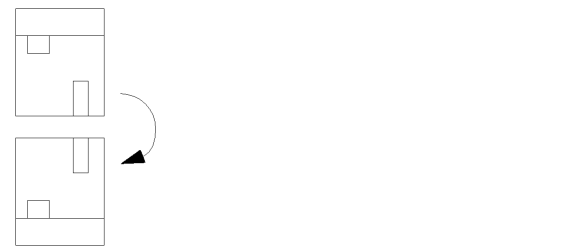
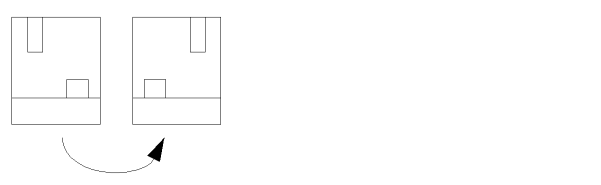
Lists the instances in the Parameters section, if they have associated parameters. The orientation buttons at the bottom of the form let you change the orientation of the selected instance. |
|
|
Adds the instance being created to an existing cluster in the design. Cluster drop-down list specifies the name of the cluster to which the instance is added. Choose an existing cluster from the drop-down list or type the name of a new cluster into the field. |
|
|
Specifies the type of cluster as inclusive, exclusive, or suggested. |
|
|
Related Topics
Return to top