
Layout Editor Options Form
Use the Layout Editor Options form to change the layout editor environment. The form contains the following sections and the common fields.
| Section/Field | Description |
|---|---|
|
Enables you to set various editor controls such as whether to allow commands to be repeated and connections to be maintained. |
|
|
Specifies the name of the constraint group that contains foundry constraints. |
|
|
Enables you to define gravity controls to set the pointer to automatically snap to objects in a cellview. |
|
|
Enables you to specify the default wire constraint group and via parameters calculation mode. |
|
|
Specifies the file to which you want to store or from which you want to load the settings. You can enter the correct directory where you want to save the file. If you do not remember the name of the directory use the Browse button. Environment variable: editorOptionsFile |
|
|
Saves the current setting from the Layout Editor Options form to the file specified in the File field. |
|
|
Sets the Layout Editor Options form settings to the values saved in the specified file. |
Editor Controls
The following table describes the fields available in the Editor Controls section of the Layout Editor Options form.
| Field | Description |
|---|---|
|
Sets all commands to automatically repeat, if you first select the command and then the object to edit. Does not affect commands if you first select an object, then the command.
Environment variable: |
|
|
Displays a bold asterisk (*) on the current reference point in your layout.
Environment variable: |
|
|
Sets a reference point automatically whenever you enter a new point. You can set the reference point to a particular point by pressing + key on the keypad. The pointer changes to an asterisk (
Environment variable: |
|
|
Turns recursion checking on. Recursion checking prevents the creation of recursive hierarchy (where a cell has an instance of itself at some level) by commands such as Create Instance, Make Cell, and Find/Replace.
Environment variable: |
|
|
Turns on an automatic re-connection mode for pins, paths, and pathsegs that have been separated during any editing activity that moves pins. The check box is off by default. See Pin-Path and Pin-PathSeg Connections Preserved.
Environment variable: |
|
|
Turns automatic abutment and automatic unabutment on and off. When on, unabutment automatically restores abutted devices when moved apart. This ensures that dropped vias are restored when chained devices are moved apart. It also eliminates errors such as devices with no diffusion overlap on one side. When off, automatic abutment and automatic unabutment are off. Also, when set off in the layout editor, unabutment retains the abutted device configuration even when the device is unabutted. |
|
|
Ensures that the object you create remains selected after you complete the create, copy and paste commands. If you create multiple objects, all of them remain selected after being created. With this option selected, any object(s) that you may have selected before starting the create command remains selected after the create command completes. The option is off by default.The Repeat commands should be disabled for this option to work for copy and paste commands. Environment variable: selectCreatedObj |
|
|
Rotates multiple selected objects around the specified reference point of the combined bounding box of the objects. This check box is selected by default. Environment variable: rotateAroundCombinedCenter |
|
|
Flips multiple selected objects around the specified reference point of the combined bounding box of the objects. This check box is selected by default. Environment variable: flipAroundCombinedCenter |
|
|
Turns off infix when commands, such as Create Measurement and Quick Align, that use smart snapping are active. Environment variable: turnInfixOffWhenSmartSnapping |
|
|
Ensures only valid layers displayed in the Layers assistant are populated in the layer field of the Property Editor, Move, Copy, Label, and Find/Replace forms. When this option is selected, you can select an LPP not present in the filtered layers of the Palette but exists in the technology file. The name of the LPP is case-sensitive and should match the name specified in the technology file. Environment variable: validLppFilterOn |
|
|
Provides control for checking for large coordinates during the copy operation. The Copy command does not allow objects to go out of the INT_MAX boundary and hence does not distort the copied image. The value of INT_MAX is 2147483647 (231 -1) (signed int max value). When you copy an object, until the copy operation is committed, an image of the copied object is displayed when you drag. This image is referred as the copied image. Environment variable: checkLargeCoordinates |
|
|
Enables you to change the display order of layer-purpose pairs in the canvas. You can do this by dragging up and down the layer-purpose pairs listed in the Palette when Palette mode is set to Multi-select. Environment variable: pteLppsDisplayOrderControl |
|
|
Displays the shapes on the active layer in the foreground, on top of the shapes drawn on all other layers. Environment variable: pteDisplayActiveLppInForeground |
|
|
Specifies whether the Flip, Rotate, and Create Instance (when creating an array of instances) commands use the instance bounding box (BBox), the place and route boundary (P&R Boundary), or the Snap Boundary as the instance border when operating on instances or mosaics. For example, if you have a standard cell with a large label that extends well beyond the PR boundary, the bounding box of that cell will be much larger than its place and route boundary. Set this option to P&R Boundary to have Flip and Rotate ignore the bounding box and instead use the PR boundary when operating on the cell. The default is BBox. If you set this environment variable to P&R Boundary or Snap Boundary and the instance or mosaic does not have the corresponding boundary, then BBox is used instead. Environment variable: editInstanceBoundaryMode |
|
|
Sets whether or not you can create or edit a path that has a segment with length less than half the path width. You can either disable the checking (off Environment variable: checkHalfWidthPathSeg |
|
|
Sets the number of segments to use when you convert conics to polygons. The maximum number of sides is 4000.
Environment variable: |
Foundry Constraints
The following table describes the field available in the Foundry Constraints section of the Layout Editor Options form.
| Field | Description |
|---|---|
|
Specifies the name of the constraint group that contains the foundry constraints.
This field is available only when the AlternateFoundryCG environment variable or the
You can display a foundry description by setting the 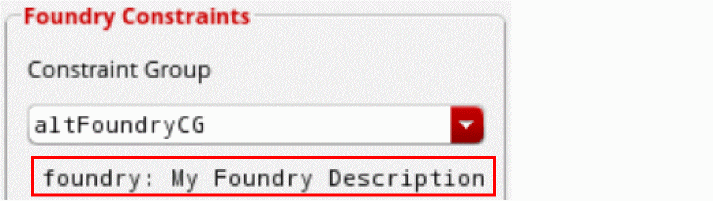 |
Gravity Controls
The following table describes the fields available in the Gravity Controls section of the Layout Editor Options form.
| Field | Description |
|---|---|
|
Sets the drawing pointer to automatically snap to objects in the cellview. The pointer snaps to all the visible objects at any hierarchy level. Environment variable: gravityOn |
|
|
Sets the snap distance between the pointer and an object. You can choose from Small, Medium, Large, or Very Large using the slider. Environment variable: gravityDistance |
|
|
Sets the drawing pointer to snap only to the selected objects in the cellview. Environment variable: gravitySelectableOnly |
Tap
The following table describes the fields available in the Tap section of the Layout Editor Options form.
| Field | Description |
|---|---|
|
Sets the layer of the wire being created to be the same as that of an existing clicked wire automatically. Attributes of objects are also tapped. In addition to object attributes, an existing net name can be tapped.
For more information, see |
|
|
Sets the tapped layer as the layer for the wire or shape being created, and updates the Layer Selection Window. Layer option is enabled only when one of Wire or Shape from Auto Tap option is on.
Environment variable: |
|
|
Captures attributes from the wire or shape you click. When tapping a wire or path, you can tap the LPP, extension type, and width of the wire. The Attributes option is enabled only when one of Wire or Shape from Auto Tap option is on.
Environment variable: |
|
|
Prompts you to choose a layer or net name from the Choose Object to Tap form when clicking on a coordinate with objects on overlapping layers. The option is enabled only when one of Wire or Shape from Auto Tap option is on.
For more information about tapping LPPs, see |
|
|
Prompts you with the Choose Object to Tap form when tapping a via in Layout XL and higher tiers. For more information, see
Environment variable: |
|
|
Prioritizes the purposes considered when changing the current layer. For example, if you have a You can specify an ordered list of purposes in the field. For more information, see Customizing Tap Settings Using the Layout Editor Options Form. Environment variables: useTapPurposeList, tapPurposeList |
Snapping
The following table describes the fields available in the Snapping section of the Layout Editor Options form.
| Field | Description |
|---|---|
|
Enables snap pattern snapping.
Environment variable: |
|
|
Snaps instances to rows during the commands Edit – Move, Edit – Copy, Edit – Stretch, and Create – Instance. Instances must be associated with a legal site. To set the site definition for an instance master, use the Edit Cut Pattern Form. Ensure that the site definition set for the instance master and the site definition corresponding to the row to which you want to snap the instance are the same. Instances snap to the nearest site within a row and match the orientation of the site. The instance must be either over a legal row or the distance between the instance and the legal row must be within the specified aperture in Layout Editor Options form. Rows can be horizontal or vertical and instances can be any orientation. If the instance has a snap boundary, the snap boundary snaps to the row site. If the instance has a prBoundary but no snap boundary, the prBoundary snaps to the row site. If the instance does not have either a snap boundary or a prBoundary, then the lower left corner of the instance snaps to the row site. If multiple instances are selected, the instance closest to the reference point will be snapped to the row.
Environment variable: This option supports the row types - row region, dbRow and dbPlaceArea. Snapping rows to manufacturing grid is not supported. |
|
|
(Virtuoso Photonics Option) Determines in Layout EXL or a higher tier whether objects are snapped to coarse manufacturing grids instead of the base manufacturing grid. This feature is supported for the Create Instance, Create Rectangle, Create Polygon, Create Path, Create Pin, Create Via, Move, Copy, and Stretch commands. Rectangles, polygons, paths, and pins are snapped to the manufacturing grid defined for the layer in the technology file. Instances or vias are snapped to the least common multiple value of manufacturing grids of all the layers in the instance or via.
Environment variable:
In the technology file, the base |
|
|
Lets you select the snapping mode.The available options are:
For Routing Grid and Track Patterns, the pin snapping has precedence over the grid or track snapping. Therefore, if pins are off grid, it is still possible to use Routing Grid and Track Patterns. The segments connecting the pins will be off grid and the other segments will be on grid. If there are track patterns in the design, then Routing Grid does not snap the segments on the routing grid but on the manufacturing grid.
Environment variable: |
|
|
Snaps the wire to the centerline of the track pattern. Also, if this option is selected, the wire inherits the width of the active width spacing pattern and the direction in which the wire is created is the same as the direction of the track pattern.
Environment variable: |
|
|
Lets you view the patterns available in an instance.
Environment variable: |
Wire Editing
The following table describes the fields available in the Wire Editing section of the Layout Editor Options form.
| Field | Description |
|---|---|
|
This section enables you to specify the default wire constraint group and various wire controls. |
|
|
Allows the selection of one of the available constraint groups, which may be defined at the technology or the design level. The constraint group defines the appropriate layers and vias for the application being used. Only the layers, vias, and any rules specified in the selected constraint group are used when creating wires. Selection of a constraint group in the Wire cyclic field specifies the application default constraint group for wire creation and editing commands. The default active constraint group is
For more information about defining constraint groups, see
Environment variable: Existing wires are not adjusted based on changes to the constraint group in the Wire Editing section. The recommended flow is to set the constraint group at the beginning of a session and to not change the constraint group while you are working on a design. To vary the constraints on different nets, set desired constraints on specific nets by using the Process Rule Editor. If you update the constraint group while working on a design, remove the existing results (delete all routing) that would be effected by the constraint group change and re-route.
When the procedure(constraintGroupCustomFilter(editedCellView cg) prog((result) result = nil if(strncmp(cg~>name "cg_" 3) == 0 then result = t ) return(result) ) |
|
|
Sets the calculation mode for via parameters to one of the following:
Environment variable:
The assisted routing commands, such as Point to Point Routing, Guided Routing, Finish Wire, and Finish Entire Net, use the Via Parameters Calculation Mode options (Min Rules & ViaDef, Minimum Rules, and ViaDef Defaults) for via creation. For more information on assisted routing commands, see |
|
|
Merges the connected geometric paths automatically. Also, allows you to choose whether or not to merge the collinear geometric pathSegs while creating or stretching a geometric wire.
Environment variable: |
|
|
Permits creation of loops when creating or editing wires. The option is off by default. When off, the Create Geometric Wire command (Create Geometric Wire and Create Wire commands in XL/GXL) does not allow the creation of loops on the same layer. When the layer is changed while wire creation, loop checking is reset and applies only to the new layer.
For information about loop removal, see
Environment variable: |
|
|
Enables the re-calculation of via alignment of the vias if you stretch the wires connected to them. This check box is not selected by default.
Environment variable: |
|
|
Displays an alignment arrow and an alignment marker. The arrow points to the closest object on the active flightline. The marker snaps the cursor to the target object edges and center as you move the cursor.
Environment variable: 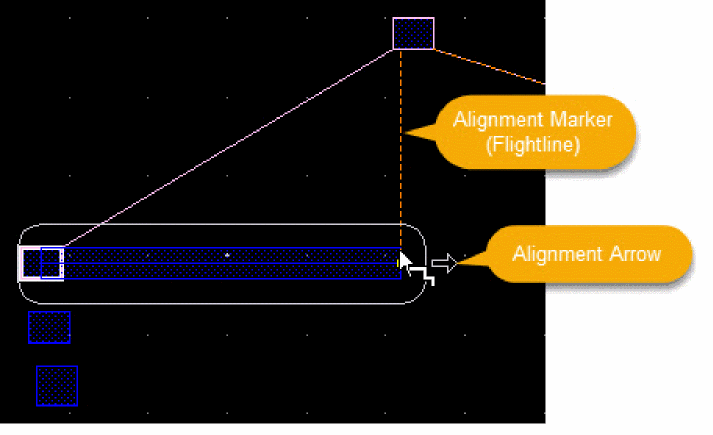 |
|
|
Controls the display of the Interactive Routing Bindkey hint box in Layout EXL and higher tiers when you start the Create Wire, Create Bus, or Create Stranded Wire command. In Layout XL, the hint box is displayed only for the Create Stranded Wire command. The Interactive Routing Bindkey hint box describes the useful bindkeys and shortcuts for the interactive routing commands. This option is selected by default. |
|
|
This section enables you to specify the default constraint group and via parameters calculation mode. |
|
|
Specifies the constraint group from which vias will be available when adding vias using Create – Via or while editing vias using the Edit Via Properties form, the Property Editor assistant, or the Create Via form. The via spacing values in the constraint group selected here populate the Create Via form, as well as reflect on the Edit Via Properties form and Property Editor assistant.
For more information about defining constraint groups, see Environment variable: viaConstraintGroup The spacing on the via does not always match the spacing value defined in the constraints. The via engine tries both an odd and an even spacing to avoid asymmetric enclosures. |
|
|
Seeds the Create Via form the first time when a specified viaDef is used. Then onwards, the Create Via form is populated from Parameter Caching. If required, you can later reset the calculation mode by using the Reset Parameters to list on the Create Via Form. The cyclic field values for this option include:
|
|
|
This section enables you to specify how halos are represented in the layout canvas in order to make it easier to view them in the design. |
|
|
Enables or disables a halo display in the layout canvas. When the option is unselected, the halo is not shown when the wire is created.
Environment variable: |
|
|
Lets you select the spacing for the halo.
Environment variable: |
|
|
Lets you select a scope for creating a halo from the drop-down list.
Environment variable: |
|
|
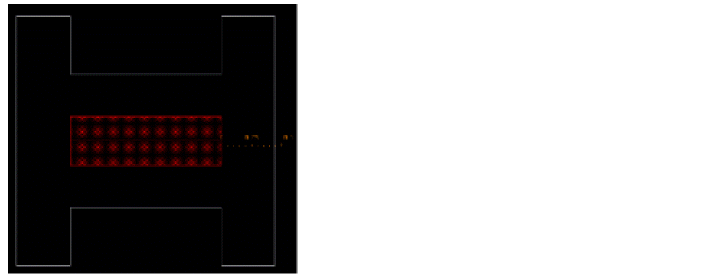
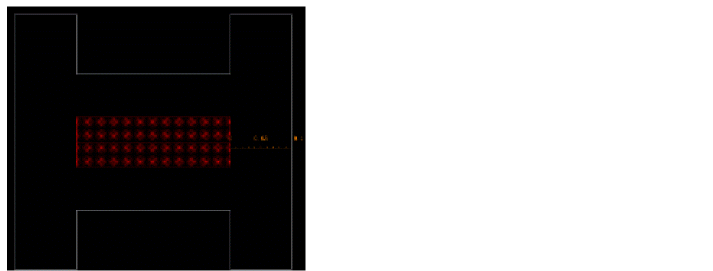
Creates a dashed halo around a wire, bus, or stranded wire while creating or editing an object that violates a spacing constraint. By default, this option is deselected.
Environment variable: |
|
|
Creates a halo in the color of that layer for each layer. By default, this option is deselected.
Environment variable: |
Related Topics
Snap Pattern Snapping for FinFET Devices in Layout Editor
Return to top