
Interactive Snapping
Layout editor supports interactive snapping that enables you to visualize how an object will be placed after snapping. During interactive snapping, the object that is snappable and is closest to the reference point is used as the reference object. The snapping transform is calculated for the reference object at every mouse movement and the pointer is adjusted to ensure that the reference object is snapped to the grid.
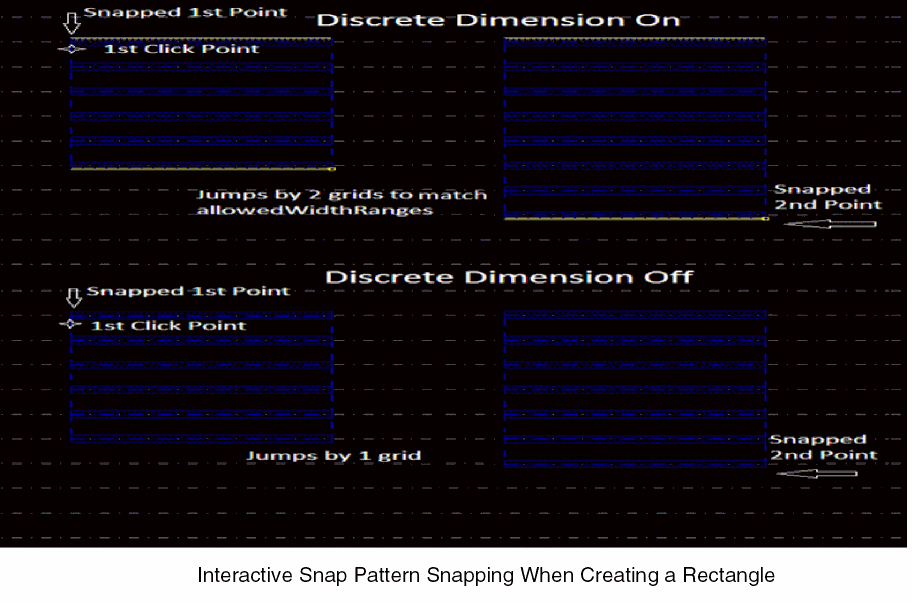
For example, with the interactive snap pattern snapping feature, the first and the second points of the rectangle are snapped when you create a rectangle. The first point snaps to the upper enclosure and the second point snaps to the lower enclosure.
If discrete dimension is enabled, snapping does not update the second point. The dimension of the created rectangle is based on the value of the
If discrete dimension is disabled, the second point discretely snaps by the step size of the snapping grid. The figure below depicts the snapping of the rectangle with the discrete dimension option enabled and disabled.
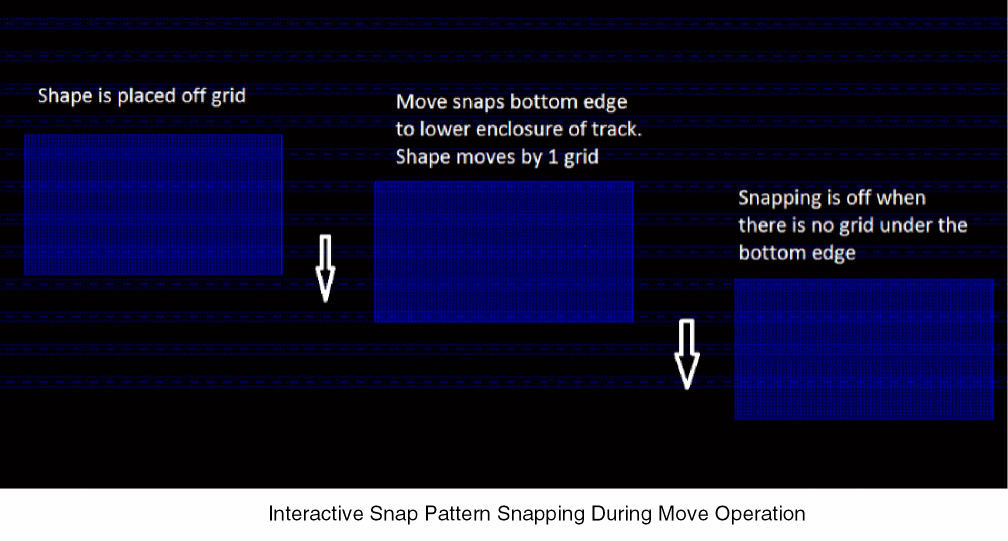
When you move objects, snapping ensures that the bottom edge (vertical snapping) and left edge (horizontal snapping) of the reference object is snapped to the grid. The reference object moves by the step size of the snapping grid. The reference object snaps if the bottom edge of the shape is inside a snapping region even if the reference point goes outside it.
If the reference object overlaps multiple snapping regions, it snaps to the region under the bottom edge of the shape. If the bottom edge of the reference object goes out of the snapping region, then snapping is not performed even if some part of the shape overlaps the snapping region. The figure below depicts interactive snapping when moving objects.
Interactive snapping for the Copy command works similar to the way it works for the Move command.
When you stretch objects, snapping ensures that the bottom edge (vertical snapping) and left edge (horizontal snapping) of the reference object is snapped to the grid. The reference object stretches by the step size of the snapping grid.
If discrete dimension is enabled and it adjusts the selected edge, snapping does not modify the edge. So, if the shape is off-grid before the Stretch command, it will remain off-grid after the Stretch command also. If the discrete dimension option is disabled, snapping ensures that the edges of the shape are on grid after the Stretch command, as depicted in the figure below.
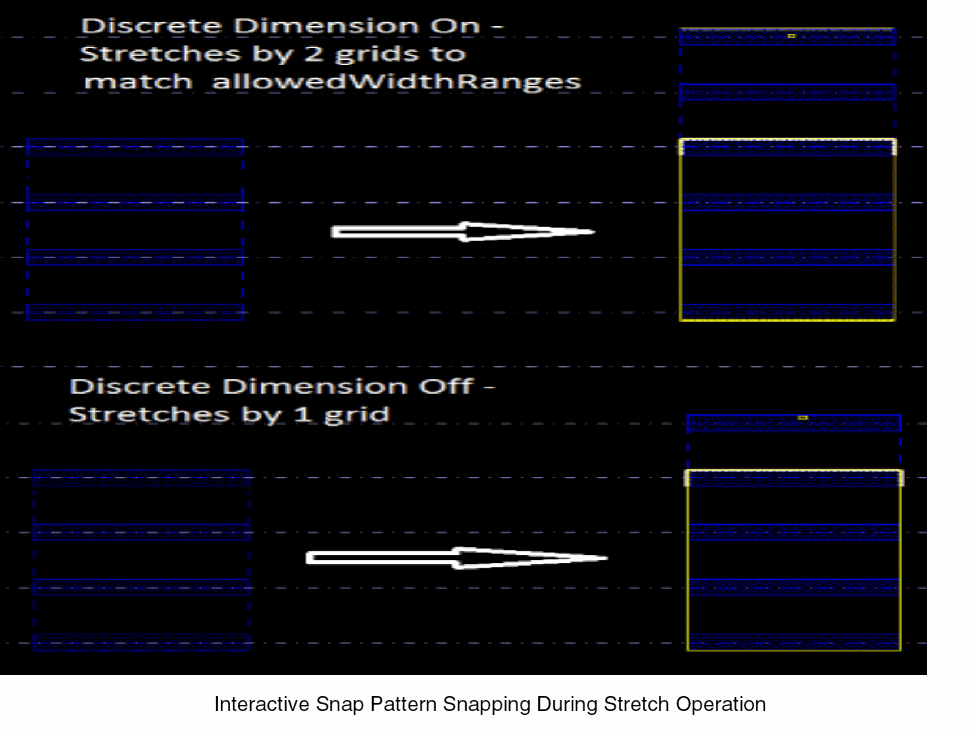
If you stretch a partially selected edge, the selected edge is snapped to the grid. In this case, the bottom edge snaps to the lower enclosure and the top edge snaps to the upper enclosure of the track.
When you stretch the top edge of the shape, it snaps to the grid till it is inside the snapping region. Snapping is not performed when the edge is out of the snapping region.
An instance is snapped interactively during the Create Instance command with every mouse drag.
Related Topics
Width Spacing Patterns in Layout Editor
Return to top