Flow for Creating Multipart Paths
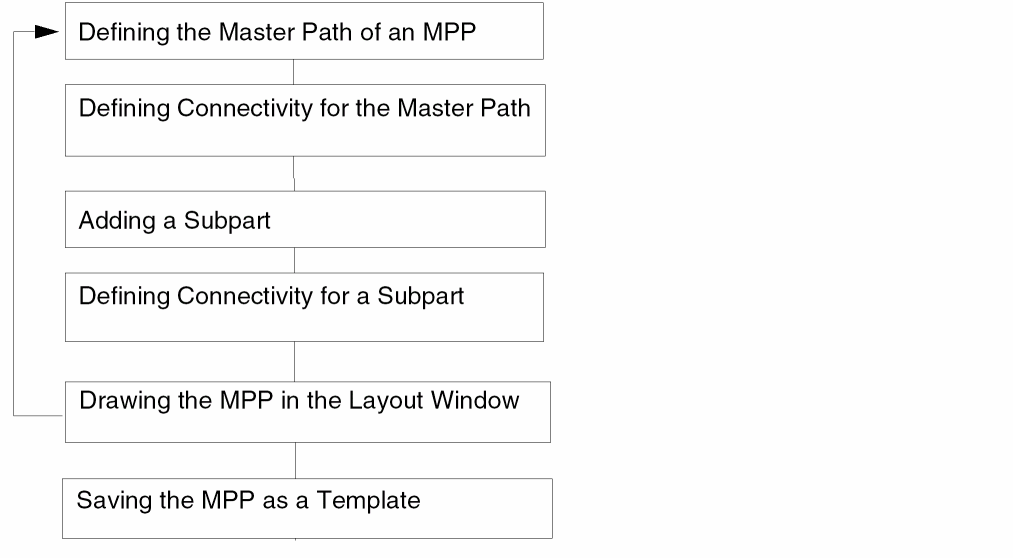
The following figure lists the tasks involved in creating a multipart path (MPP).
The following table describes the tasks involved in creating a multipart path.
|
Task
|
Description
|
|
Defining the Master Path of an MPP
|
Define the master path of your MPP.
|
|
Defining Connectivity for the Master Path
|
Optionally, define the connectivity for the master path of your MPP.
|
|
Adding a Subpath
|
Optionally, add subparts to the master path. You can define the following types of subparts: offset subpath, enclosure subpath, or subrectangle.
You can choose to edit or delete a subpart as required while creating an MPP.
|
|
Defining Connectivity for a Subpart
|
Optionally, define the connectivity for any or all subparts.
|
|
Drawing a Multipart Path in the Layout Window
|
Draw the MPP on the layout canvas.
As you draw an MPP, you can change the values in the Create Multipart Path and ROD Subpart forms and see immediate changes to the MPP. After you enter the last point to complete an MPP, you can no longer change that MPP using the create forms. You need to use the Edit MPP Path Properties form to change a completed MPP.
|
|
Saving the MPP as a Template
|
Optionally, save the MPP values as a template if you want to use the MPP again.
You can save an MPP to an ASCII file in your local hierarchy or to the temporary technology file in the virtual memory.
|
Return to top