
Multipart Path Creation Overview
With the Create Multipart Path command active, you can define a multipart path by providing details in the Create Multipart Path form and the ROD Subpart form. After specifying information in the forms, you can click in the current layout cellview window to define the points for the master path of the MPP. You can change the values in the forms while you are clicking points, until you double-click to complete the MPP.
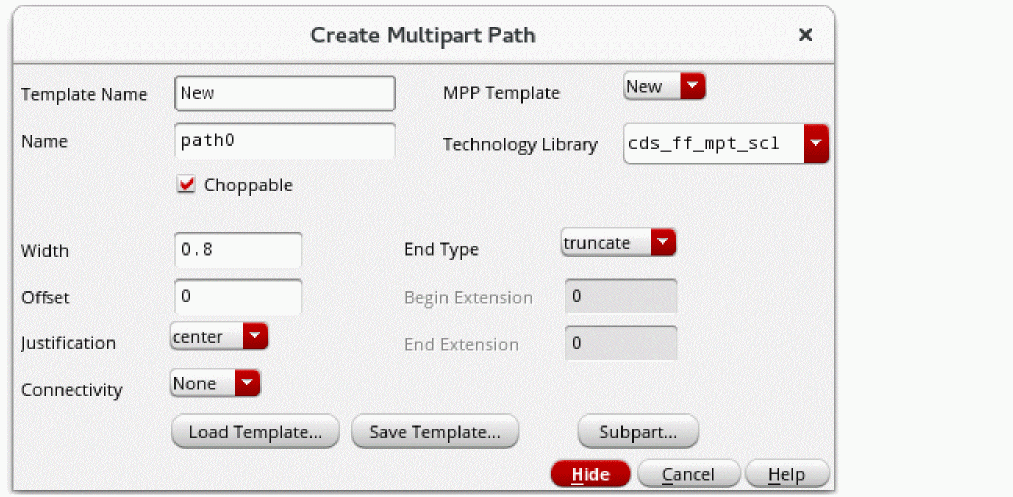
When you define a new type of MPP, you might want to save the values in the forms as a template so that you can create other MPPs that are same or similar. A template is the set of values that specify a particular multipart path, such as a guard ring. You can define as many MPP templates as you wish.
With the Create Multipart Path command, you can:
- Create a single-part path using the form defaults.
- Choose an MPP template using the MPP Templates field.
- Modify the values in the Create Multipart Path and ROD Subpart forms to create a different MPP.
- Save the current form values as a template in your technology file if you have write permission, or in an ASCII file.
- Load an ASCII MPP template file from your local hierarchy to add the templates to the list in the MPP Templates field. For additional ways to load ASCII MPP template files, use the leDefineMPPTemplate SKILL function.
As you draw an MPP in a cellview, you can make changes to the forms and see the results of your changes immediately, until you double-click to complete the MPP. You can make as many changes as you want to an MPP using the Create Multipart Path form and the ROD Subpart form prior to entering the last point of your MPP in the layout window. Once you enter the last point, you cannot use these forms to change the MPP. You can change a completed MPP using the Edit Properties form.
If you are creating a multipart path with abutted ends and the centerline of the master path intersects itself, the system will not create the path. A dialog box appears stating that no path was created because it would have been self-intersecting. The system does not allow you to create a path whose master path centerline intersects itself, and does not allow you to create a path with one or more self-intersecting sub-paths.
When you first start the layout editor software, the Template Name and MPP Template fields in the Create Multipart Path form are set to New and the values of the other fields are system defaults, unless the mppTemplate environment variable is set. If mppTemplate is set, New is replaced with a specific template name, and the other fields are set to the template values. The mppTemplate environment variable enables you to designate a particular MPP template as your default rather than use the system default values.
For some fields, the system looks at your technology file for the design rule for the layer and, if it is defined, uses it as the default. For example, the system looks for the minWidth rule for the current layer to use as the default for the Width field.
You can create an MPP in a layout cellview window using the default values without even opening the form, you can open the form and change the values, or you can use the values from an MPP template that was saved earlier. When you choose an MPP template from the MPP Template field, the system fills in the rest of the fields in the Create Multipart Path form and ROD Subpart form with the values specified in the template. The system assigns system default values to fields for which values are not specified in the template. You can use the template values as they are or modify them as desired. If you want to define connectivity for any part of an MPP, you must open the Create Multipart Path form, and specify the net name in the Connectivity section.
(Virtuoso RF Option) The Create Multipart Path command does not support curved shapes.
Related Topics
Flow for Creating Multipart Paths
Return to top