
Saving MPP Templates to Your Technology Library
The Save Multipart Path Templates form allows you to save the template definitions to an ASCII file or directly to the technology library you select in the Technology Library field. If you do not have write permission to the technology library, and you choose the Technology Library option, the field is grayed out and will not allow you to save the templates. Choose the ASCII File option instead.
To save to one or all templates to the temporary technology file in virtual memory:
-
In the Create Multipart Path form, click the Save Template button.
The Save Multipart Path Templates form appears.
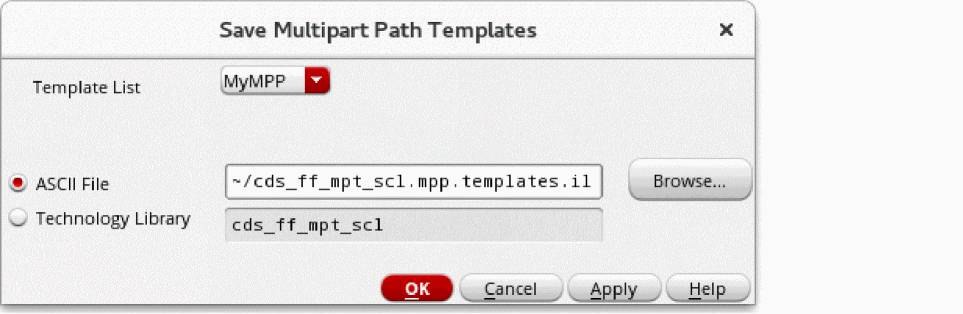
- From Template List, choose the name of the MPP template you want to save or choose All Templates to save every template in the list.
- Select the Technology Library radio button.
-
Click OK.
To make the template part of your binary technology library on disk, you must save your technology library changes before you exit the editing session.
Related Topics
Save Multipart Path Templates Form
Flow for Creating Multipart Paths
Return to top