
Saving a Design
To save a design with a different name:
-
Choose File – Save a Copy.
The Save a Copy form appears.
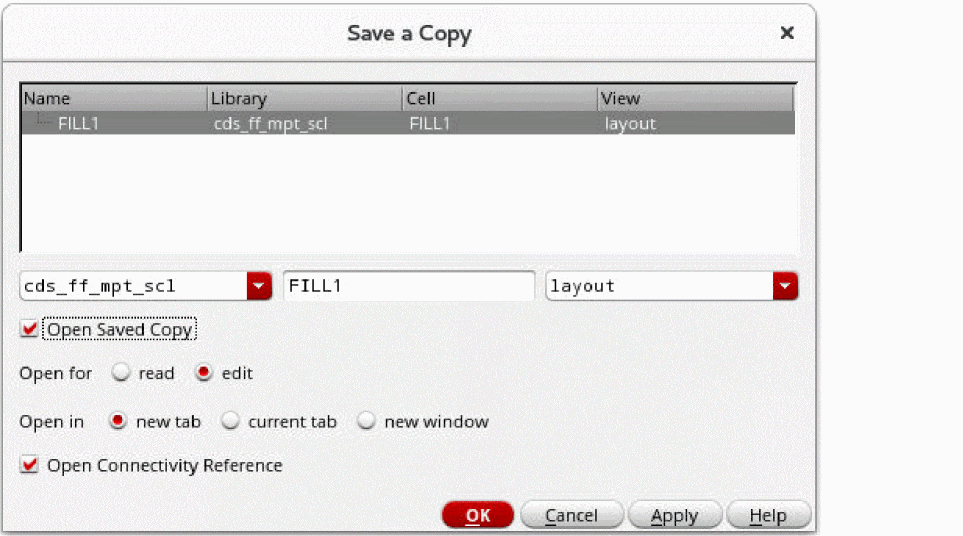
- Select a library from the first drop-down list. This should be the library in which you want to save the cellview.
- Specify a new cell name in the text field.
- Select the cellview type from the last drop-down list.
- Select the Open Saved Copy check box if you want to open the saved copy of the design.
- Select read or edit from the Open for option.
- Select the location where you want to open the design: new tab, current tab, or new window.
- Select the Open Connectivity Reference check box if you want the schematic view for connectivity reference to be opened when the saved copy of the design is opened.
- Click OK.
You can access the Save a Copy command if a design is opened in read mode. The command checks out the license and checks it back in after the save operation is complete.
Thumbnail images, where they have been set up in the current view for pre-viewing cellviews, are updated automatically when you choose to Save or Save a Copy of that cellview. This happens through an automatic call to the hiGenerateThumbnails SKILL command. To disable the auto-generation of thumbnails, you can set the following environment variable in the CIW:
envSetVal("ui.thumbnails" "generate" 'boolean nil)
To save hierarchical instances that have been modified without running the Edit In Place or Descend Edit command in a design, choose File – Save Hierarchically.
Saving Hierarchical Cellviews under a Different Name
Use the Save As command to save your cellviews hierarchically under new names.
To save cellviews under a new name:
-
From the layout window menu bar, choose File – Save As.
The Save As form is displayed, listing all the cellviews in the design hierarchically. -
Select one or more rows from the list in the table.
The fields at the bottom of the form are populated based on the selection in the table. If multiple rows are selected, then the field displays the value if all the values in the selected rows are same. Otherwise it shows AS IS. - Type new Library, Cell, and View names you want to use. In the example above, the library and cell names are unchanged, but the view name for all the cells has been changed from layout to layout.edited.
- Click OK or Apply to save the selected cellviews.
Related Topics
Return to top