
Starting Layout XL from a Physical Configuration View
To start Layout XL directly from a physical configuration view:
-
From the CIW, choose File – Open.
The Open File form is displayed. - Specify the Library and Cell names.
-
Select physConfig from the View list and click OK.
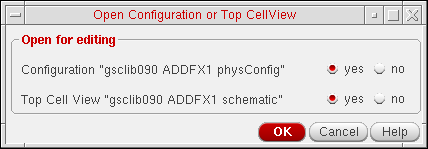
The Open Configuration or Top Cellview form is displayed.
-
Set both Configuration and Top Cell View to yes to open both the physical configuration view and the schematic view.
You can set defaults for this form using the following environment variables:envSetVal("ddserv.he" "hierEditor" 'boolean t)
envSetVal("ddserv.he" "schEditor" 'boolean t)
-
Click OK.
The schematic view is opened in a Virtuoso Schematic Editor window and the Configure Physical Hierarchy window is displayed showing the physical configuration view you specified. The system checks out a Layout XL license if there is not one currently checked out. - Start Layout XL. For information, see Layout XL Launched from a Schematic View.
Related Topics
Return to top