Dynamic Selection Assistant
Use the Dynamic Selection assistant to view a list of all the objects currently under the mouse pointer in the design display area, ordered by the layer-purpose pair on which a particular object is drawn.
The Dynamic Selection assistant user interface has three major components: columns, object types, and the context menu.
Dynamic Selection Assistant Columns
The following table describes the different columns available in the Dynamic Selection assistant.
|
Column
|
Description
|
|
LPP
|
Specifies the layer-purpose pair on which the object is drawn.
|
|
Data
|
Provides a short description of the selected object.
|
|
Color
|
Displays the color information of the selected object.
|
|
State
|
Displays the lock state of the selected shape.
|
|
Hierarchy
|
Displays the hierarchical path of the objects under the mouse pointer.
For hierarchical objects, the LPP, Data, and Hierarchy columns are displayed in the Dynamic Selection assistant.
|
Dynamic Selection Assistant Object Types
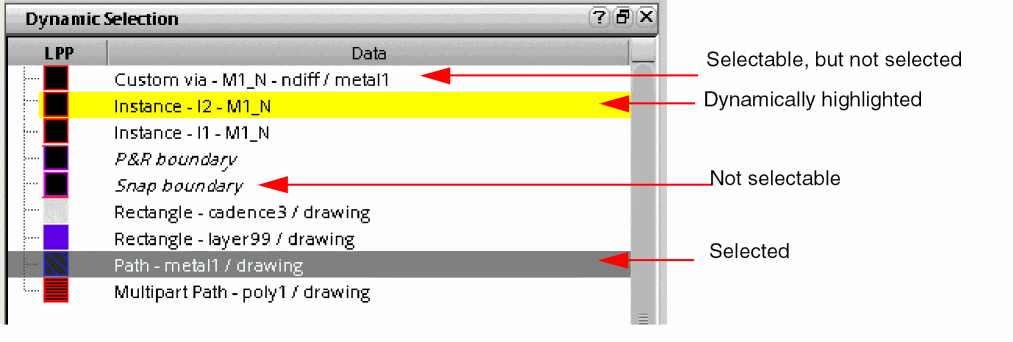
The following image shows the Dynamic Selection assistant listing the layer-purpose pairs on which objects are drawn. Different fonts and background colors are used to display an object depending on its selection state.
The following table describes the kind of information displayed for each object type in the LPP and Data columns of the Dynamic Selection assistant.
|
Object Type
|
Description
|
|
Instance
|
Name and master name.
|
|
Instance array
|
Name, master name, and the number of rows and columns in the array.
|
|
Via
|
Name of layer 1, layer 2, and the net to which the via is attached.
|
|
Via array
|
Name of layer 1, layer 2, and the net to which the via array is attached, and the number of rows and columns in the array.
|
|
Shape
|
Name of the layer-purpose pair on which the shape is drawn and the net to which it is attached.
|
|
Label
|
Text attached to the label.
|
|
Row
|
Site name and the number of sites used in the row.
|
|
Group
|
Name and type of the group.
|
|
Guide
|
Name of layer 1, layer 2, and the net to which the guide is attached.
|
|
Pin
|
Information on associated objects and the name of the net to which the pin is attached.
|
|
Blockages
|
Name of the placement band routing blockages and other related objects such as placement halos, routing, fill, and slot objects.
|
|
Routing
|
Name of transmission lines, bends and tapers, steiners, multi-part paths.
|
|
Boundary
|
Name of the boundary type, for example, area, snap, or cluster.
|
|
Row Region
|
Name of the row region and row template.
|
|
Row
|
Name and orientation of the row, site name, and the number of sites used in the row.
|
|
Custom Row
|
Name, orientation, and height of the row.
|
|
Rail shape/Background shape
|
Name of the layer-purpose on which the shape is drawn.
|
Dynamic Selection Context Menu
The following table describes the commands available on the context menu of the Dynamic Selection assistant.
|
Command
|
Description
|
|
Freeze / Unfreeze DSA
|
Freezes or unfreezes the display in the assistant.
When you select an object in the Dynamic Selection assistant with a frozen display, the object is automatically cross-selected in the layout window. If you move the pointer over an object in the assistant, that object is dynamically highlighted in the layout window.
|
|
Options
|
Opens the Dynamic Selection Assistant Options form where you can specify the display of the selected objects in the assistant and specify the default open mode.
|
|
Settings
|
Lets you save and load your display preferences for the Dynamic Selection assistant. This ensures that the order of fields that you choose for the assistant and the show or hide states are retained even after you close the current Virtuoso session.
-
Load: Lets you load the assistant settings.
-
Save: Saves your preferences in the *
.ini file.
|
Related Topics
Selecting Objects Using the Dynamic Selection Assistant
Dynamic Selection Assistant Options Form
Return to top