
Palette Context Menu
Use the Palette context menu to manage settings such as toolbars, layer sets, and window synchronization. You can access the context menu by right-clicking any toolbar in the Layers panel or anywhere in the Objects and Grids panels except the title bar and column headers.
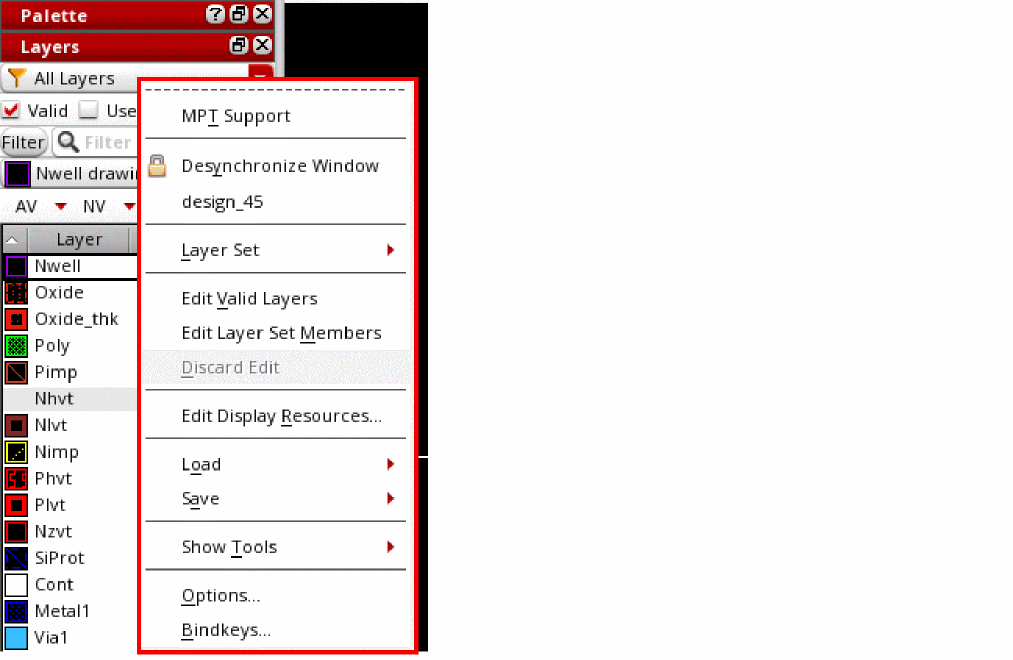
The following table describes the commands available on the Palette context menu of the Palette assistant.
| Column | Description |
|---|---|
|
Lets you draw shapes, wires, and pins with layer, color, and lock state information. When you enable MPT Support, the MPT check box on the Scope toolbar and the C (Color) column are displayed in the Layers panel. This displays all layer-purpose pairs with color, grouped by their master layer-purpose pair. |
|
|
Lets you toggle between synchronized and desynchronized modes of Palette assistants across layout windows. When two Palette assistants are synchronized, changes made in one palette are reflected in the other. This command works in the same manner as the Synchronize/Desynchronize button available on the Window Context toolbar. SKILL Function: pteSetWindowSynchro |
|
|
Shows the name of the display context of the Palette. By default, it is the name of the technology file. |
|
|
Lets you manage layer sets. The Layer Set submenu includes the following commands:
|
|
|
|
|
Displays the m (Membership) and v (Validity) columns in the Layers panel. SKILL functions: pteEditLayerSetValidity, pteCloseLayerSetEdition |
|
|
Displays the m (Membership) column in the Layers panel. SKILL functions: pteEditLayerSet, pteCloseLayerSetEdition |
|
|
Discard all changes made to the membership and validity status of layer-purpose pairs during the current layer set editing session. SKILL function: pteDiscardLayerSetEdition |
|
|
Displays the Display Resource Editor form, where you can modify the appearance of the icon that is displayed for a layer in the Swatch column in the Layers panel. |
|
|
Lets you update the current display context with information from one of the following file types: LSW information file, technology file, or GDS number file. SKILL functions: pteLoadLSWInfo, pteLoadFromTechFile, pteLoadGDSNumber |
|
|
Lets you save the current display context information to one of the following file types: LSW information file, technology file, or GDS number file. SKILL functions: pteSaveLSWInfo, pteSaveToTechFile, pteSaveGDSNumber |
|
|
Lets you display or hide the toolbars. You can display or hide all toolbars by using the Show All or Hide All commands, respectively. The options available on the Show Tools submenu vary depending on the panel in which you invoke the menu. |
|
|
Displays the Options form, where you can define the local and global settings for the Palette assistant. SKILL function: pteSetOptionString |
|
|
Opens the Bindkey Editor, which displays the list of default bindkeys, including the ones defined for Palette-related options. You can use the Bindkey Editor to modify existing bindkeys or to define new bindkeys. |
Related Topics
Return to top