
Magnifying the Design Area
The magnifier lets you magnify or zoom in a specific part of the design display area instead of zooming in the entire design display area.
To magnify a specific part of the design area:
-
In the layout window, choose View – Magnifier or press the dot (
.) bindkey to toggle the magnifier feature.
A square magnifier appears. -
Place the pointer over the area in the design that you want to magnify.
The magnifier appears as a square box on the design display area and shows a magnified view of the design area under and around the pointer, as shown in the figure.
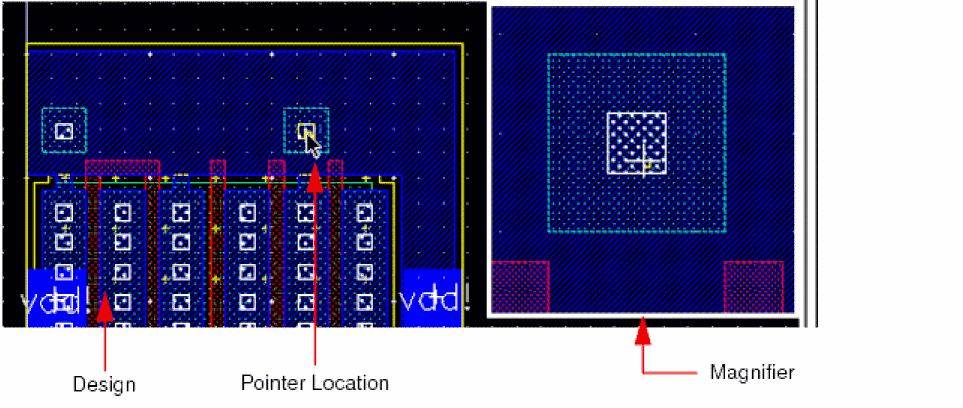
- Optionally, move the pointer around to magnify different regions of the design. The magnifier moves along with the pointer, based on the anchor defined for the magnifier.
-
Choose View – Magnifier or press the dot (
.) bindkey again to turn off the magnifier.
While using the magnifier, you can use the following bindkeys:
-
Press
#to fix the magnifier position at one place in the design display area. -
Press
Shift+Ctrl+ Up arrow key to scale up the magnification by a factor of 1.25 in the magnifier. Alternatively, you can pressShift+Ctrland scroll up the mouse scroll wheel. -
Press
Shift+Ctrl+ Down arrow key to scale down the magnification by a factor of 0.80 in the magnifier. Alternatively, you can pressShift+Ctrland scroll down the mouse scroll wheel.
Customizing Magnifier Settings
You can customize magnifier settings according to your requirements.
To customize magnifier settings:
-
In the layout window, choose Options – Magnifier or press the single quote (
') key.
The Magnifier Options form appears. -
Specify the position of the magnifier with respect to the pointer.
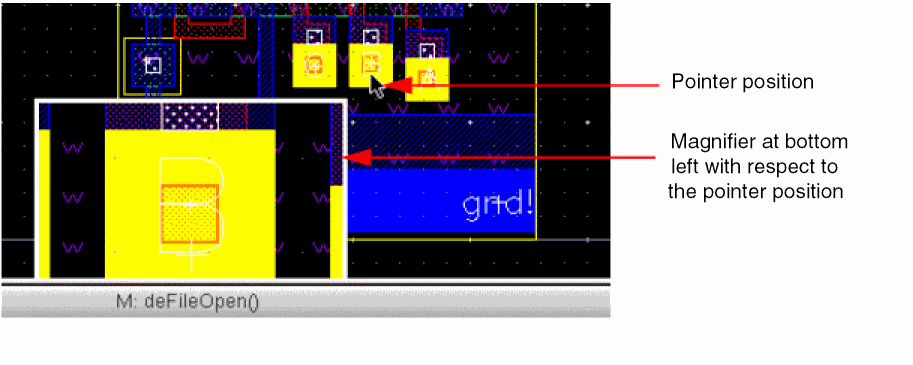
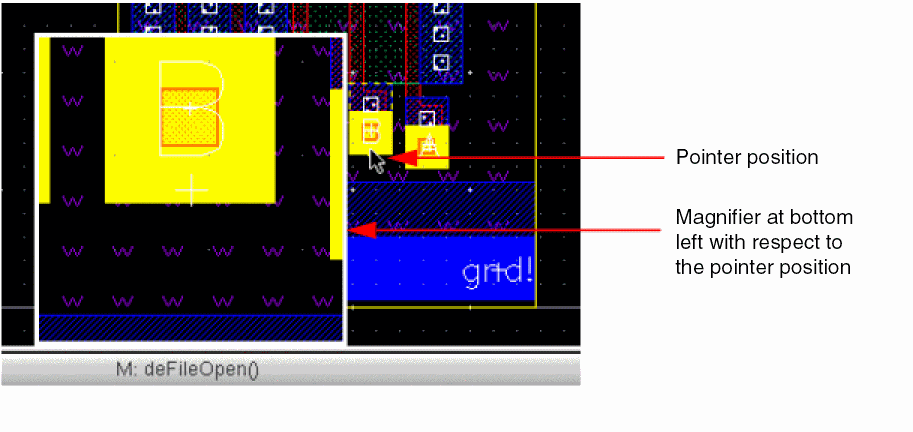
Anchored at lets you position the magnifier in relation to the pointer tip. The default is top-left corner. Not Anchored enables you to specify the position of the magnifier either to the center of the area being magnified or as an offset value from the pointer position in Position Magnifier. -
Set the pixel size of the square magnifier window by using Magnifier Size. You can set any value from
50through250. The default value is200. -
Leave the Keep Within Window check box selected, which lets the magnifier to always display in full within the confines of the design area.
In the following example, Position Magnifier is set to bottom left corner, offset by15. - Click OK.
Related Topics
Return to top