
Palette Assistant Panels
When you open a cellview, Palette assistant is displayed by default, docked to the left of the layout window. It comprises three panels: Layers, Objects, and Grids.
Layers Panel
By using the Layers panel, you can control the visibility and selectability of layer-purpose pairs. By default, it lists the layer-purpose pairs that are defined in the leLswLayers section of the technology file. Only valid layer-purpose pairs are displayed if the Valid check box is selected in the panel.
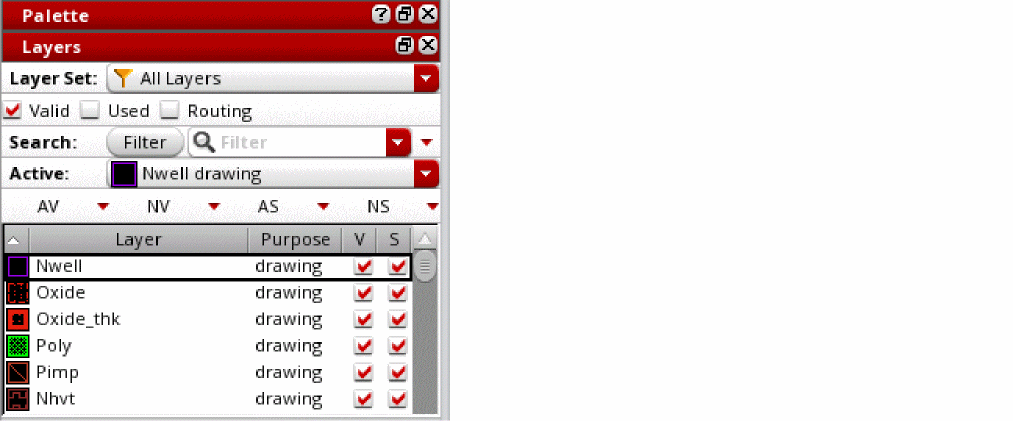
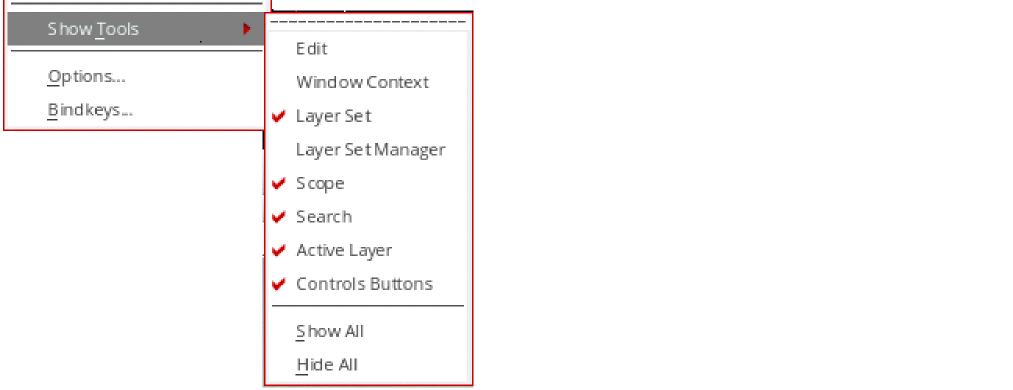
By default, the Layers panel displays the following toolbars: Layer Set, Scope, Search, Active Layer, and Control Buttons. It can also display the following additional toolbars if you enable them: Edit, Windows Context, and Layer Set Manager. To display a toolbar, you can right-click any toolbar in the Layers panel, point to Show Tools in the Palette context menu, and choose the required toolbar. The red check mark next to a toolbar indicates that the toolbar is displayed in the Layers panel.
Objects Panel
Use the Objects panel to manage the visibility and selectability of objects such as instances, pins, and vias in a design. It is a dockable panel that is displayed below the Layers panel. By default, the objects in the Objects panel are listed in the order shown in the following figure.
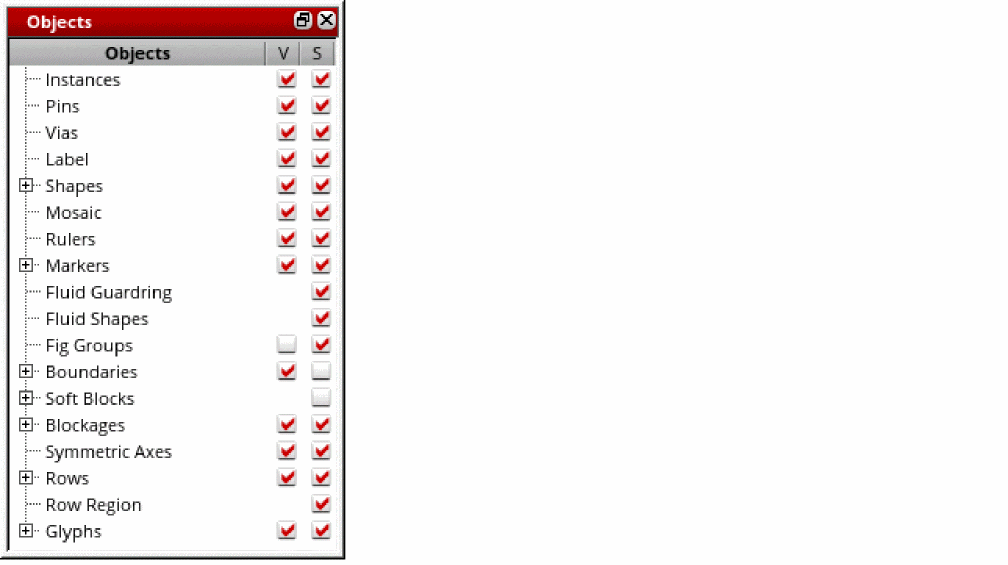
The object Row Region shown in the figure is an Advanced Node Layout EAD Only feature. In Layout EXL and higher tiers, the Objects panel displays the Virtual Hierarchy object as well.
Instance selection and visibility is controlled through the Objects panel. Pin visibility and selectability is determined by the visibility and selectability status of the layer-purpose pair of the corresponding pin figure. You can further control the selection of pins by using the
The Objects panel supports the Search and Control Buttons toolbars, which are hidden by default. To display a toolbar, you can right-click an object in the Objects panel, choose Show Tools from the Palette context menu, and then select the toolbar.
Grids Panel
You use the Grids panel to manage the visibility and selectability of tracks and grids. It is a dockable panel that appears below the Layers panel. If both Objects and Grids panels are displayed, they appear as separate tabs and you need to click the Grids tab to view its contents.

The Grids panel supports the Search and Control Buttons toolbars, which are hidden by default. To display a toolbar, right-click an item in the Grids panel, choose Show Tools from the Palette context menu, and then select the toolbar.
Related Topics
Layer-Purpose Pair Selection Controls
Showing and Hiding Palette Assistant Panels
Layer-Purpose Pair Selection Controls
Return to top