
Modifying Layer Appearance
The appearance of layer-purpose pairs in the layout window and in Palette panels is defined in the technology file and the display.drf file. The display.drf file defines display resources, including colors, stipples, line styles, and packets. Each packet is a named combination of fill color and style, outline color, stipple, and line style. Packets are associated with one or more layer-purpose pairs in the technology file.
You use the Display Resource Editor form to change layer-purpose pair definitions in the display.drf file. You can change the color, stipple, and line style of layer-purpose pairs.
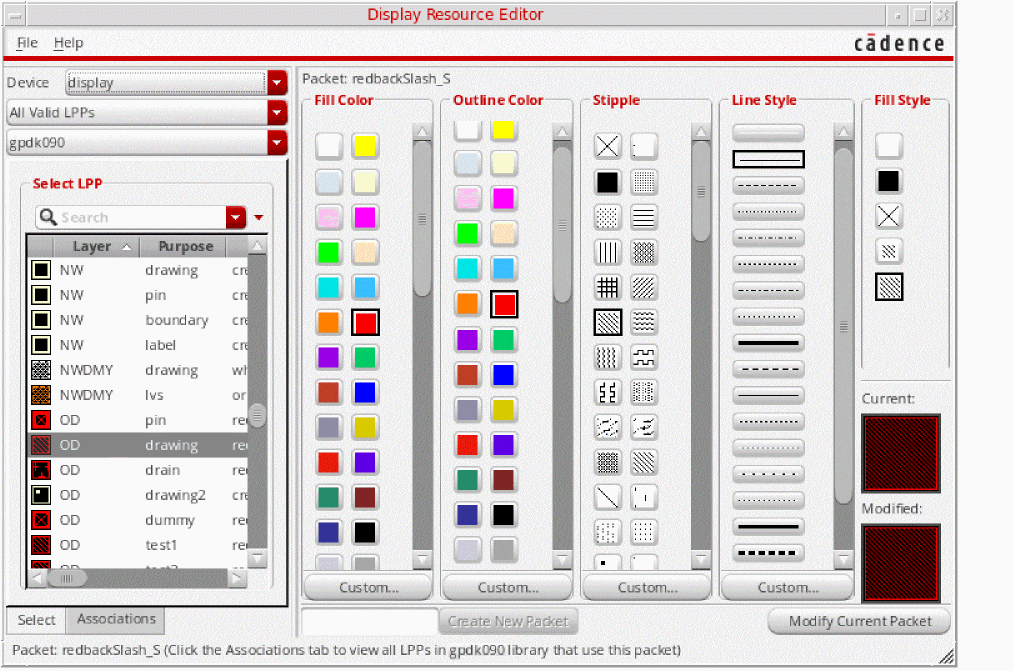
To change the appearance of a layer:
-
Choose Edit Display Resources from the Palette context menu. You can access the menu by right-clicking any toolbar in the Layers panel or anywhere in the Objects and Grids panels except the title bar and column headers.
Alternatively, in CIW, choose Tools – Display Resource Manager. Then, in the Display Resources Tool Box window, click Edit.
The Display Resource Editor form appears. - Select All LPPs to view all available layers.
- Select the layer for which you want to change the appearance.
-
Select the Fill Color, Outline Color, Stipple, Line Style, and Fill Style options that you want to use for that layer.
The X Stipple and X Fill Style are supported only for rectangles.
 -
Click Modify Current Packet.
The updated color or pattern for the layer is instantly displayed in the layout window if the layer is visible.
Related Topics
Return to top