
Viewing Layer-Purpose Pairs in a Tree Structure
In the Layers panel, you can displays layer-purpose pairs in a tree structure by grouping them based on a single or multiple columns. For example, you can choose to display layers-purpose pairs based on the Layer column. This groups the layers with the same name, but different purposes. This helps you to quickly control the visibility and selectability of a layer and all the purposes associated with that layer. For example, if Metal1 layer has different purposes such as drawing, slot, and label, you can control the visibility and selectability of all Metal1 layer-purpose pairs together by selecting or deselecting the V (Visibility) and S (Selectability) check boxes corresponding to the Metal1 layer. You can also modify the visibility and selectability of individual layer-purpose pairs, if required.
To display layer-purpose pairs in a tree structure in the Layers panel:
-
In the Layers panel, right-click any column name.
The column header context menu appears. -
Display the View By submenu and choose the column based on which you want to group layer-purpose pairs.
The layer-purpose pairs are grouped based on the selected column and that column appears as the first column in the Layers panel.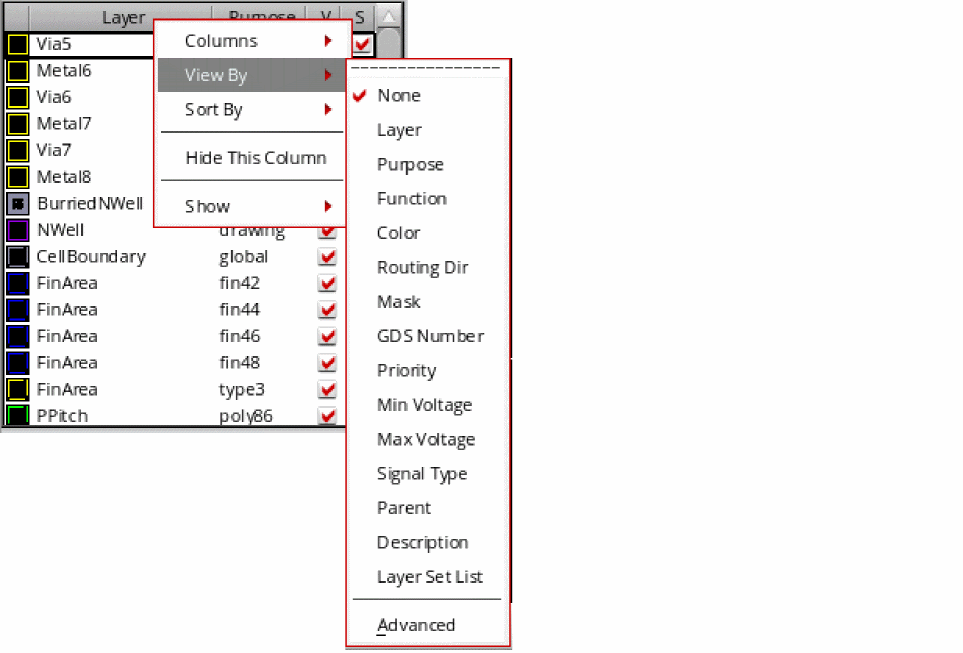
-
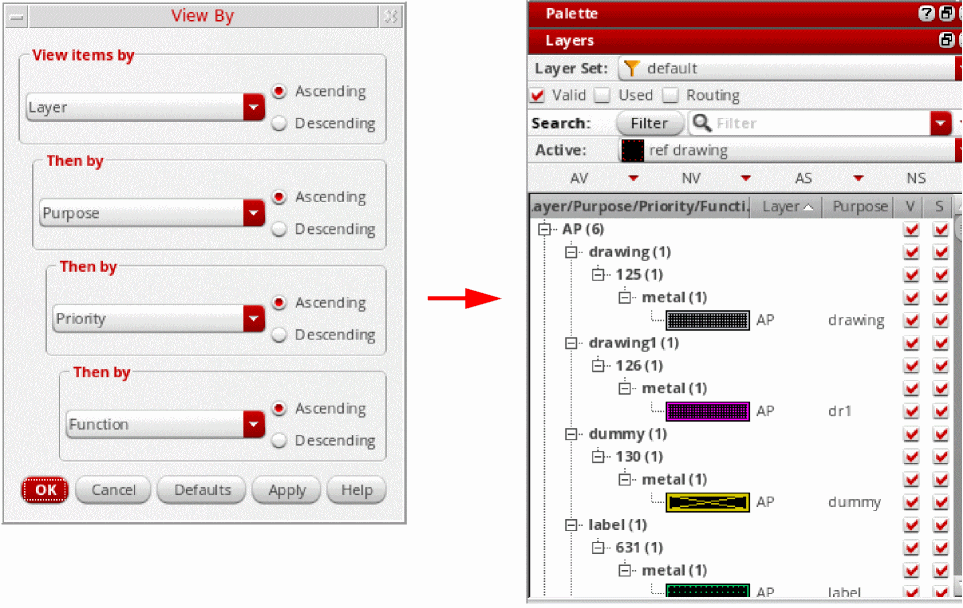
Optionally, choose View By – Advanced to group layer-purpose pairs based on multiple columns.
The View By form appears. - Select the top-level grouping column from the View items by list.
- Choose Ascending or Descending to specify the display order of layer-purpose pairs.
- Similarly, specify the second, third, and fourth grouping column, if required, by choosing from the corresponding They by list in the form.
-
Click OK.
The layer-purpose pairs are grouped based on the criteria you specified.
Related Topics
Layers Panel Column Header Context Menu
Return to top