
6
Static Current Analysis
This section contains information about static current analysis, types of static current analysis, and how to run these analyses in Voltus-Fi-XL.
Overview of Static Current Analysis
Static current analysis is performed in Voltus-Fi-XL using Thunder. It is performed before running a simulation in Spectre. The static current analysis output file, static_current.txt, is used as an input for performing a Spectre simulation. Following are the key aspects of this feature:
A static EMIR analysis allows the evaluation of IR drop and EM currents based on user-provided subcircuit instance current consumption w/o running a transient or DC simulation. The user-provided currents are distributed to the tap devices based on the W/L ratio of the devices in the design. The IR drop and EM current analysis is performed based on the current at each tap device.
The static EMIR analysis is enabled with the static ifile statement in the EMIR conf file.
net name=[I1.VDD I1.VSS] analysis=[vavg iavg]
static ifile="static_currents.txt"
Since the analysis is static, the IR drop vmax and vavg, and the EM current imax, irms, and iavg values will be the same, and just one can be selected in the statement.
Types of Static Current Analysis
Static current analysis can be either static peak current analysis (Ipeak) or static average current analysis (Iavg). Static peak current analysis is based on the peak saturation transistor currents. Because of simplicity and ability to find problems quickly in power grids, static current analysis is the most commonly performed analysis.
Static average current analysis or activity-based analysis resolves the distribution of currents on your power grid better than the static peak current analysis. The activity-based approach assumes that you have a mechanism such as a Verilog simulator to compute and report the relative activity of the nets in the design. These relative activities can be used in conjunction with net capacitances to estimate the average current load of each gate in the design. This form of analysis clearly provides more realistic current data than the Ipeak approach.
Activity means the probability of all the signal nets in design switching from 0->1 or 1->0 in one clock cycle. For instance, if the activity of a net or instance is 0.1, then the power engine assumes that the net or instance will switch from 0->1 or 1->0 once every ten clock cycles.
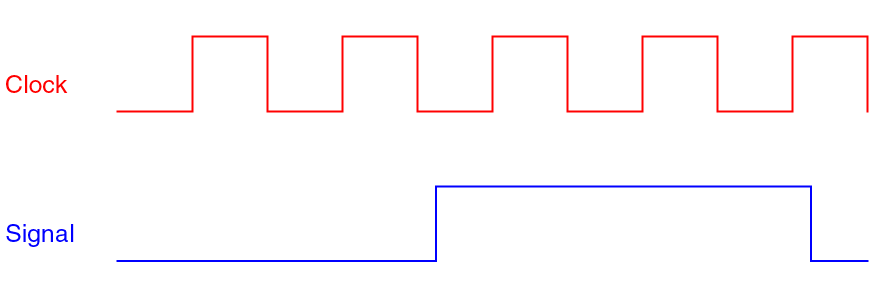
Activity = (Number of (0->1 or 1->0) transitions/Number of clock cycles) =2/5=0.4
Duty Cycle means the probability that a signal net has the value of 1.
For example, if the signal of a net is 1 for 2ns in the total simulation time of 10ns, then the duty cycle of net is 0.2. The duty cycle of the signal in the previous diagram is 0.5 (2.5/5). However, if a signal is Z or X for some time and 0 for the rest of the time then the duty cycle of the signal is 0.
Transition Density means the number of times the signal toggles from 0->1 or 1->0 in 1 second.
For the previous diagram, if you assume that one clock cycle is 4ns, then:
Transition Density = 1e+08 (2/20ns)
Running Peak Static Current Analysis
Peak static current (Ipeak) analysis gives the peak current (saturated current) of every transistor connected to the power nets.
The following data is required to perform peak static current analysis:
- A Quantus-generated DSPF file
- SPICE model libraries and SPICE corners
- An activity, clock, or value change dump (VCD) file—These inputs are required for the average static current analysis
To set up and run peak static current analysis, do the following:
-
In the Virtuoso® console, choose Simulation and then Setup and Run Simulation.
The Setup and Run Current Analysis form opens.
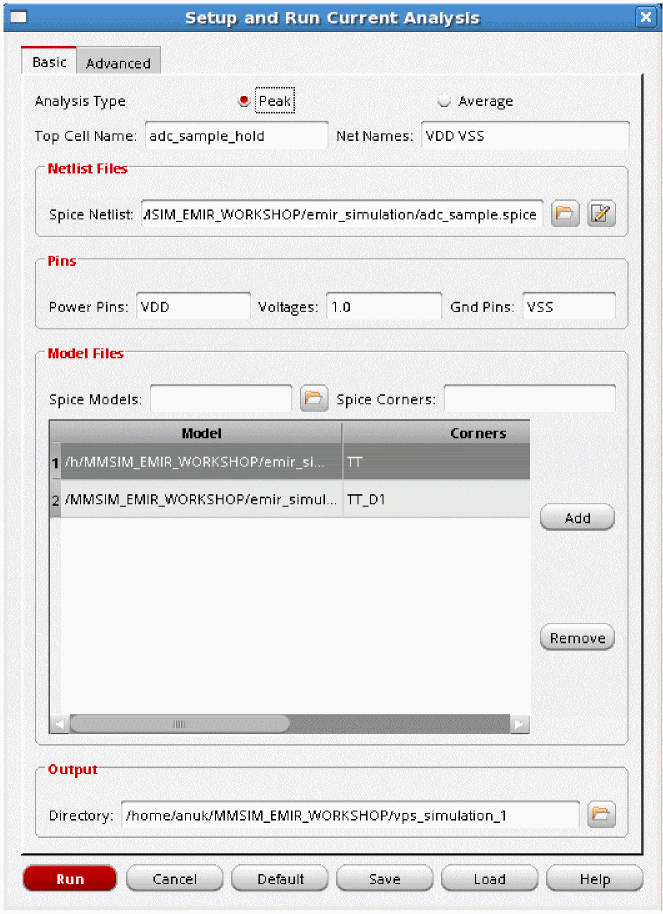
- On the Basic tab, select Peak as the Analysis Type.
- Specify the Net Names for which you want to calculate the peak current.
-
Specify the Spice Netlist file.
The Spice netlist file can also be edited using the edit button provided next to this field. - In the Pins group box, specify the Power Pins and Gnd Pins, and the corresponding Voltages for the power pins.
- In the Model Files group box, choose the Spice Models and the corresponding Spice Corners used by the SPICE netlist.
- Click Add to add the SPICE model – SPICE corner pair to the table.
- In the Output group box, specify the output directory in which all the current data will be saved.
- On the Advanced tab, specify the Hierarchical Separator. This is required only if the netlist used is hierarchical.
- Specify the Simulation Temperature, in degree Celsius.
- Specify the Cmd Include File.
- Click Run.
Tcl Command for Peak Static Current Analysis
An example of the set of Tcl commands for the peak static current calculation is as follows:
setup_simulation\
-spice_netlist design.spice\
-topcell design_name\
-output_directory ./vps_simulation_1
spice_model\
-spice_lib ./models/model1.l\
-spice_corner {TT TT_dio}
spice_model\
-spice_lib ./models/model2.l.special\
-spice_corner {TT_sr}
power_pin\
-pin_name VDD\
-voltage 0.9
ground_pins VSS
run_static_simulation\
-method Ipeak\
-nets {VDD VSS}
Running Average Static Current Analysis
Average static current analysis is a method of analyzing a circuit to obtain the average current flowing through each tap point without using time-based simulation.
The following data is required to perform average static current analysis:
- A Quantus-generated DSPF file
- SPICE model libraries and SPICE corners
- An activity, clock, or value change dump (VCD) file—These inputs are required for the average static current analysis
To set up and run average static current analysis, do the following:
- In the Virtuoso® console, choose Simulation and then Setup and Run Simulation.
- On the Basic tab of the Setup and Run Current Analysis form, select Average as the Analysis Type.
- Specify the Net Names for which you want to calculate the peak current.
-
Specify the Spice Netlist file.
The Spice netlist file can also be edited using the edit button provided next to this field. - In the Pins group box, specify the Power Pins and Gnd Pins, and the corresponding Voltages for the power pins.
- In the Model Files group box, choose the Spice Models and the corresponding Spice Corners used by the SPICE netlist.
- Click Add to add the SPICE model – SPICE corner pair to the table.
- In the Output group box, specify the output directory in which all the current data will be saved.
- On the Advanced tab, specify the Hierarchical Separator. This is required only if the netlist used is hierarchical.
- Specify the Simulation Temperature, in degree Celsius.
- Specify the Cmd Include File.
- In the Static Options group box, specify the dominant Frequency of the design, the Clock File, and the VCD File.
- Specify a value for Global Activity in the design.
- Specify the Avg Power (All Nets) of the design. Alternatively, specify the path of the Avg Power File.
-
Select Net based average power to specify different power values for different nets.
When you check this option, a list box is enabled. The list box has two columns, Net Name and Average Power in W. The Net Name column is already populated with the names of nets specified on the Basic tab. For each net, specify the power value in the Average Power in W column. -
Click Run.
Tcl Command for Average Static Current Analysis
The example Tcl command for the average static current analysis is as follows:
setup_simulation\
-spice_netlist adc_sample_hold.spice\
-topcell adc_sample_hold\
-output_directory ./vps_simulation_1\
spice_model models/spectre/gpdk090.scs\
-spice_corner {NN}
power_pin\
-pin_name VDD\
-voltage 2.5
ground_pins VSS
run_static_simulation\
-method Iavg\
-nets {VDD VSS}\
-freq 333\
-global_activity 0.25\
-average_power 20mW
Static Current Analysis Report
The output of the static current analysis in Voltus-Fi-XL using Thunder is a text report that is saved in the output directory. The report is used by Spectre to run a simulation and create the simulation result file, which is then used for EMIR analysis and visualization in Voltus-Fi-XL. The default text report generated for both peak and average current analysis is static_current.txt.
Node Name specifies the name of the node for which the static current is being reported.
Static Current specifies the value of the static current on the specified node.
X0.AbcI2/avI33/avD30_32 9.83e-05
X0.AbcI2/avI30/avD30_35 9.83e-05
X0.AbcI86/avD27_135 1.96e-05
X0.AbcI86/avD27_134 1.96e-05
X0.AbcI86/avD27_133 1.96e-05
X0.AbcI86/avD27_122 1.96e-05
X0.AbcI86/avD27_121 1.96e-05
X0.AbcI86/avD27_120 1.96e-05
Return to top