
5
xDSPF Generation using Quantus
This section contains information about Detailed Standard Parasitic Format (xDSPF) files and how to generate an xDSPF file in Voltus-Fi-XL.
Overview of Detailed Standard Parasitic Format file
A Detailed Standard Parasitic Format (xDSPF) file is a third-party netlist file that is used to provide all the parasitic information of the design for performing simulations using the Spectre APS/XPS simulators.
The xDSPF file is created using an extractor. This file is then used as the input for performing a simulation. The simulation database that is generated is used to perform EMIR analysis in Voltus-Fi-XL. However, if you are using Quantus for extraction, you can also generate the xDSPF file from within Voltus-Fi-XL.
To create an xDSPF file, you can use either the GUI or batch mode. In batch mode, run the extract_xdspf command to create the file.
Related Topics
- Generating xDSPF File
- extract_xdspf (batch command)
- Extract xDSPF Form Description
Generating xDSPF File
You can generate an xDSPF file using Quantus in Voltus-Fi-XL. This file is then used as the input for performing a simulation, and the generated simulation database is used to perform EMIR analysis in Voltus-Fi-XL.
Before generating the xDSPF file, ensure the following:
- The Quantus hierarchy is available as the software calls the Quantus binary from this path.
- The Pegasus, PVS, or Calibre run is performed successfully to generate the Pegasus, PVS, or Calibre database, which is the input database for generating the xDSPF file using Quantus.
- The SPF Checker utility is located at the MMSIM/Spectre installation directory. SPF Checker works only when the top-level Quantus run is successful.
To generate an xDSPF file, perform the following steps:
- Specifying Input Data Information
- Specifying Process Node-Specific Information
- Specifying Technology Data Information
- Specifying Output Information
Specifying Input Data Information
-
Choose Extraction – Extract DSPF.
The Extract xDSPF form is displayed.
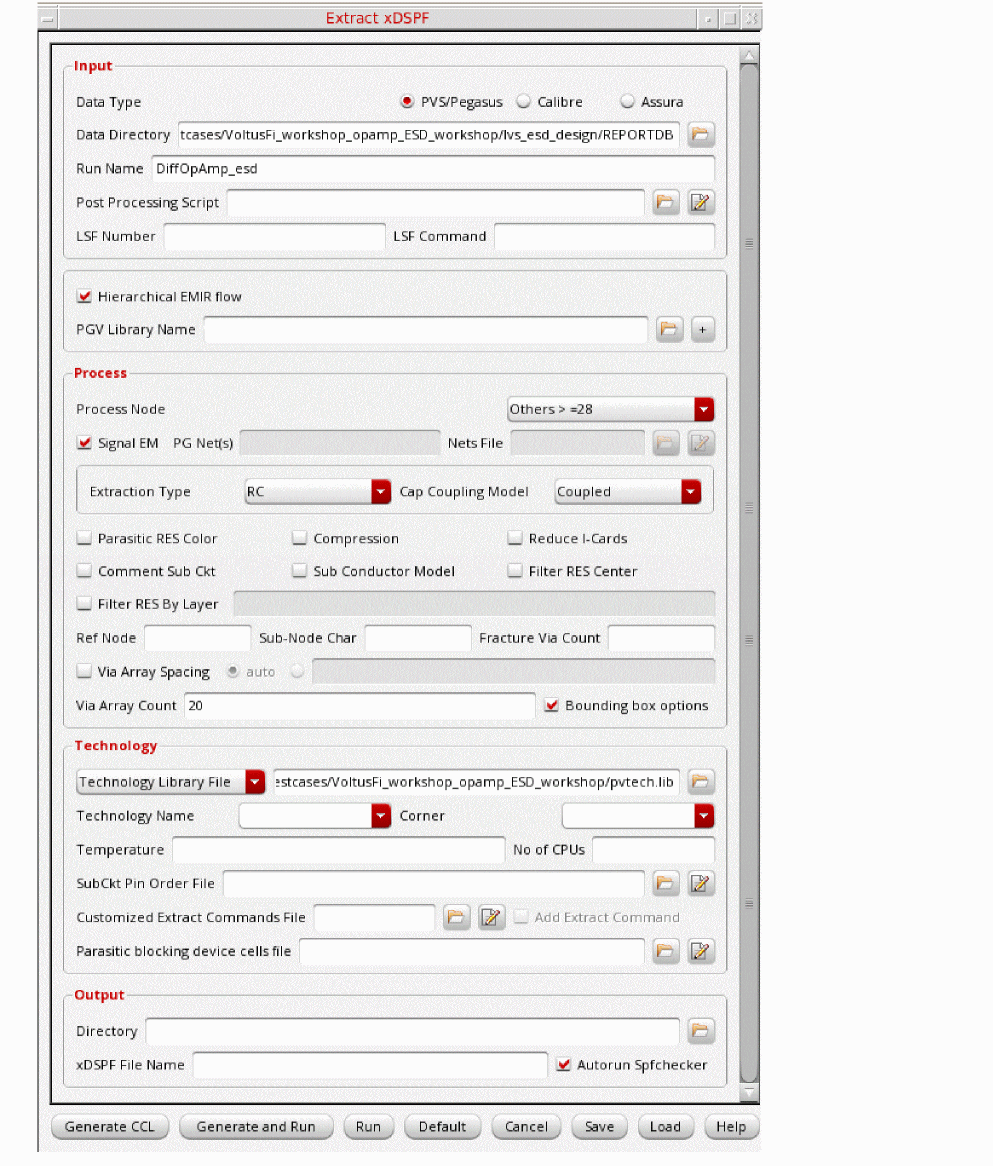
- Select one of the Data Type options: PVS/Pegasus, Calibre, or Assura.
- Specify the Data Directory.
- Specify the Run Name.
-
Specify values for Lib Name, Cell Name, and View Name.
These options are available only when Assura is selected as the data type. - Specify the Post Processing Script.
- Specify the Load Sharing Facility (LSF) options for a distributed run.
Specifying Process Node-Specific Information
- Select a Process Node.
- Select Signal EM if you want signal nets to be included in the xDSPF file.
-
Specify the power and ground nets in the PG Net(s) field.
You can specify a value here only when the Signal EM option is deselected. -
Specify the Nets File.
If the Nets File is specified, the Signal EM and PG Net(s) options are ignored. - Select an Extraction Type.
- Select a coupling mode in the Cap Coupling Model field.
- Select the following check boxes, if required: Parasitic RES Color, Compression, Reduce I-Cards, Comment Sub Ckt, Sub Conductor Model, and Filter RES Center.
- Select Filter RES By Layer if you want to specify the LVS layer name for which the minimum resistance value for the extracted parasitic resistors is to be applied.
- Specify the reference node in the Ref Node field.
- Specify the subnode identification character in the Sub-Node Char field.
- Specify the Fracture Via Count.
- Select Via Array Spacing and specify a value that will be used as the maximum distance criteria for grouping vias within the same array.
- Specify the Via Array Count.
Specifying Technology Data Information
- Specify either a Technology Library File or a Technology Directory.
- Specify the Technology Name and Corner if the Technology Library File is specified.
- Specify the Temperature at which the extraction will be performed.
- Specify the No of CPUs to be used during the Quantus extraction run.
- Specify the SubCkt Pin Order File.
- Specify the Customized Extract Commands File that contains user-defined commands. When you select Add Extract Command, the Voltus-Fi-generated extract commands override the user-defined extract commands.
- Specify the Parasitic blocking device cells file.
Specifying Output Information
- Specify the Directory in which the xDSPF file will be saved.
- Specify the xDSPF File Name.
- Select Autorun Spfchecker to automatically run the SPF Checker utility after the extraction run. This check box is selected by default.
After you specify the required values in the Input, Process, Technology, and Output group boxes of the form, click one of the following options to complete the task.
-
Click Generate CCL to create the common command language (CCL) file or the Quantus command file that will be used to run Quantus.
By default,vfiQuantus-<cellname>.cclis created and the file opens in the Voltus-Fi-XL console. You can view the file and modify it, if required. - Click Generate and Run to create the CCL file and run Quantus to create the xDSPF file in a single step. This is useful when you do not want to view the CCL file before running Quantus.
-
Click Run to select the CCL file to use for running Quantus. This is useful if you have modified the auto-generated CCL file.
The log is saved both in thevfiQuantus-<cellname>.logand in the Voltus-Fi-XL console.
Related Topics
- Extract xDSPF Form Description
- extract_xdspf (batch command)
- How to Generate xDSPF Using Quantus in Voltus-Fi (video)
- Customized Extract Commands File
- Voltus-Fi Quantus Log File
Extract xDSPF Form Description
Related Topic
Customized Extract Commands File
The customized extract commands file is a file in which you can specify extract commands as per your requirements. When this file is specified, the Voltus-Fi-generated common command language (CCL) file will not have any extract commands, and the commands from the customized extract commands file will be added in the Voltus-Fi-generated CCL file.
A sample customized extract commands file is as follows:
extract \
-selection "all" \
-type "rc_coupled"
extract \
-selection nets_file "file.txt" \
-type "none"
customextract file by using either single or multiple extract settings. Ensure that the commands are in the Quantus CCL file syntax because this file is added as is in the Voltus-Fi-generated CCL file.Related Topic
Voltus-Fi Quantus Log File
The Voltus-Fi Quantus log file (vfiQuantus-<cellname>.log) stores all the common command language (CCL) commands and the info, warning, and error messages issued by Voltus-Fi during the extraction run. This file is saved in the output directory that is specified in the Extract xDSPF form.
With every successive extraction run, the name of the log file is updated to vfiQuantus-<cellname>.log.(n-1). Here, n-1 is the run number. Therefore, the greater the numeric value in the filename, the more recent or latest that file is.
For example, after three extraction runs, the following log files are created:
-
vfiQuantus-<cellname>.log(log file for the first run) -
vfiQuantus-<cellname>.log.1(log file for the second run) -
vfiQuantus-<cellname>.log.2(log file for the latest run)
Related Topic
Voltus-Fi Extract xDSPF GUI Last File
The Voltus-Fi Extract xDSPF GUI last file (.vfiExtractDSPFGuiLast) is created by Voltus-Fi to save the settings of the Extract xDSPF form of the previous session. This file gets loaded automatically when the next session starts. If you do not want to load these settings, remove this file before starting the session. This file is created along with cds.lib.
The values specified in the .cdsinit file override the values of the .vfiExtractDSPFGuiLast file of the previous session.
Related Topic
Missing Number of Vias in Third-Party DSPF Files
The DSPF files are created using the parasitic extraction tools, and the content and format of these files are heavily dependent on the extraction tool and the extraction runset.
In the EM analysis flow, after you calculate the current density of a presistor, you can compare it with the current density limits from the qrcTechFile, the ICT file, or the emDataFile that you have provided in order to locate violations. The current density limit is width-based for the metal or diffusion layers and area-based for via layers. The value of $L or $W is used to select the current density limit for metal layers, and the value of $A is used to select the current density limit for via layers. In case of a via array, the total area of the via specified in the DSPF file is divided by the value of $N, which is the number of vias, in order to obtain the area of a single via, and the current density related to that area is selected from the technology file to check the EM violations.
You can view two examples below, one of a Quantus-extracted DSPF file and the other of a third-party-extracted DSPF file.
Rk173 AVSS#200 AVSS#201 0.020247 $metal1_conn $L=0.17 $W=0.54 $X=13.301 $Y=0.43
Rw174 AVSS#44 AVSS#45 0.250000 $Via1 $A=0.0098 $N=2 $X=18.545 $Y=16.18
Rg1 XR1#PLUS A#2 1.209331 $metal1 $L=0.56205 $W=0.1071 $X=5.582 $Y=0.13
Ro31 net06 net06#7 12.500000 $VIA1 $A=0.003969 $X=23.085 $Y=0.135
Information about the number of vias ($N) is missing in the third-party-extracted DSPF file example. The EMIR analysis performed using such files leads to erroneous results because the correct EM rules are not picked from the ICT file or the emDataFile.
As in the case of the example shown above, the resistance value, area, and coordinates of the via resistor are given, but the number of vias or $N is not mentioned. Without this information, Voltus-Fi fails to calculate the area of a single via and check the current density limit related to that via area.
Solution
To resolve the problem of missing number of vias or $N information in a third-party DSPF file, use one of the following options in batch mode:
-
Set the following variable in the
vfibatchcommand file before running theload_em_resultscommand:
Alternatively, include the following option in the EMIR control file before running simulation:set_variable viaCountFromResistance trueemirutil viaCountFromResistance=[true]Specifying theviaCountResistancevariable using theset_variablecommand will generate EM results (taking care of$N) during the batch mode run. Specifying theviaCountResistancevariable using theemirutilcommand will generate EM results (taking care of$N) in the report file *rpt_em,during Spectre simulation itself. The file,*rpt_emis created along with the simulation result file,*.emir#_binfile. -
Include the “
area_resistance” of vias in the ICT file. The format is as follows:area_resistance <r
esistance value 1> <area 1> <resistance value 2> <area 2> …. <resistance value N> <area N> -
Include the "
contact_resistance" of vias in the ICT file. The resistance of a single via is equal tocontact_resistance.
Voltus-Fi-XL calculates the number of vias (without $N) from the following:
- Resistance value of the via array resistor (from the DSPF)
-
Resistance value of a single via, which is equal to the
contact_resistance(from the ICT file)
OR
Resistance value of all vias, which is equal toarea_resistance(from the ICT file)
Return to top