
Setting the Assisted Placement Options in the Placement Options Form
To specify assisted placement options:
-
Select Place – Placement Options to display the Placement Options form.
The Assisted tab is displayed by default.
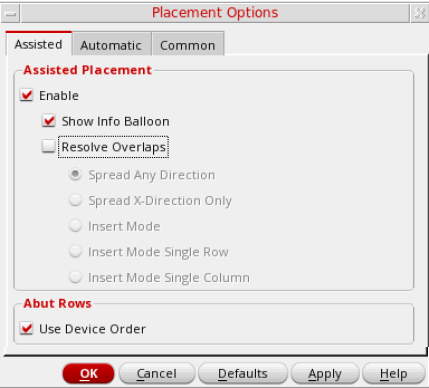
- Select Enable in the Assisted Placement section to specify that instances are to be snapped to the nearest rows instead of grids, as shown below:
-
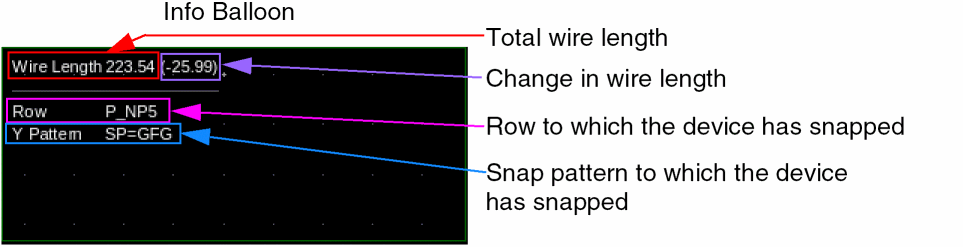
Select Show Info Balloon option to display an info balloon when instances are moved with Enable selected. An info balloon displays the following information:
- Select Resolve Overlaps to automatically resolve any overlaps resulting from moving devices in a design. An arrow indicates how the overlap is resolved if an instance is moved in a particular way. The device being moved is placed at the target location, and the overlapped device (at the target location) is moved to a new location.
- Select the mode for resolving overlaps.
- Select Use Device Order in the Abut Rows section to abut instances in the same order in which they are placed in each row.
Related Topics
Assisted Placement of Multiple Device Instances
Return to top