
Controlling the Visibility of Track Patterns
You can control the visibility of the track patterns in the canvas using the Track Pattern assistant.
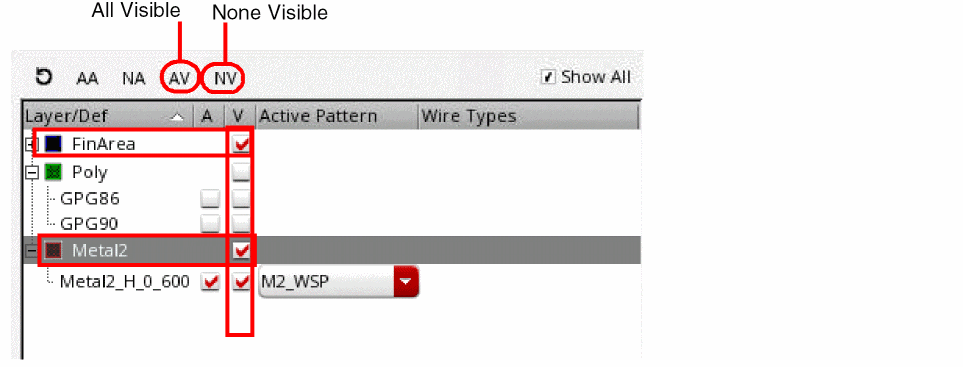
To show or hide the active pattern for an enabled WSSPDef:
To show or hide the active patterns for a layer:
To show all the active patterns for the global grid and regions in the canvas:
To hide all the patterns in the canvas:
To show or hide all active patterns in the canvas:
To show or hide none active the patterns in the canvas:
To reset all filters and turn off the visibility of patterns:
You can also control visibility of the track patterns from the Grids panel of the
Related Topics
Launching the Track Pattern Assistant
Track Pattern Assistant Toolbar
Return to top