
Creating a Step Trace
With the Net Tracer, you can simultaneously create a physical trace for the entire island, or choose to gradually build up the trace by generating the trace for a small set of shapes at a time. When you choose to gradually build up the trace, the trace that you generate is called a Step trace. Step tracing allows you to generate and evaluate the trace step-wise, helping verify that the nets that the trace runs through are well-connected.
The shape that you select for tracing defines the start point for the trace. Depending on the number of shapes to be traced in a design, the number of steps needed to complete a trace varies for each trace.
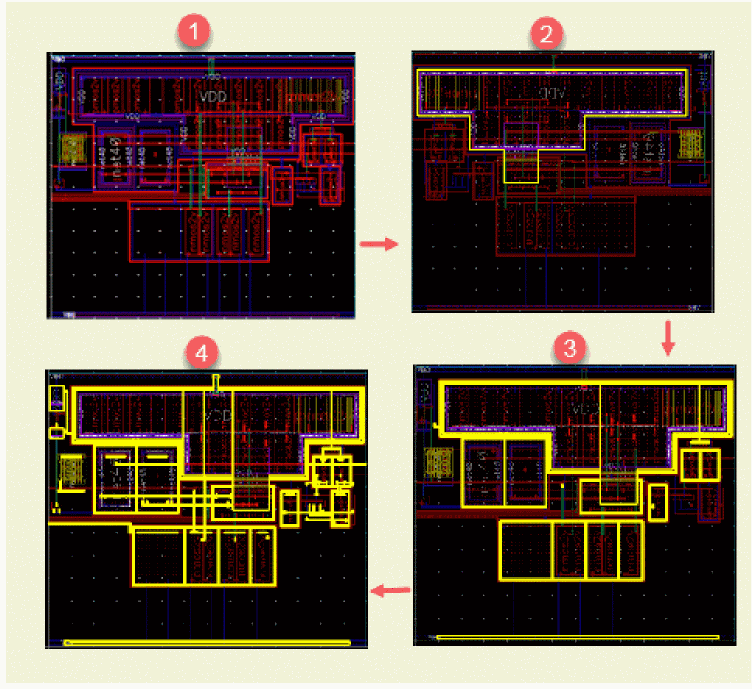
The figure below illustrates how a Step trace progressively chases the shapes in the design, tracing a set of shapes at each step.
The Net Tracer toolbar provides additional controls, as displayed in the figure below, to help you traverse back and forth along a Step trace.

The Step No value indicates the current step number and it applies uniformly to all the traces generated. For example, if the Step No value is set to 5, all the traces are currently set to step 5and the layout canvas displays the trace in accordance with the specified step value. If you are generating two traces with total steps of 15 and 10 each, the trace that is 10-steps long will need only five more steps to reach the finish point. The 15-step long trace, on the other hand, will need 10 more steps to reach the finish.
Use the Prev Step and Next Step arrow buttons ( ) on the toolbar to go back and forth along the trace. The canvas displays the trace in accordance with the currently selected step value in the Step No field.
Use the Continue arrow button ( ) to display the entire trace in one go. However, unlike the regular trace, the generated trace being a Step trace, you can use the step navigation buttons to traverse back and forth along the step trace.
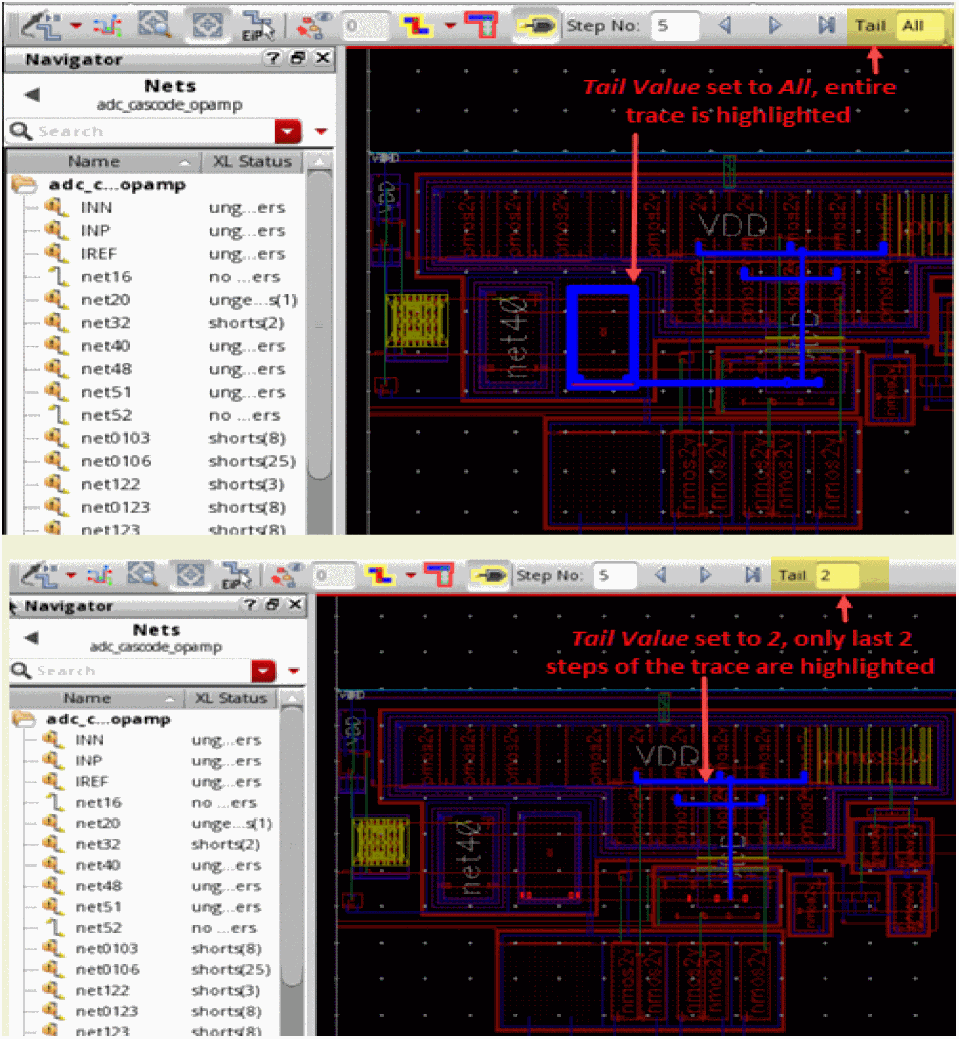
Use the Tail Value to choose what part of the generated trace is highlighted on the canvas. Choose All to highlight the entire trace. Use a numerical value to specify the number of steps to be highlighted on the canvas, starting from the last step.
Shapes of the step traces are visible according to the values set in the Tail and Current Step fields.
Preview always behaves as if Tail is set to All, which means that all the shapes are always visible up to the Current Step value.
The figure below illustrates how the display of a trace on the canvas varies based on the specified Tail Value.
- In the Net Tracer toolbar, click the Add/Remove trace drop-down arrow and choose Add/Remove step trace.
- In the layout canvas, click a shape to start tracing the net.
Depending on the shape that you click and the Step tracing option you select, a trace is generated in the layout covering the set of shapes that are chased in the first traversal. The trace can be progressed by clicking the associated Prev Step and Next Step buttons.
Related Topics
Return to top