
Loading Soft Block Parameters from Another Cellview
The Initialize Soft Block Parameters Using Physical View command imports soft block parameters from an existing layout cellview.
This command uses the same functionality as the Load Physical View command.
To load predefined soft block parameters from another cellview:
- Select a component in the Instances table.
-
Right-click the instance and choose Initialize Soft Block Parameters Using Physical View.
The Block Parameters using Physical View dialog is displayed.
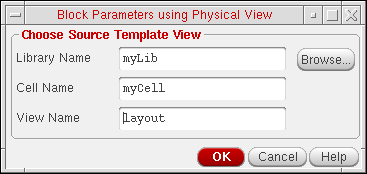
-
Type in the name of the layout cellview that contains the information you want to import and click OK.
The Attributes pane is updated with the settings from the specified cellview. - Edit the parameters as required. For more information, see
-
Click Save Soft Block in the Attributes pane to save the soft block parameters you specified.
The Attributes pane is disabled and the Instances table re-enabled. - Repeat steps 1-5 for all the soft blocks you want to define in this way.
- From the Configure Physical Hierarchy menu bar, choose File – Save Floorplan File to save all your settings to a floorplan file for later re-use.
Related Topics
Saving and Loading Soft Block Parameters to a Floorplan File
Soft Block Mode in the CPH Window
Return to top