
Flattening a Layout Instance
To flatten an existing layout instance:
-
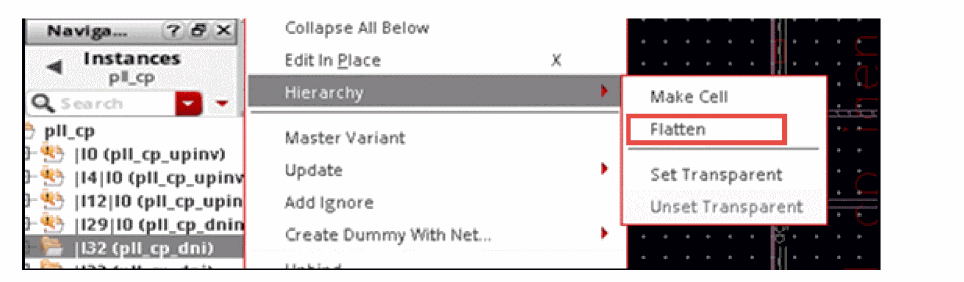
In the Navigator assistant or canvas, right-click the instance to be flattened and choose the Hierarchy – Flatten command.
- Alternatively, you can use the Edit – Hierarchy – Flatten command.
-
When used in Layout XL, the Flatten command provides some additional features that are useful in improving the XL compliance of the design.
-
Choose the appropriate flattening options and click OK.
-
(Optional) Choose the flattening options, as required.
If you enable the Preserve Pins option on the Flatten form, the pin labels might get flattened, if the figure is a pinFig. By default, labels are not flattened.
For information about the various flattening options, see Flatten Form in the Virtuoso Layout Suite XL: Basic Editing User Guide. -
Click OK.
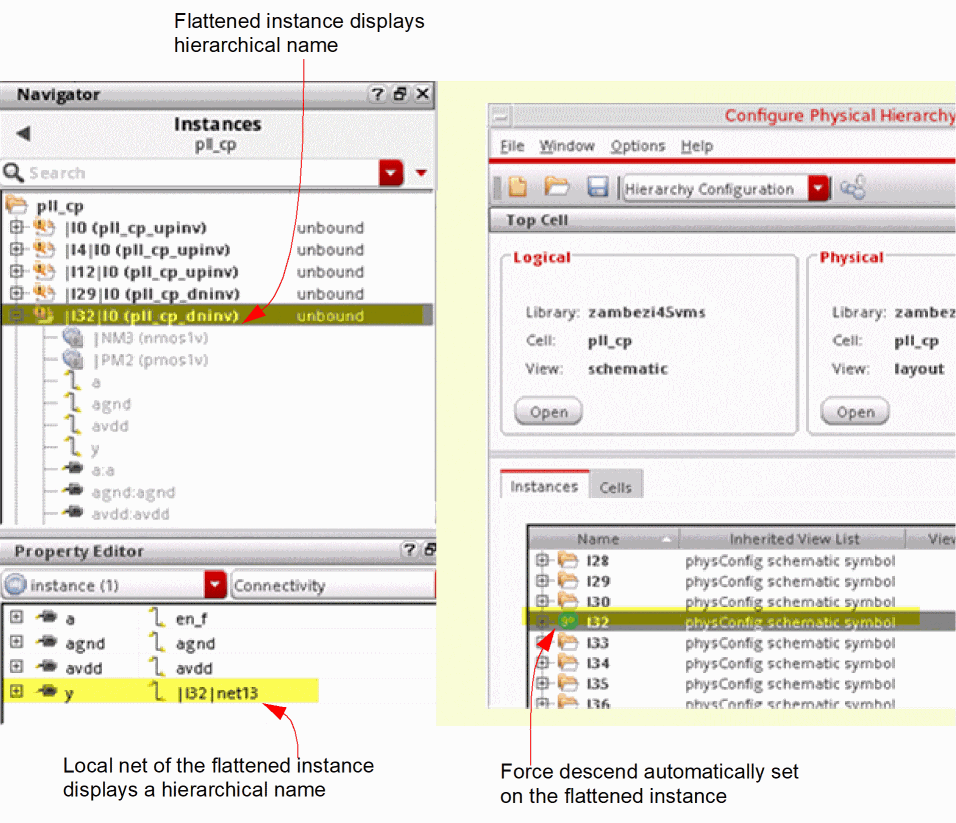
The selected instance is flattened and displays a hierarchical name in the Navigator assistant. The nets local to the flattened instance also display a hierarchical name, as displayed. The CPH window displays a force descend on the flattened instance.
Related Topics
Hierarchy Manipulation. Staying XL connectivity compliant when using Flatten, Make Cell and Transparent Instances (RAK)
Return to top