
Zooming In on Markers
To zoom in on specific markers in the layout canvas:
- In the Annotation Browser assistant, select the markers you are interested in.
-
Click the Zoom To Selected button in the Annotation Browser toolbar.
The canvas display zooms to the flight lines for the selected nets, as shown in the figure below.
The level of detail you see depends on how many nets are selected and their relative locations in the design.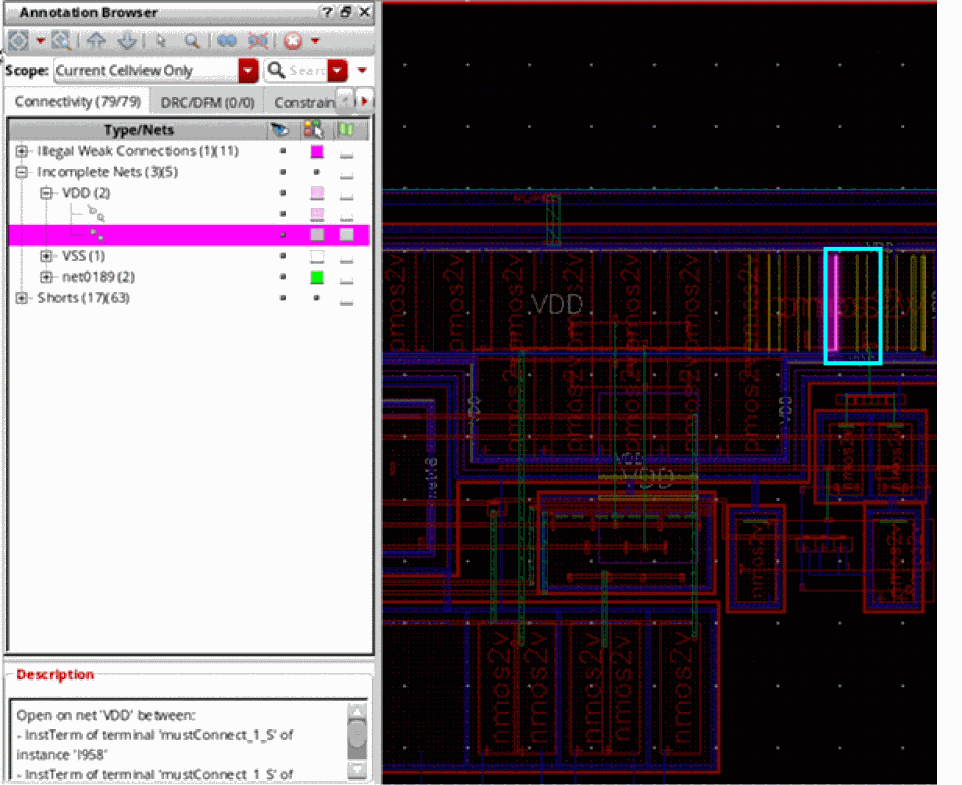
To zoom in on a specific marker in the layout canvas:
-
Double-click the marker in the Annotation Browser assistant.
The display automatically zooms and pans to the marker representing the currently selected entry in the Annotation Browser, as shown in the figure below.
When the selection changes, the display updates accordingly.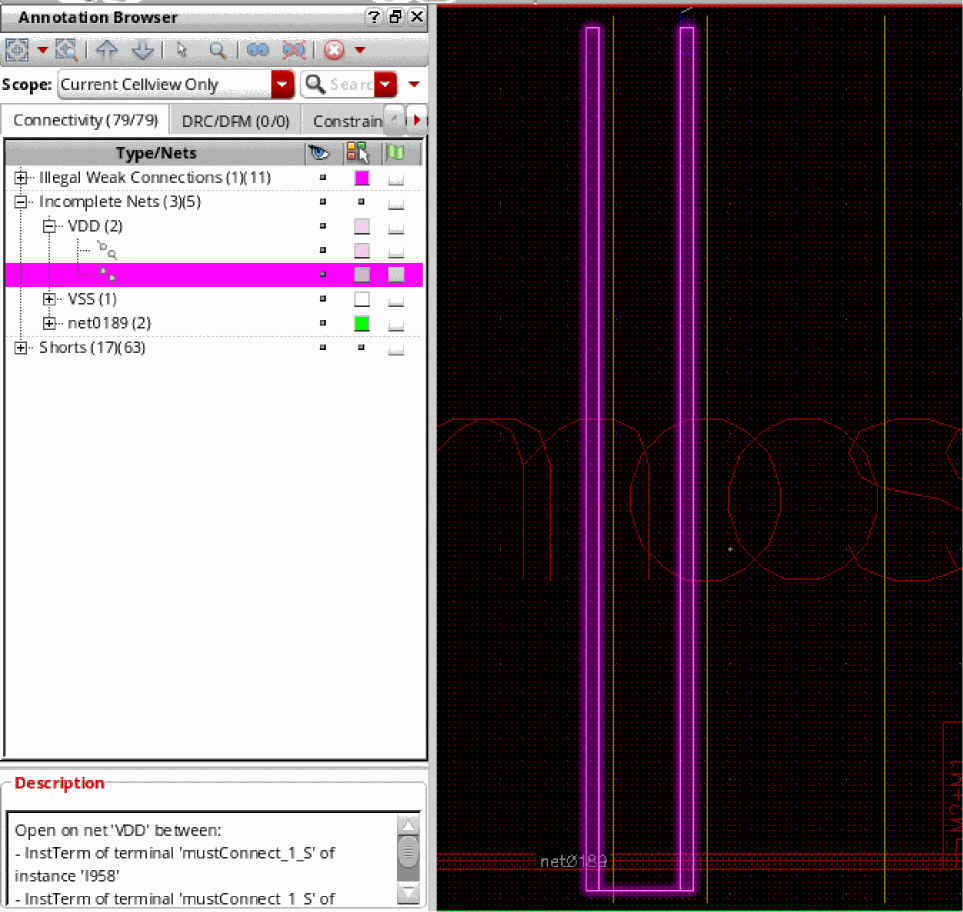
To automatically zoom in on the canvas representation of the currently selected marker:
-
Click the Auto Zoom button in the Annotation Browser assistant toolbar.
The display automatically zooms and pans to the marker representing the currently selected entry in the Annotation Browser. When the selection changes, the display updates accordingly.
Related Topics
Annotation Browser Options Form
Annotation Browser Shortcut Menus
Grouping Markers in the Annotation Browser
Sorting Markers in the Annotation Browser
Filtering Markers in the Annotation Browser
Return to top