
Creating, Loading, and Modifying a Source Cellview
- Use the Virtuoso Layout Suite graphical user interface or the public SKILL Function to create a cellview.
- Save the cellview by doing one of the following.
To load information from the source cellview into a target cellview:
-
From the layout window menu bar, choose File – Load Physical View.
The Load Physical View form is displayed.
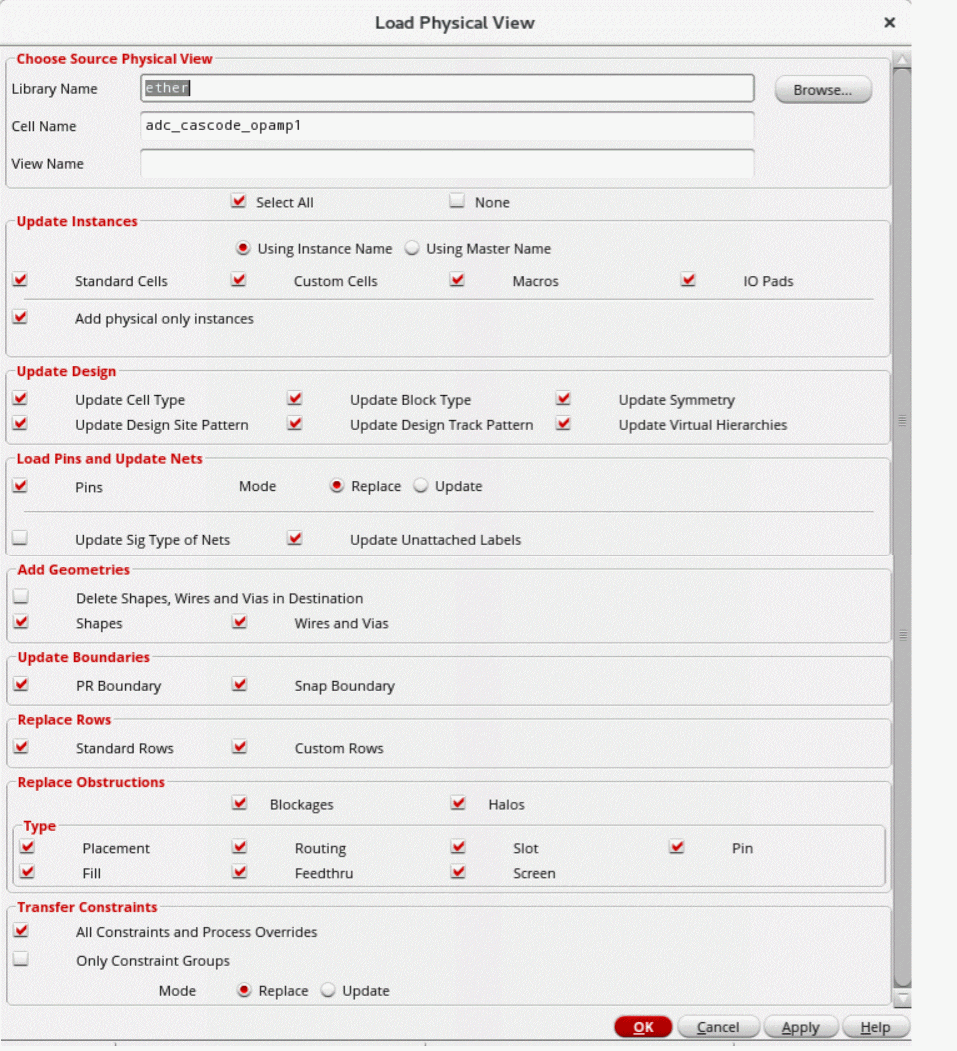
- Specify the library, cell, and view names of the source cellview in the fields provided.
- Select a mapping file that defines instance mapping and layer mapping between the source and target cellviews.
-
Select the object information you want to copy into the target cellview by selecting relevant check boxes in each section.
To select everything, check Select All. To deselect everything, check None.
Choosing Add Geometries or Transfer Constraints requires four Layout GXL tokens.
If you choose to load a particular category, all the objects in that category are updated. For example, if you choose to update Standard Cells, then all the standard cells in the source cellview are updated to the target cellview. To copy only some cells, open both cellviews and use the Copy and Paste commands instead. -
Click OK to copy the selected object information from the source cellview into the target cellview.
The target cellview is updated accordingly.
Loading Soft Block Parameters from a Source Cellview
When using the Configure Physical Hierarchy window to define soft block parameters, you can use the Initialize Soft Block Parameters Using Physical View command, to import soft block parameters from an existing layout cellview.
This command uses the same functionality as the Load Physical View command described in the previous section.
Modifying a Source Cellview
You can modify a source cellview in the same way as you would any other cellview.
- Load the cellview into the appropriate Virtuoso Layout Suite application and use the graphical user interface to edit the cellview as required and save, or
- Use the publicly available SKILL commands to edit the cellview as required.
Related Topics
Specifications for Loading Cellview Information from Source to Target Cellview
Loading Soft Block Parameters from Another Cellview
Return to top