
Editing a Clone in a Synchronized Family
Because synchronous clones are implemented using groups, you cannot edit the components in the clone from the top level of your design. To edit a synchronous clone, you must use the Edit In Place command.
If you make a change to the physical topology of one member of a synchronized family, that change is propagated to all the other clones in the family.
To edit a member of a synchronized family:
-
From the layout window menu bar, choose Edit – Hierarchy – Edit In Place and select the clone you want to edit.
Alternatively, in the layout window, select the clone you want to edit and choose the Edit – Hierarchy – Edit In Place command.
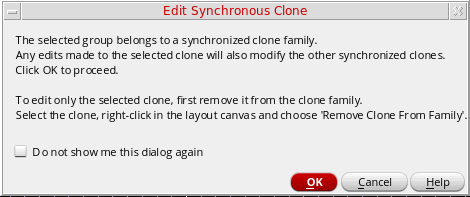
The Edit Synchronous Clone dialog box pops up, warning that the clone you are about to edit is a member of a synchronized family.
-
Click OK to proceed with editing the entire clone family.
If you want to edit only the selected clone, first remove the clone from the clone family.
You can also choose not to see this dialog again. -
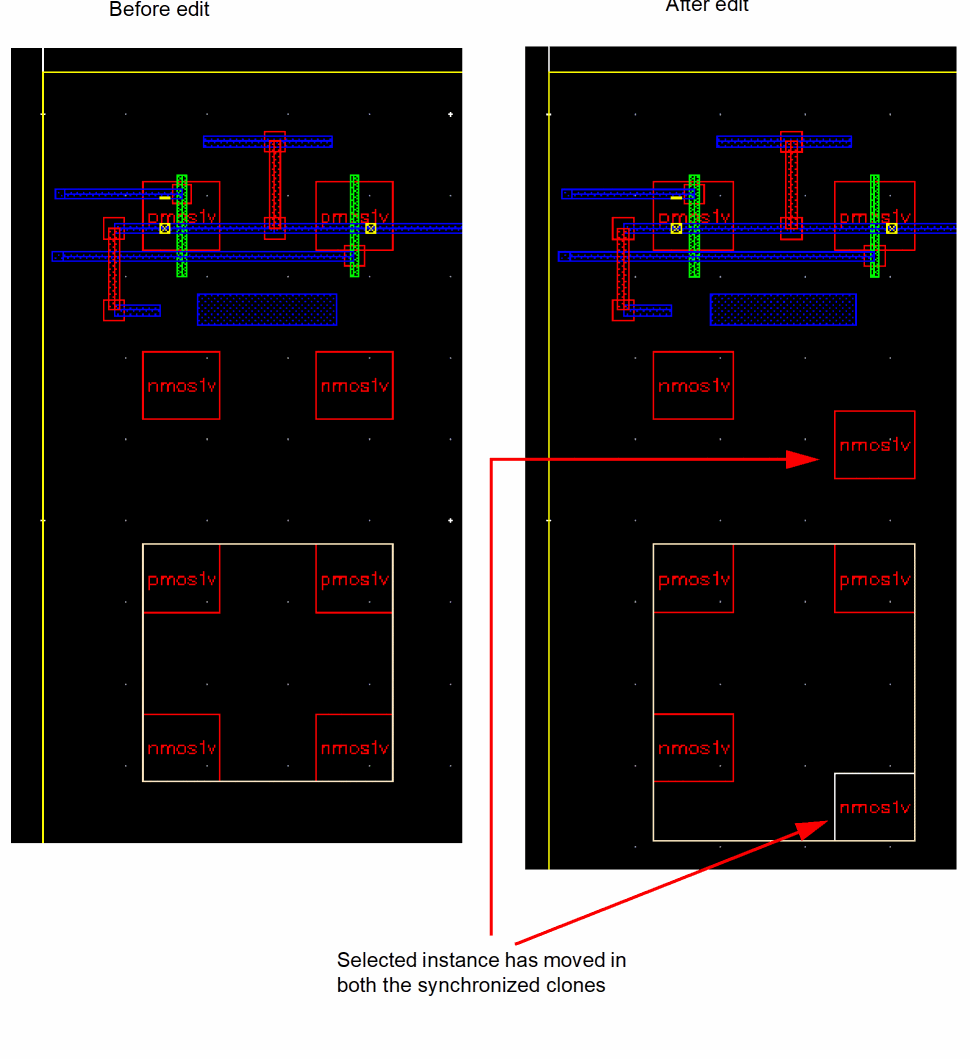
The layout window is displayed. Select one of the instances in the clone you are editing, and choose an appropriate Edit command, such as Move.
The corresponding instance is moved in each of the other clones in the synchronized family, as shown in the figure below.
- From the layout window menu bar, choose Edit – Hierarchy – Return to exit the Edit In Place mode.
Related Topics
Return to top