
Application Readiness Checker Form
Use the Application Readiness Checker form to run the application readiness check and updates for the specified applications.
Application Readiness Checker improves the process of checking and updating the layout from the schematic and provides a one-to-one correspondence between the checks and updates. You can choose the checks you want for different applications. You can also extend the checks by registering SKILL-based check and update tests. The custom functions can return markers that can be annotated and displayed in Annotation Browser. The messages in the markers are included in the Application Readiness Checker report.
For LVS-complete designs, the tool automatically updates the schematic and layout correspondence to the best match before running the checks and updates.
| Field | Description |
|---|---|
|
Name of the target library or layout cellview to check and update. |
|
 |
Opens the Save Preset form that lets you save the Application Readiness Checker form data in a file at the specified path. |
 |
Opens the Load Preset form that lets you load the file that has the Application Readiness Checker form data saved. |
|
This section lists the applications to check and update. You can choose to only check or check and update. |
|
|
Name of the application to check and update. Schematic v layout check is selected by default.
Environment variable: |
|
|
Specifies whether to check the specified application. Supported applications: Design Planner, Electrical Aware Design, Innovus, RF Solution, Schematic vs Layout, Voltage Dependent Rules. The default in Schematic vs Layout. |
|
|
Specifies whether to update the specified application. Supported applications: Design Planner, Electrical Aware Design, Innovus, RF Solution, Schematic vs Layout, Voltage Dependent Rules. The default in Schematic vs Layout.
Environment variable: |
|
|
Specifies the type of binding to perform during update.
Environment variable: |
|
|
Specifies the type of rebinding and layout update to perform.
Environment variable: |
|
|
Specifies the path to the instance cross-reference file (
If the LVS instance cross-reference file is specified, the binder uses the specified file to improve the bindings across the schematic and the layout. If any mismatched instances are encountered while parsing the
Environment variable: |
|
|
Specifies the path to the LVS |
|
|
Specifies the input scale. The rules file input_scale is required only if input_scale is different from the layout DBUPerUU. The input_scale value can be found in the
Environment variable: |
|
|
Specifies whether the layout needs to be extracted. This option is deselected by default.
Environment variable: |
|
|
This section lets you specify the scope of the check and update operation. |
|
|
Specifies the scope of the check and update operation.
|
|
|
Runs the checks and performs an updates on layout cells without a schematic connectivity reference. This option is deselected by default.
Environment variable: |
|
|
List of cells to be excluded when the All cells in design or All cells in library option is specified.
Environment variable: |
|
|
List of cells to be included when the All cells in design or All cells in library option is specified.
Environment variable: |
|
|
List of cells to be treated as leaf cells. Only the terminals of leaf cells are checked when the All cells in design or All cells in library option is specified.
Environment variable: |
|
|
List of messages to be filtered from the check and update report.
Environment variable: |
|
|
Specifies whether to open the CAS workspace. This option is selected by default.
Environment variable: |
|
|
Specifies whether to create an HTML report. This option is selected by default.
Environment variable: |
|
|
Specifies whether to open the HTML report in the default browser or to issue the messages in the CIW. This option is deselected by default.
Environment variable: |
|
|
Specifies whether to save the report to a text log file. This option is deselected by default.
Environment variable: |
|
|
Specifies a directory for the log file.
Environment variable: |
|
 |
Expands the Application Readiness Checker form to display the Check and Update pane. |
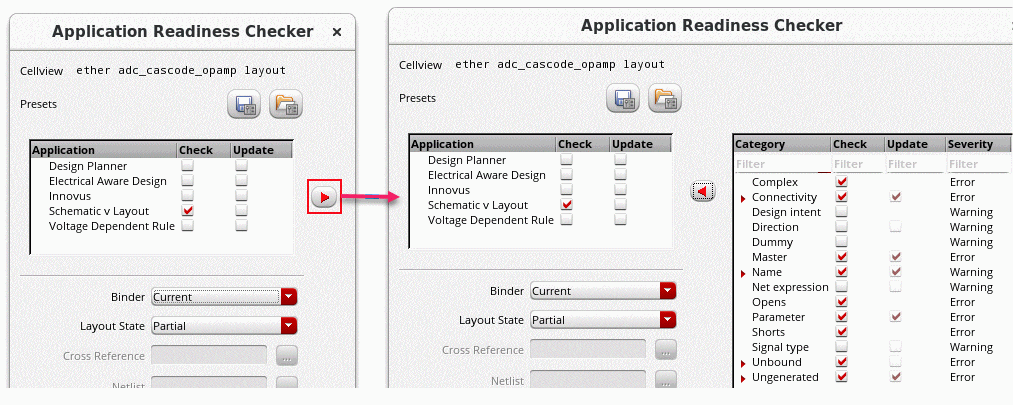 |
|
|
Specifies the criteria to filter the information for Category, Check, Update, and Severity columns. You can filter by typing in the text box of the respective column. You can use the right click shortcut menu to specify the criteria for filtering. For example, you can choose to filter All Of The Words, Any Of The Words, The Exact Phrase, or None Of The Words. The following image shows all the options available to specify the criteria for filtering. |
|
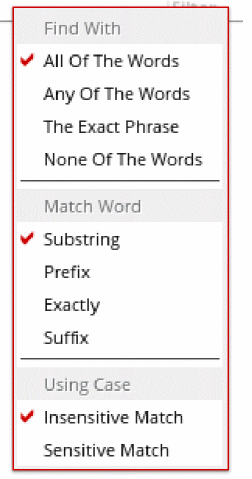 This option retains the history of your settings, which means that the filtering criteria you specify is retained next time you open the Application Readiness Checker form. |
|
|
Specifies the focus areas of the design that need to be checked and updated for the selected application. Right-click in this column for the following options: The following checks can be run when Schematic v Layout is selected:
|
|
|
|
|
Specifies whether to run the selected check on the application. |
|
|
Specifies the severity level of any messages generated by the check. |
|
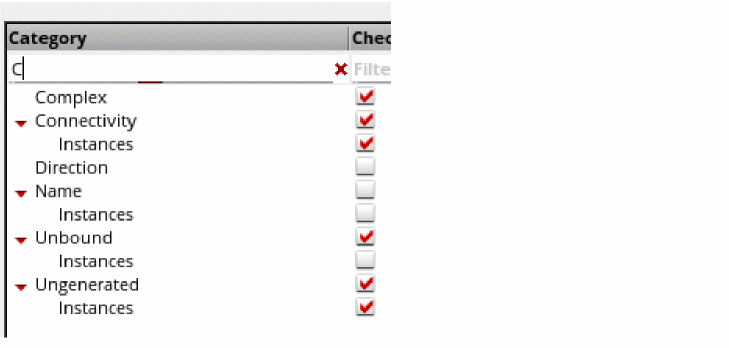
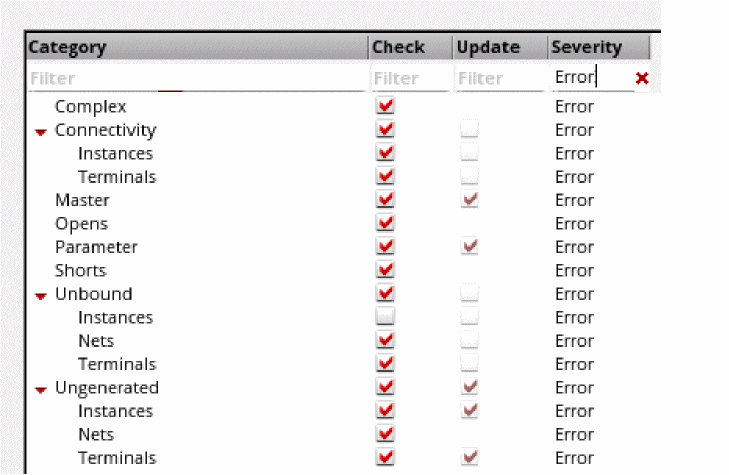
Related Topics
Return to top